KOINOS PLS 8User's Manual
Version 0.6 (Draft)English
Why This Exists#
There is a ritual most guitarists know. Soundcheck is running short, one preset needs one small change, and out comes the laptop — balanced on top of the amp, editor software loading while the band waits. We have carried touchscreens in our pockets for twenty years. Our switchers never noticed.
The audio path of this unit stands on older shoulders. Bob Bradshaw’s Custom Audio Electronics defined professional guitar routing in the 1980s; RJM carried that standard forward, and their systems earned the trust of players I admire. I set out to learn that sound, not to beat it. Some of the units that taught me are older than the players using them — still on tour, still earning their rack space. I wanted to build something that could keep that kind of company.
What I chose not to inherit is the place where decisions happen. On Koinos PLS 8, setup lives on a color touch display, on the unit itself — at rehearsal, or mid-show if it comes to that. No laptop required. Even the input impedance is yours to decide: the 500 kΩ that the classic rack systems still hold to, or 1 MΩ if your pickups want more air. You pick it on screen.
Firmware is my trade, so that part of this project moved quickly. I had built circuit boards back in university. The analog sound path was another matter. I studied a PBC-6X with a multimeter, probe point by probe point, with no schematic to lean on — long evenings at a one-man workbench in Busan, South Korea. Six months in, the first board came back from the factory. I wired it up, plugged in a guitar, and there it was: clean and clear, the sound I had been chasing. I still remember that evening.
I wanted to make something people would love for a long time, and that wish set the bar for every detail that followed. It is also why this manual tells you what the unit cannot do alongside what it can. The name on the panel holds us to honesty.
For about a year this was my problem. From today it is your pedalboard. If it helps you play with more freedom — if it raises the value of the music you already make — then it did its job. Play well.
the way, the truth, and the life
Daniel Moon
Founder & Engineer, Judahs
Busan, South Korea
Quick Start#
From the box to your first preset, in seven steps:
- Wire the essentials. Guitar → Guitar In (Jack 1, top socket). Out L (Jack 11, top socket) → amplifier input. Put your mono pedals in Loops 1–5 and stereo pedals in Loops 6–8. Each loop is a stacked pair of sockets: the top one is the Send (to the pedal’s input), the bottom one is the Return (from the pedal’s output). Full wiring options: Chapter 4.
- Power on. Connect the power adapter (9 V DC, center negative) and switch the unit on. After the boot screen, the Main Page appears, with Bank 1 loaded.
- Play a preset. Press any of footswitches A–E and that switch’s preset fires — its loops route in, and the loop chain strip on screen lights up to show the signal path. Press a different switch to change presets.
- Shape your first preset. With a preset active, tap a block in the loop chain strip to turn that loop on or off — you are editing the active preset live, and you’ll hear the change immediately. A modified badge appears; press SAVE to store the result into the preset. (Leave without saving to discard.)
- Change the pedal order. Long-press a chain block, then tap another block — the two loops swap places in the signal path. Press SAVE to keep the new order for this preset (§9.4.2 Reordering the Chain).
- Move around. Combination presses C+D / D+E step Bank Down / Bank Up. Hold G for the tuner (silent or pass-through tuning — §10.2 Tuner). Hold F for Manual Mode — every switch becomes a direct loop toggle, like a classic pedalboard.
- Name things. Register your pedals in Pedal Manager (Chapter 11) so chain blocks show pedal names instead of loop numbers, and name your switches in Switch Presets (Chapter 9).
From here, Chapter 9 is where the deep programming lives — MIDI messages, Tap/Hold actions, expression control.
Part I
Getting Started#
Chapter 1
Introduction#
1.1Welcome#
Thank you for choosing the Koinos PLS 8 (Programmable Loop Switcher) by Judahs.
Koinos PLS 8 is an audio loop switcher and a MIDI foot controller in a single unit. What sets it apart:
- A routing matrix instead of fixed wiring. Conventional loop switchers hard-wire your pedals in one order. Koinos PLS 8 routes audio through a crosspoint matrix, so any loop can sit at any position in the signal chain, and the order can change per preset — no re-patching required.
- A wide touch display. The 8.88-inch (1920 × 480) IPS touch screen shows your banks, presets, loop chain and MIDI activity while you play, and doubles as the on-board editor. Everything in this manual can be configured directly on the unit. A desktop editor (Judahs Studio) is also available.
- Built-in device control. Two USB host ports drive USB-MIDI devices or IK Multimedia ToneX One units. Bluetooth page turning, wireless MIDI (AirMIDI), TRS MIDI, amp-switching relays and expression pedal control need no extra hardware.
1.2About This Manual#
- Part I introduces the hardware, the audio concepts, and everything you do while playing.
- Part II covers all functions and settings. Its chapters follow the device’s Settings menu — and the Judahs Studio tabs — in the same order and under the same names, so you can find any topic by the name you see on screen.
- Part III covers the desktop companion app and firmware updates.
- Part IV contains reference tables.
Button and switch names are printed in bold. On-screen pages are referred to by their title, e.g. the Main Page.
Chapter 2
Part Names#
2.1Top Panel#
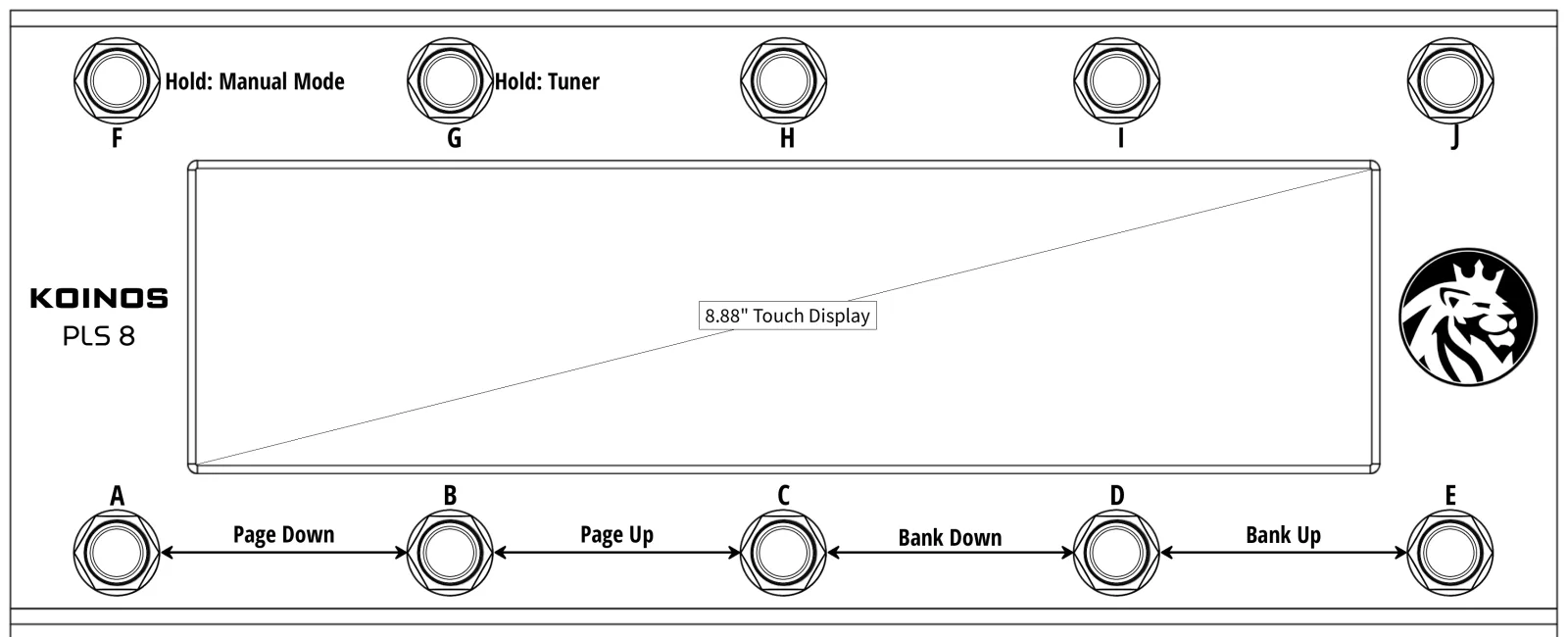
- Footswitches A–J — ten assignable footswitches. Each has a Tap action and a Hold action (see Chapter 9).
- Combination presses — pressing two adjacent switches together acts as an additional virtual switch (8 combinations; see §9.1 The 20-Switch Model).
- Touch display — shows the current bank, switch names/colors, the loop chain, tempo and status badges. Almost every setting in this manual is edited here.
2.2Rear Panel#
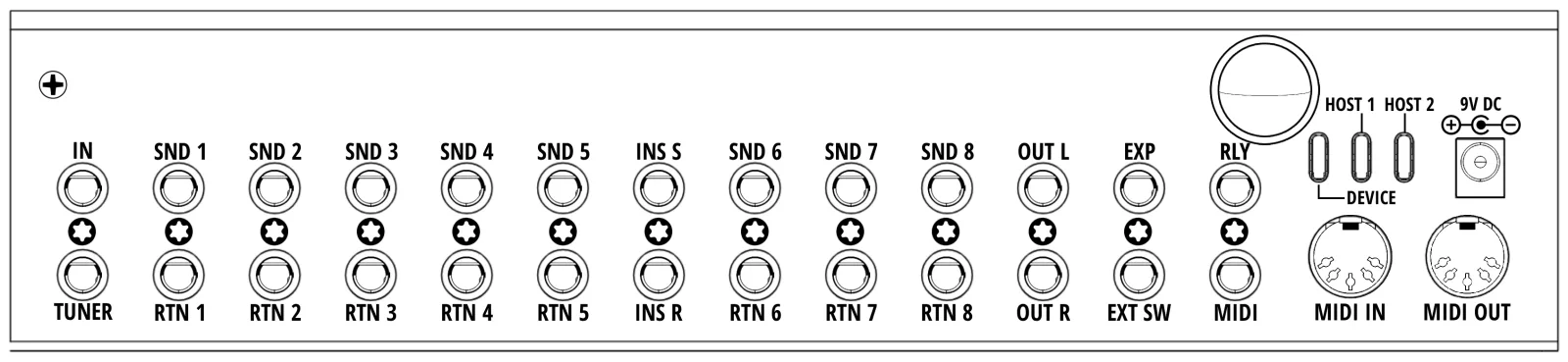
Every jack position on the rear panel is a stacked pair: two separate ¼” TRS sockets, one above the other. Each socket has its own tip, ring and sleeve. The list below names the top and bottom socket of each pair (full pinout: Appendix B):
- IN / TUNER (Jack 1) — Top = guitar input. Bottom = Aux In or Tuner Out, selectable in Audio (§10.2 Tuner).
- SND 1–5 / RTN 1–5 (Jacks 2–6) — Top = Send, Bottom = Return. Mono loops. A loop with nothing plugged into its Return passes the signal straight through, so an empty loop never breaks the chain.
- INS S / INS R (Jack 7) — stereo-capable Insert loop. Top = Send, Bottom = Return; in stereo mode each socket carries L on the tip and R on the ring.
- SND 6–8 / RTN 6–8 (Jacks 8–10) — stereo-capable loops, wired like the Insert loop. Each can run as one mono loop, one stereo loop, or two separate mono loops (§3.3 Stereo Modes).
- OUT L / OUT R (Jack 11) — Top = Out L, Bottom = Out R. Leave Out R empty and the right channel is summed into Out L, so a mono rig needs one cable in the top socket only.
- EXP / EXT SW (Jack 12) — Top = expression pedal (TRS). Bottom = external switches: tip = Ext-A, ring = Ext-B (Chapters 13 and 14).
- RLY / MIDI (Jack 13) — Top = relay control out (tip and ring are the two contacts). Bottom = TRS MIDI out (Chapter 13).
- Antenna — the round connector to the right of the jacks. Fit the supplied antenna here: Bluetooth, Wi-Fi and AirMIDI (Chapter 16) all work through it, and range suffers without it. The depth in Appendix A is measured with the antenna off.
USB Device and USB Host. The rear panel carries two kinds of USB port, and they point in opposite directions. The two USB Host ports are where Koinos PLS 8 controls other gear — plug a ToneX One or a USB-MIDI device in here. The single USB Device port works the other way around: here Koinos PLS 8 becomes the connected device — plug this one into your computer, for Judahs Studio (Chapter 17), firmware updates (Chapter 18), or to use the unit as a USB-MIDI controller in your DAW. A computer goes in the Device port, never a Host port — and a pedal the other way around.
Power your USB devices separately. A USB Host port provides only a small amount of bus power, well under what a connected device needs to run. Connect each USB-MIDI device and each ToneX One to its own power supply before plugging it into a Host port. A device left to run on bus power alone may fail to be recognized, or may lose its connection while you play.
USB hubs are not supported. Each Host port addresses one device, so the two ports hold two devices in total. Connecting a hub — bus-powered or self-powered — leaves the hub and everything behind it unrecognized. If you need to control more devices than that, use MIDI DIN OUT or TRS MIDI OUT for the rest (Chapter 13).
2.3The Main Page at a Glance#
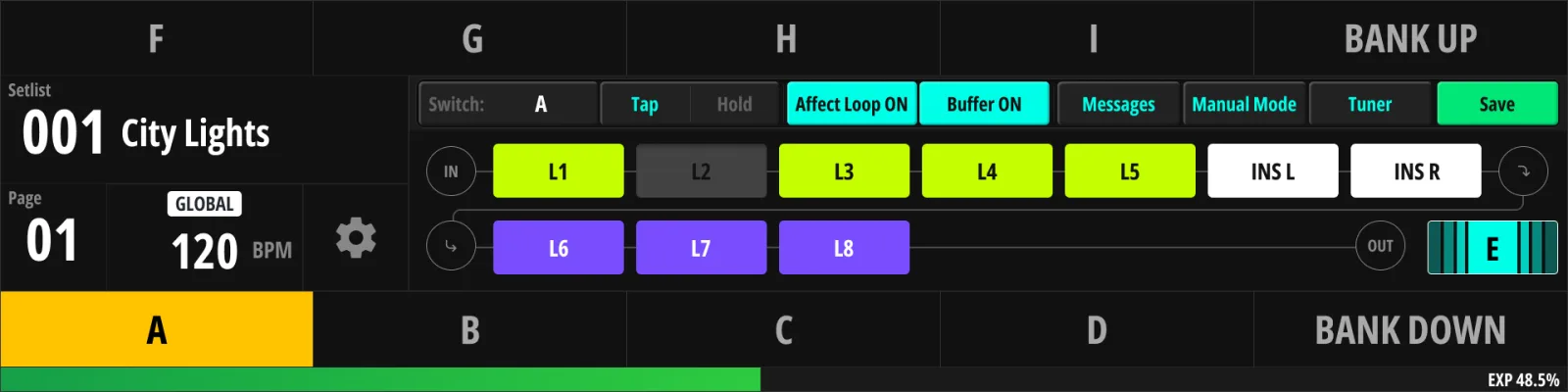
The Main Page mirrors the physical switch layout: each on-screen label shows the switch’s name and color, so you always know what your feet are about to do. The loop chain strip across the page shows your pedals in signal order — left to right = input to output — with active loops highlighted. A full guide to reading this screen is in §5.1 Reading the Main Page.
Chapter 3
Audio & Switching Concepts#
Read this chapter before wiring your board — Koinos PLS 8 behaves differently from a conventional serial loop switcher, and a few concepts (matrix routing, stereo modes, buffer/fuzz behavior) affect how you should plug things in.
3.1The Routing Matrix#
In a traditional switcher, Loop 1 is always in front of Loop 2. Koinos PLS 8 instead routes audio through a crosspoint matrix: every loop’s send and return can connect to any point in the chain.
- The loop chain (the order of your pedals) is drawn on the Main Page and can be re-arranged by long-pressing a chain slot (§9.4.2 Reordering the Chain).
- The chain order can be stored per preset — your solo preset can run Drive → Delay while your rhythm preset runs Delay → Drive, using the same physical pedals.
- A global default order exists in Audio (§10.4 Loop Chain); presets that don’t override the order follow it.
When every loop is off, the guitar signal passes directly from input to output.
3.2Loops 1–5, 6–8 and Insert#
- Loops 1–5 (mono) — for standard mono pedals: drives, fuzz, compressors, wah.
- Loops 6–8 (stereo-capable) — for stereo effects: modulation, delay, reverb. Also usable as two independent mono loops (SPLIT) or plain mono (MONO).
- Insert loop (stereo-capable) — an additional loop, ideal for a volume pedal or an always-in-line device, or for your amp’s preamp in a 4CM rig (§4.4 4CM (Four-Cable Method)).
Splitting Loops 6–8 gives up to 11 mono loops. With the Insert loop split as well, the chain holds up to 13 positions.
3.3Stereo Modes#
Each stereo-capable loop (Insert, Loop 6–8) has three independent switches in Audio (§10.4 Loop Chain):
| Switch | Behavior when on |
|---|---|
| Stereo Send | The loop’s Send socket carries L on the tip and R on the ring (TRS Y-cable to two pedal inputs) |
| Stereo Return | The loop’s Return socket accepts L on the tip and R on the ring |
| Split Loop | The L and R sides act as two separate mono loops |
All three off = plain mono, exactly like Loops 1–5. Because Send and Return are set independently, asymmetric pedals work naturally — e.g. a mono-in/stereo-out reverb uses mono Send + Stereo Return. Turning Split Loop on greys out the two stereo switches and the Trail switch for that loop: a split loop is always two mono paths, and Trail needs the loop whole (§3.6 Trails).
The point where the signal becomes stereo determines everything downstream: once a stereo return is engaged, the rest of the chain and the outputs run stereo. With all-mono routing, Out L carries the mono signal.
Where mono and stereo meet in the chain, Koinos PLS 8 follows the same rules as RJM systems:
- Mono into a stereo loop — the mono signal feeds both the L and R inputs of the stereo pedal.
- Stereo into a mono loop — the chain collapses back to mono at that point: the L side carries on, the R side is dropped. Keep your mono loops in front of the stereo section unless you want exactly that.
3.4Input Buffer#
Koinos PLS 8 includes a switchable input buffer that preserves your high frequencies when driving long cable runs and many loops.
- You can switch the buffer on or off, and pick its input impedance, in Audio (§10.1 Buffer).
- The built-in tuner requires the buffer path to be active; the tuner engages it automatically while tuning (§5.6 Tuner).
- The buffer is part of the guitar input path only. When an action selects Aux In as its source (§3.9 Tuner Out and Aux In), the buffer is bypassed for that action — the Buffer icon shows off and tapping it has no effect.
3.5Fuzz Mode#
Vintage-style fuzz pedals interact badly with buffers — they need to see the guitar pickup directly. Instead of forcing you to give up the buffer, Koinos PLS 8 offers a per-loop Fuzz flag (§10.4 Loop Chain):
- Mark the loop that hosts your fuzz as a Fuzz loop.
- Whenever that loop is on and sits first in the chain, the input buffer is automatically bypassed.
- In any other configuration the buffer behaves normally.
3.6Trails#
Loops 6, 7 and 8 each have a Trail flag (§10.4 Loop Chain). When a preset change turns a trail-enabled loop off, the pedal’s input is cut but its output stays mixed into the unit’s output for about eight seconds, so delay/reverb tails ring out instead of being cut. Trail is a simple ON/OFF option per loop — there is no time parameter. The mono loops and the Insert loop don’t have it, and a loop set to Split Loop can’t use it either: Trail always holds both sides of the loop together, so the Trail switch is disabled while the loop is split (§3.3 Stereo Modes). If a mono delay needs Trail, leave its loop unsplit (mono Send and Return) rather than splitting it.
3.7Default and Override#
Every loop has a global on/off value called its Default, set in Audio → Loop Chain (§10.4 Loop Chain).
A preset does not store an on/off value for every loop. It stores values only for the loops you actually set in that preset — these are called overrides. Any loop a preset leaves alone follows its Default instead.
This matters when you change your board. Say your compressor sits in Loop 1 and you keep it on for everything. Turn Loop 1’s Default on and don’t touch it in your presets: every preset now comes up with the compressor engaged. If you later pull the compressor off the board, you turn one Default off instead of editing every preset that used it.
Tapping a loop block on the Main Page creates an override for the active preset — from that point on, the preset owns that loop’s state. To make a loop follow its Default again, clear the override in Judahs Studio: in the Switch Presets tab, clicking a loop tile cycles it through follow Default → on → off, and the Follow Default button clears the whole chain at once (§17.2 Screen Layout).
3.8Lock and Independent#
The Lock setting (§10.4 Loop Chain) controls whether presets are allowed to change a loop. It has three states:
- Unlock — normal behavior. The loop follows its Default until a preset overrides it.
- Lock — the loop stays at its Default value no matter what. Preset overrides are ignored, and tapping the loop does nothing.
- Independent — presets are ignored here too, but you can still toggle the loop yourself, by foot or on screen. The loop keeps whatever state you last gave it across preset changes. Useful for a boost you punch in and out on your own timing. The usual way to give an Independent loop its own footswitch is a Stomp global action (§9.7.1 Stomp mode).
Note that Lock has no on/off value of its own. It locks the loop to its Default. To keep a loop off in every preset, turn its Default off, then lock it. To keep it on, turn the Default on first.
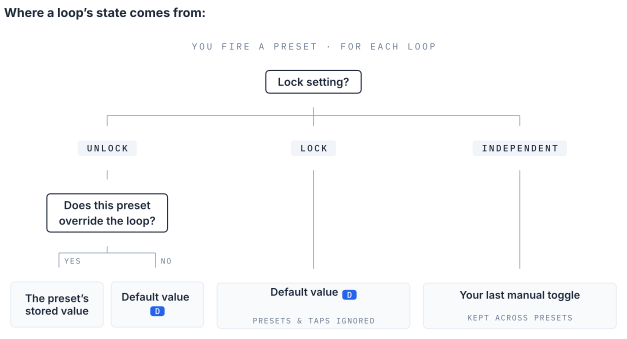
| Lock setting | State comes from | Presets can change it | Foot can change it |
|---|---|---|---|
| Unlock, no override | Default | Not yet — the first tap creates an override | Yes |
| Unlock, with override | The preset | Yes | Yes |
| Lock | Default | No | No |
| Independent | Your last toggle | No | Yes |
3.9Tuner Out and Aux In#
Jack 1’s bottom socket is configurable (§10.2 Tuner):
- Tuner Out — an always-on copy of your guitar signal for an external tuner. Tuning stays silent when the main outputs are muted by the tuner page.
- Aux In — a second instrument input that can be selected instead of the guitar input, per action (§9.4.3 Input Select). The Aux input is unbuffered: while an action uses Aux In, the input buffer is off (§3.4 Input Buffer), and the built-in tuner — which listens to the guitar input — does not read the Aux signal.
Chapter 4
Wiring Diagrams#
This chapter is diagram-driven. Where a diagram is still a placeholder, the accompanying text explains the configuration so it can be drawn later.
4.1Input Connections#
Jack 1 is a stacked pair of sockets. The top socket is Guitar In, always an instrument input. The bottom socket is either a Tuner Out or a second input, Aux In, depending on one setting (§10.2 Tuner). Out of the box it is a Tuner Out.
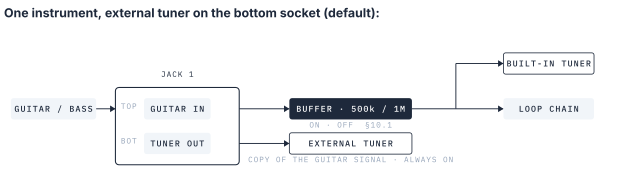
Guitar In feeds the input buffer, then the loop chain. Passive electric guitars and basses are what the buffer is for: it presents a 500 kΩ or 1 MΩ load to the pickups and drives the loops and cables from a low impedance. The master buffer switch and the input impedance live in Audio (§10.1 Buffer). The buffer can also be switched on or off per action from the action toolbar (§9.4.4 The Action Toolbar), so one preset can run buffered and the next one not; the input impedance is a global setting only. A fuzz that wants to see the pickups directly gets its own exception (§3.5 Fuzz Mode). The built-in tuner listens to this input (§5.6 Tuner).
Active instruments work here too — an active bass, an acoustic with a preamp, a wireless receiver, a keyboard. Sources with a hot line-level output can push the buffer hard; start with the instrument’s output turned down and raise it until the level is right.
The bottom socket as Tuner Out carries an always-on copy of the guitar signal for an external tuner. Nothing to set up — plug the tuner in.
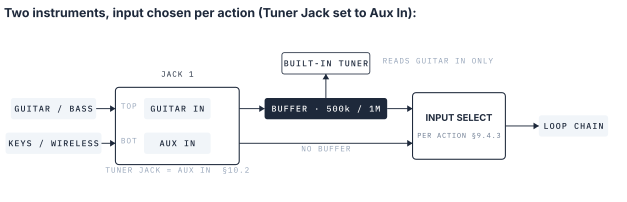
Set Tuner Jack to Aux In in Audio (§10.2 Tuner) and the bottom socket becomes a second instrument input. Each action then chooses its source, GUITAR IN or AUX IN, in the action editor (§9.4.3 Input Select) — a preset for the guitar, the next preset for the keyboard, switched by foot. Aux In has no buffer (§3.9 Tuner Out and Aux In), so it suits sources with a low output impedance (see the table below). A passive guitar plugged in here loses some top end, and the built-in tuner does not read the Aux signal.
| Source | Input | Note |
|---|---|---|
| Electric guitar, bass (passive) | Guitar In | Buffer on, 500 kΩ or 1 MΩ |
| Active bass, acoustic with preamp | Guitar In or Aux In | Either works |
| Keyboard, synth | Guitar In or Aux In | Start with the instrument’s output turned down |
| Wireless receiver | Guitar In or Aux In | On Aux In, presets switch between wireless and cable |
| External tuner | Jack 1 bottom socket (Tuner Out) | The default; nothing to set |
4.2Basic Mono Rig#
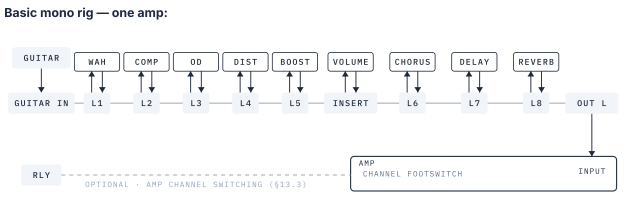
This is the simplest way to wire the unit — up to 8 mono pedals plus the Insert loop in front of one amplifier. The relay control output can switch your amp’s channels (§13.3 Relay).
4.3Stereo Rig#
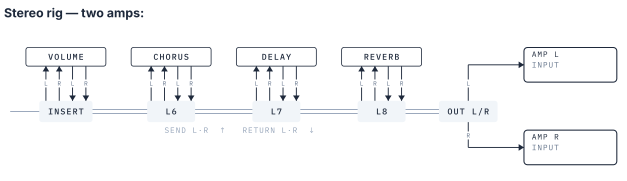
Set Loops 6–8 to STEREO in Audio (§10.4 Loop Chain). The signal runs mono through the drive section and splits to stereo at the first stereo loop.
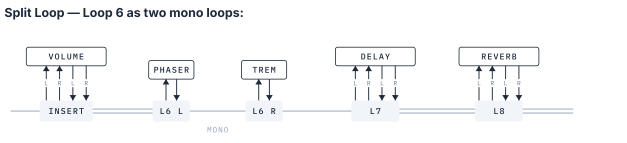
Turn on Split Loop for a stereo-capable loop (§3.3 Stereo Modes) and its L and R sides become two separate mono loops, each with its own pedal. Here Loop 6 is split: Loop 6 L and Loop 6 R sit side by side in the chain, while the Insert loop and Loops 7–8 stay stereo. Between the two split loops the signal runs mono, and it is stereo again from Loop 7 on.
4.44CM (Four-Cable Method)#
4CM (the four-cable method) puts your amp’s preamp into the Insert loop as if it were a pedal. One Koinos PLS 8 then controls both the pedals in front of the amp and the pedals in the amp’s effects loop.
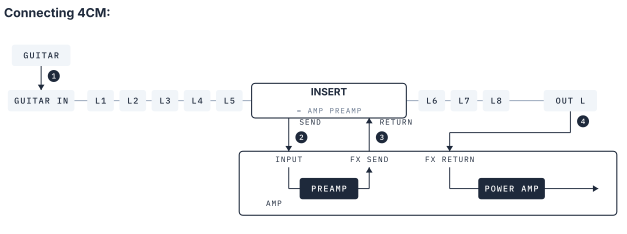
Connect the four cables in this order:
| # | From | To |
|---|---|---|
| 1 | Guitar | Koinos PLS 8 Guitar In |
| 2 | Koinos PLS 8 Insert Send | Amp INPUT |
| 3 | Amp FX SEND | Koinos PLS 8 Insert Return |
| 4 | Koinos PLS 8 Out L | Amp FX RETURN |
Out does not go to the amp’s INPUT. Insert Send already occupies that socket. Out goes to FX RETURN, which skips the preamp and feeds the power amp directly. In a stereo rig, Out R goes to the second amp’s FX RETURN.
4.4.1Pedal Placement in a 4CM Rig#
The Insert loop is where the amp’s preamp sits. Loops before it are in front of the amp; loops after it are inside the amp’s effects loop.
| Position | Loops | Pedals |
|---|---|---|
| Before Insert | Loop 1–5 | Drive, Fuzz, Compressor, Wah |
| Insert | Insert | Amp preamp |
| After Insert | Loop 6–8 | Delay, Reverb, Modulation |
The default chain order is already Loop 1–5 → Insert → Loop 6–8, so no reordering is needed. To put a mono pedal inside the effects loop as well, move the Insert earlier in the chain under Audio › Loop (§10.4 Loop Chain).
The Insert loop is a single, indivisible slot. No other loop slot can sit between Insert Send and Insert Return. What sits there is the amp’s preamp. You can chain a pedal in-line with a cable, but that pedal stays on all the time and belongs to the Insert slot together with the preamp. When the Insert is off, the signal skips the whole slot, so neither the preamp nor that pedal is applied.
With 4CM wiring, a socket’s name and its actual job no longer match:
| Socket | Job in a 4CM rig |
|---|---|
| Insert Send | Output to the amp |
| Insert Return | Input from the amp’s FX SEND |
| Out L | Output to the amp’s FX RETURN |
4.4.2Insert Off#
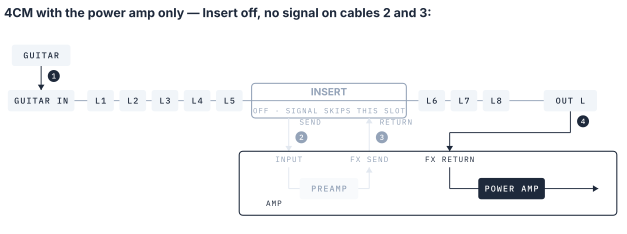
When a preset turns the Insert loop off, the signal skips the amp’s preamp. It runs through Loops 1–8, leaves at Out and enters the amp at FX RETURN, so only the power amp is working. Put a preamp pedal in one of the loops and turn it on in that preset, and you are playing through the pedal’s preamp instead of the amp’s.
⚠ In a 4CM rig, if the amp seems to have lost its gain, check that the Insert loop is on. A preset with the Insert off does not pass through the amp’s preamp. That is how the unit is designed to work.
Tip. Set the Insert loop to Split (§3.3 Stereo Modes) and one side carries the amp’s preamp while the other takes one more mono pedal. Use a TRS Y-cable on both Send and Return.
4.5Amp Sim & Direct to PA#
An amp modeler — UAFX, ToneX One, HX Stomp and the like — can take the amp’s place. Pick the wiring by asking two questions. Do your delay and reverb pedals have MIDI? Does the modeler have an effects loop of its own?
Going straight into a PA or FRFR speaker, put an isolator (ISO box) last to break ground hum. A DI box also works if that is what you have.
4.5.1A — Amp Sim in the Insert Loop#
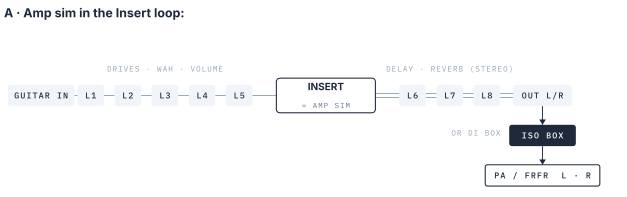
The amp sim sits in the Insert loop, right where the amp’s preamp sits in a 4CM rig (§4.4 4CM (Four-Cable Method)). Drives go before it in Loops 1–5, delay and reverb after it in Loops 6–8, so the time effects come after the amp — the same structure as an amp’s effects loop. A modeler with a stereo output feeds Loops 6–8 in stereo through the Insert loop’s Stereo Return (§3.3 Stereo Modes).
Choose this when your delay and reverb pedals have no MIDI: they live in the loops, so presets still switch them. The Insert loop also turns the amp sim on and off per preset, and a second modeler in another loop lets a preset swap amps.
4.5.2B — Dry Pedals Only, Amp Sim After the Unit#
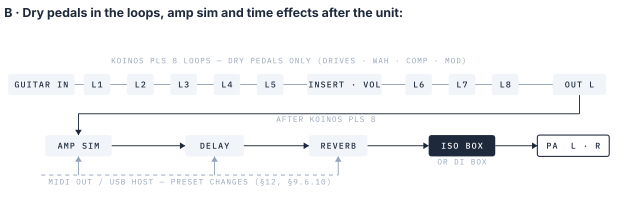
Koinos PLS 8 handles only the dry pedals — drives, wah, compressor, modulation. Out L feeds the amp sim, the delay and reverb follow it, and the ISO box goes last. Stereo starts at the delay and reverb, not inside the unit.
The unit still controls the whole chain. The loops switch the drives. The amp sim and the time effects take their presets over MIDI Out (Chapter 12); a ToneX One takes them over the USB Host port (§9.6.10 TONEX ONE). This is the cleanest amp-style structure and the shortest cable run, and it leaves the Insert loop free for a volume pedal. It needs delay and reverb pedals with MIDI; a pedal without MIDI stays on all the time or gets switched by foot. Trails come from the pedals’ own settings — the unit’s Trail option (§3.6 Trails) only applies to pedals inside its loops.
4.5.3C — 4CM into a Modeler with an Effects Loop#
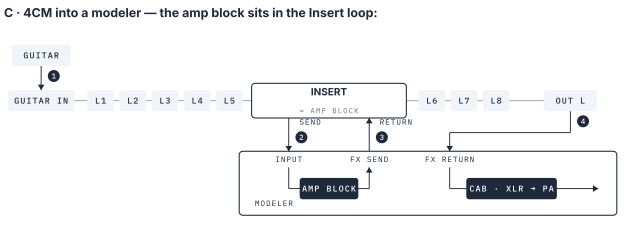
A modeler with an effects loop (HX Stomp, Quad Cortex, GT-1000 and similar) is wired exactly like the amp in §4.4 4CM (Four-Cable Method) — the same four cables, with the modeler in the amp’s place (Insert Send → modeler input, modeler FX SEND → Insert Return, Out → modeler FX RETURN). The modeler’s amp block sits in the Insert loop; its cab block and XLR output go straight to the PA. Loops before the Insert are in front of the amp block, loops after it are in the modeler’s effects loop, and turning the Insert off skips the amp block (§4.4.2 Insert Off). The XLR output is already balanced, so the ISO box is optional here — add one only if you hear hum.
4.6EXP / External Switches / Relay / TRS MIDI Out#
Jacks 12 and 13 carry the control connections. Both are stacked pairs, and every socket here is TRS: tip and ring are two separate signal lines on one cable.
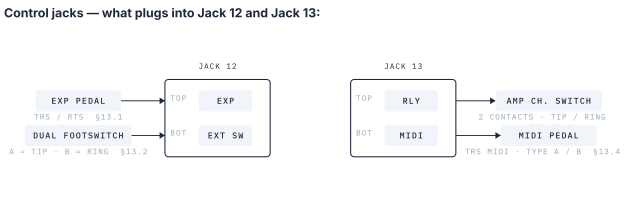
- EXP (Jack 12, top) — an expression pedal on a TRS cable. Pick TRS or RTS to match the pedal’s wiring (§13.1 EXP Jack (TRS / RTS)), calibrate it once (§14.3 Calibration), and assign what it controls: the Global EXP list (Chapter 14) or a switch’s own local list (§9.8 Local EXP).
- EXT SW (Jack 12, bottom) — up to two external momentary footswitches on one TRS cable: tip = Ext-A, ring = Ext-B. A single switch uses the tip. Set Dual or Single in TRS (§13.2 External Switches (Dual / Single)). They are the two External switches of the 20-switch model (§9.1 The 20-Switch Model).
- RLY (Jack 13, top) — two relay contacts on tip and ring, for an amp’s channel footswitch input. Each contact follows Relay messages or presets, or the jack emits tap-tempo pulses on the global tempo (§13.3 Relay). Invert Polarity picks normally-open or normally-closed.
- MIDI (Jack 13, bottom) — TRS MIDI out, with the same data as the MIDI DIN OUT. Set Type A, Type B, Tip Active or Ring Active to match the pedal (§13.4 MIDI Out (Type A / B / Tip / Ring Active)).
4.7ToneX One Rig#
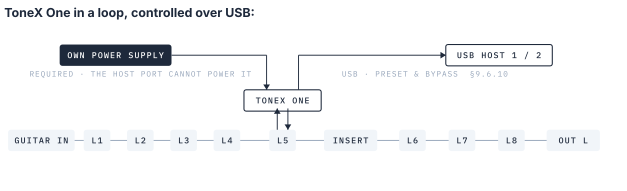
Power the ToneX One from its own supply. The USB Host port handles preset and bypass control only; it cannot run the pedal. Connect the ToneX One to power the way you normally would, then run the USB cable to the Host port. A ToneX One relying on the Host port for power is likely to misbehave — it may not appear on the Pedal Manager’s host slot at all, or it may stop responding to preset and bypass messages part-way through a set.
The ToneX One sits in a loop like any other pedal — Loop 5 here, so it comes after the drives and before the Insert loop and the time effects. Its USB port goes to one of the two USB Host ports; the unit then changes its presets, its bypass and its effect blocks from your presets (§9.6.10 TONEX ONE), and the Pedal Manager shows it on that host slot (§11.2.4 ToneX One Type). Two ToneX pedals maximum, one per Host port.
Chapter 5
Basic Operation#
This chapter covers everything you do while playing. How to set these functions up is covered in Part II, cross-referenced from each section.
5.1Reading the Main Page#
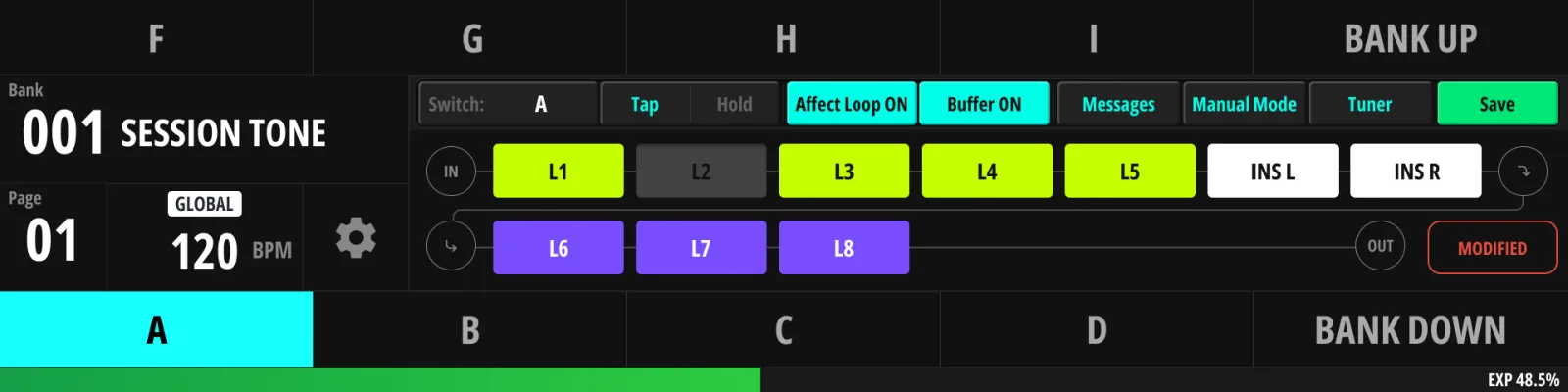
The Main Page is home base — everything below is visible at a glance while you play.
Top bar
- Bank header — the current bank’s number and name, with the previous and next bank names shown smaller above/below, so you know where Bank Up/Down will land before you press it. Tap it to open the Bank / Song / Setlist list (Chapter 8).
- List-mode label — shows whether you are moving through Banks, Songs or a Setlist. In Song/Setlist mode, navigation switch labels follow suit (a “Bank Up” switch reads “Song Up”, because that is what it now does).
- Page number — the current switch page within the bank. Tap to manage pages (§6.4 Pages (Max Page)).
- Tempo readout — the current tempo (BPM or ms, per your Global setting), with the clock-mode icon. Tap to open Clock & Tempo (§6.1 Clock & Tempo).
- Settings icon — opens the Settings menu (Part II).
Switch tiles
Ten tiles mirror footswitches A–J. Each tile shows:
- The switch’s name — your custom name if set; otherwise, if the switch is a navigation switch, its function (“Bank Up”, “Manual Mode”, …); otherwise its letter.
- Its color chip (the color you chose in §9.3.2 Names & Colors).
When a combination preset is active, its two member tiles join up: both take the combination’s color, with its name shown across the pair.
A tile is also colored while its switch is a Stomp switch that’s currently on (§9.7.1 Stomp mode) — that’s how you read Stomp state at a glance. If one switch is both at once, the active preset’s color wins.
Tapping a tile on screen opens that switch’s editor — the touch equivalent of “edit what this switch does”.
Active-action row
- Active switch label — which physical switch’s preset is currently active (shown as its fixed label: “A”, “A + B”, “Ext1-A” — not the custom name). Tap it to hand the active slot to a different switch — the same commit as pressing that switch by foot.
- Tap | Hold tab — selects which of the active switch’s two actions the chain strip below is showing/editing.
- Affect Loop — whether this action changes loops at all. Turn it off for switches that should only send MIDI and leave your routing untouched. While the active preset has it off, the chain strip shows the loops as they really are: the route left by the last preset that did set loops. Tap a block and the unit first moves the active slot back to that preset (the tile highlight moves, and the Main Page follows it if that preset lives in another bank), then applies your toggle there. Turn Affect Loop on instead if you want this preset to own a loop chain of its own — the strip switches to this preset’s stored chain, and you edit that.
- MSG — jumps straight to the active action’s message list (§9.5 Working with Messages).
Loop chain strip
Your signal path, left to right = input to output, drawn as up to 13 blocks in two rows (7 top, 6 bottom). Each block is one loop — labeled with its pedal’s short name once registered in the Pedal Manager (Chapter 11), otherwise its loop number. A stereo loop set to Split occupies two blocks (L and R).
- Lit block = loop is on in the currently selected action (or, while the action has Affect Loop off, on in the current route); dim = off; empty positions are unused.
- Block color follows the loop type: lime for mono loops, deep purple for a stereo loop (its two Split halves show in lime), white for the Insert loop. A pedal registered with its own color (§11.2 Edit Pedal) replaces the type color on that block.
- Tap a block to toggle that loop for the selected action (live — you hear it).
- Long-press, then tap another block to swap their positions (§9.4.2 Reordering the Chain).
- Any unsaved change raises the modified badge; SAVE stores it to the preset, leaving the page discards it.
Badge area & extras
- Modified badge — unsaved edits exist (see above). In swap mode it changes to the swap-mode badge.
- Mini tuner — when enabled (§10.2 Tuner), the badge area shows a compact tuner: the detected note and a flat/in-tune/sharp color indicator. It needs the input buffer on to hear the guitar.
- EXP position — a small bar mirrors the expression pedal’s live position.
- Buffer icon — input buffer state; tap to toggle (§10.1 Buffer). With Affect Loop off, the buffer belongs to the loop-owning preset as well, so a tap moves the active slot back to that preset first, the same way a loop block does.
- Manual / Tuner buttons — touch shortcuts to Manual Mode (§5.4 Manual Mode) and the full-screen tuner (§5.6 Tuner).
5.2Selecting Presets (Tap / Hold)#
- Press and release any footswitch to fire its Tap action — typically recalling a preset: its loop chain, MIDI messages and relay states are applied at once. The action fires when your foot comes up, so the unit can tell a tap from a hold.
- Hold a footswitch to fire its Hold action (if assigned). The hold trigger behavior (fire on release or after a delay) is configurable (§9.9 Hold Behavior & Saving, §15.1 Switch).
- A Tap Tempo switch (§5.7 Tap Tempo) is the one exception: it registers the moment you press it.
What counts as loading a preset
Not every press loads a preset. Whether the switch becomes the active preset — its tile lights, the Main Page follows it, and Previous Preset will later return to it — depends on what the action does:
- It loads a preset if Affect Loop is on, if it changes a relay, or if it sends a message that sets something on your gear: PC, CC, Note, SysEx, TONEX ONE or a Relay message.
- It only runs a command if Affect Loop is off and every message is a momentary one: any This Device command (§9.6.11 This Device), Page Turner, Transport, Strymon Bank Control or Action Trigger. The messages go out and nothing else changes — no tile lights, and the active preset stays where it was. The factory Bank Up/Down and Page Up/Down switches work this way.
How many messages there are makes no difference: a switch that sends a Page Turner key and a Transport Start is still a command switch, and a switch that sends a single PC is a preset.
A preset with Affect Loop off but real messages sits between the two. The switch becomes the active preset and its messages go out, but the loops and the input buffer stay exactly as the last loop-setting preset left them, and the loop chain strip keeps showing that route. What happens when you then tap a loop block is described under Affect Loop in §5.1 Reading the Main Page.
5.3Bank Up / Down#
The switches assigned to Bank Down / Bank Up (default: combination presses C+D / D+E) move between banks. Pressing one changes only what the display shows: the new bank’s name, switch names and colors. Your active preset keeps playing untouched, loops and all, until you press a switch in the new bank. That press loads the preset and sends the bank’s own messages first (§8.5 Bank Messages). Browsing past a bank without pressing anything sends nothing, and the list wraps around at both ends.
Banks can hold multiple pages of switch assignments; This Device → Page Up/Down messages step through them (default: combination presses A+B = Page Down, B+C = Page Up). The number of visible pages is set by Max Page (§6.4 Pages (Max Page)). The full table of factory default assignments is in §9.6.11 This Device.
5.4Manual Mode#
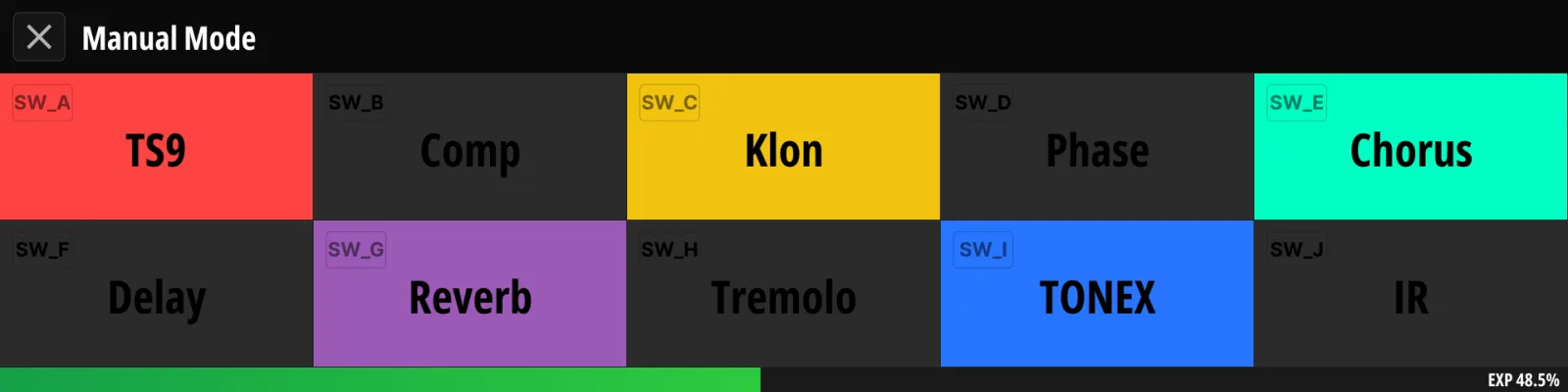
Manual Mode turns the footswitches into direct loop toggles — like a classic pedalboard — instead of preset recall.
- Enter/exit: hold switch F (factory default), or use a This Device → Manual Mode message, or MIDI CC (Appendix C).
- The slot cards mirror footswitches A–J, one per switch; each switch (or a tap on its card) toggles the loop shown on it.
- If the active preset has Affect Loop off, the first toggle moves the active slot back to the preset that set the current route (§5.1 Reading the Main Page) and switches the loop there.
- By default the slots fill themselves with your loops in chain order — a split loop takes two slots (L and R). You only step in when you want a specific loop under a specific foot; see §6.3 Manual Mode Setup.
5.5Setlist Mode#
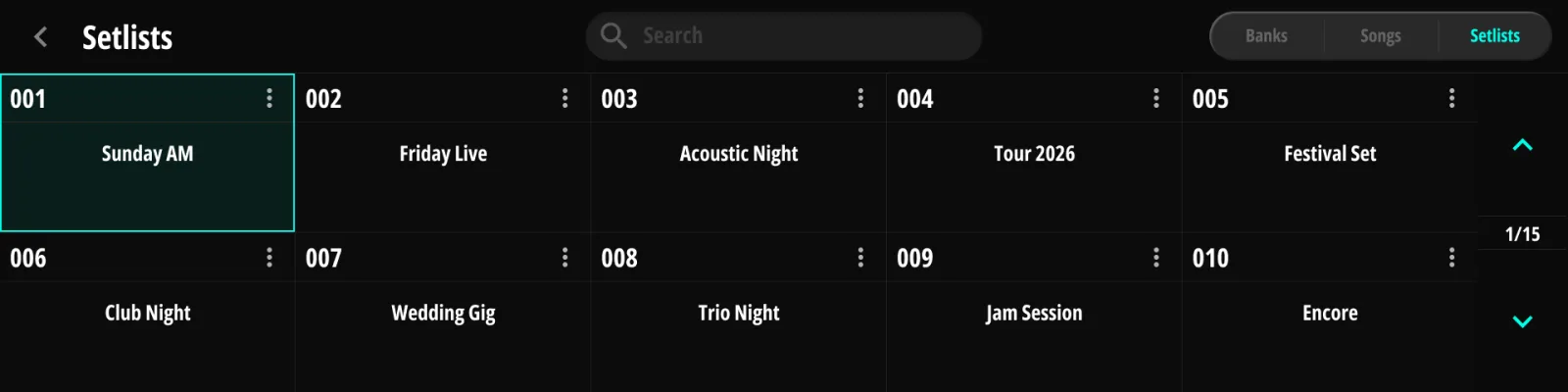
Setlist Mode re-maps bank navigation to your setlist (Chapter 8):
- Enter with a This Device → Setlist Select message (§9.6.11 This Device) assigned to any switch — the message names the setlist by number, and no switch is assigned by default. You can also open a setlist from the Bank / Song / Setlist list.
- Bank Up / Bank Down step through the songs of the active setlist in order, wrapping at both ends; their tiles read Song Up / Song Down while a setlist is open. Opening a setlist starts you at its first song. As with banks (§5.3 Bank Up / Down), stepping only changes what the display shows — the next song loads when you press one of its switches.
- In plain Song mode (no setlist), the same switches step through songs by number, 1 to 1200, wrapping at both ends.
- All other switches keep their normal behavior — Setlist Mode is a convenience layer; it never locks you out of your other banks or presets.
5.6Tuner#
Open the full-screen tuner by holding switch G (factory default) or from the display. While the tuner page is active:
- With Mute While Tuning on (§10.2 Tuner), the main outputs are muted for silent tuning; with it off (the default), your signal keeps passing while you tune.
- The always-on Tuner Out jack (if configured, §10.2 Tuner) keeps feeding your external tuner regardless.
- Any footswitch press exits the tuner (Footswitch Exit, §10.2 Tuner; the same switch that opened it can toggle it).
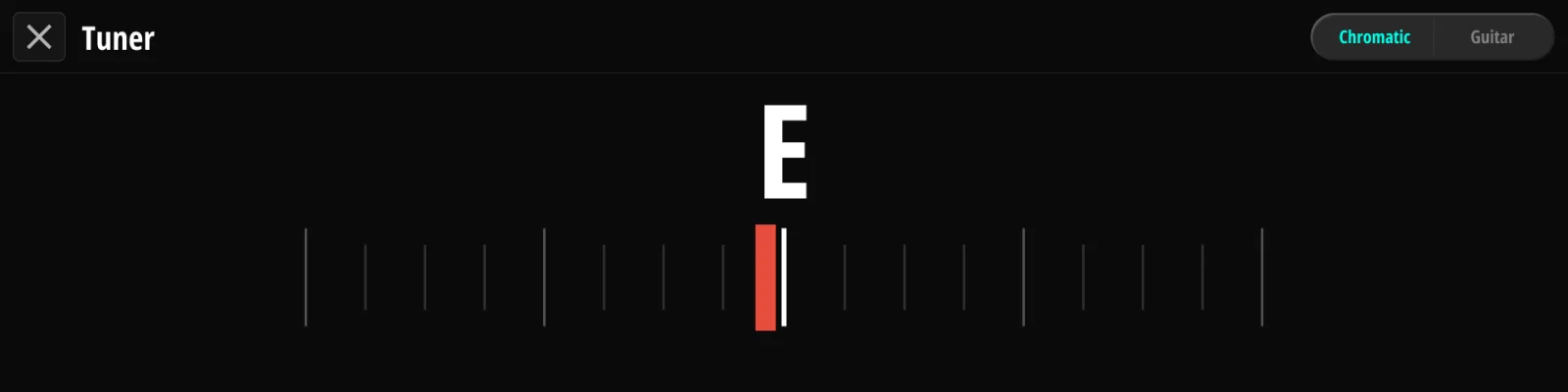
The Chromatic / Guitar tabs in the corner switch the detection mode (also settable in Audio → Tuner, §10.2 Tuner).
Note. The built-in tuner listens through the buffered input path. The input buffer is engaged automatically while the tuner is open, and restored on exit.
Mini tuner — the Main Page can show a compact tuner readout in the badge area while you play, so you can spot-check tuning without leaving the page. Enable it in Audio → Tuner → Main Screen Mini Tuner (§10.2 Tuner).
5.7Tap Tempo#
A footswitch converted to the Tap Tempo type (§9.3.1 Switch Type) taps the global tempo. The tempo drives MIDI Clock output (§12.5 Clock), tap-tempo pulses on the relay jack (§13.3 Relay), and dynamic CC timing. Tempo and clock behavior are configured in Global → Clock & Tempo (§6.1 Clock & Tempo).
Taps register the instant the switch goes down, so there is no lag from your foot coming up. The tempo settles from the second tap on and keeps averaging over the last few taps. Leave more than 1.5 seconds between taps and the next tap starts a fresh count, so the slowest tempo you can tap in is 40 BPM; enter anything slower on the Clock & Tempo page. A tap that lands well off the others also starts a fresh count, so one mistimed tap is put right by the next one.
Part II
Functions#
The chapters in this part follow the device’s Settings menu — and the Judahs Studio tabs — in the same order, under the same names. Chapter 7 introduces the menu itself.
Chapter 6
Global#
Device-wide playing state that isn’t a per-preset setting: tempo, clock presets, Manual Mode slots and page limits.
6.1Clock & Tempo#
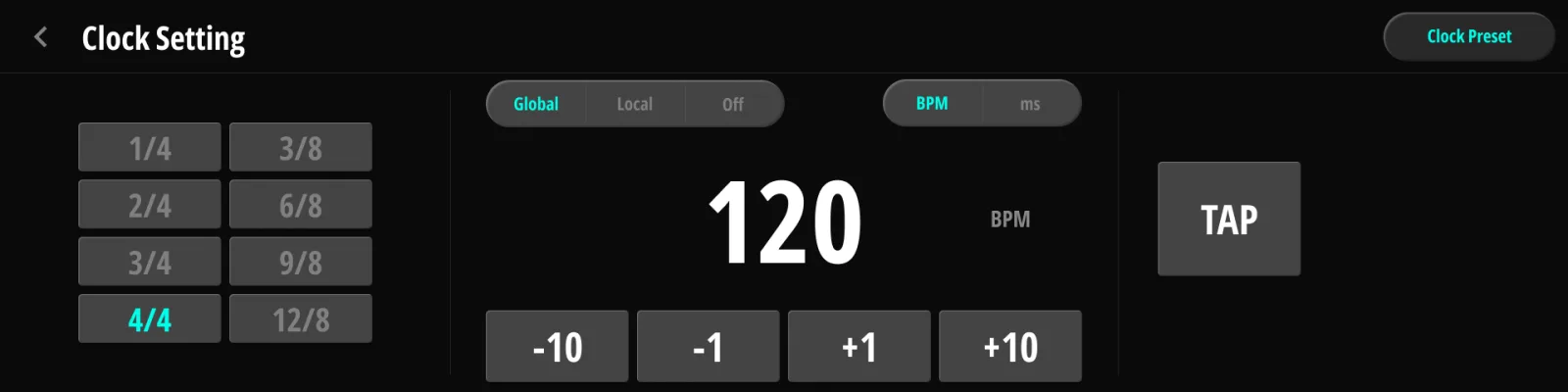
The Clock Setting page holds everything tempo-related:
| Control | Values | Description |
|---|---|---|
| Tempo | 20–500 BPM (3000–120 ms) | The current tempo, shown large in the center |
| −10 / −1 / +1 / +10 | — | Steppers to adjust the tempo |
| TAP | — | On-screen tap-tempo pad — tap in time to set the tempo (same as a Tap Tempo footswitch, §5.7 Tap Tempo) |
| Clock mode | Global / Local / Off | Global = one tempo everywhere; Local = this preset keeps its own tempo; Off = no clock |
| Display unit | BPM / ms | How tempo is displayed throughout the device |
| Time signature | 1/4 · 2/4 · 3/4 · 4/4 · 3/8 · 6/8 · 9/8 · 12/8 | Decides what one beat means. In the x/4 signatures a beat is a quarter note. In the x/8 signatures a beat is a dotted quarter, so the same BPM sends MIDI Clock 1.5× faster and the tempo indicator flashes on the dotted-quarter beat |
| Clock Preset | — | Shortcut to the Clock Presets pages (§6.2 Clock Presets) |
Which ports send MIDI Clock is configured in MIDI → Clock (§12.5 Clock).
6.2Clock Presets#
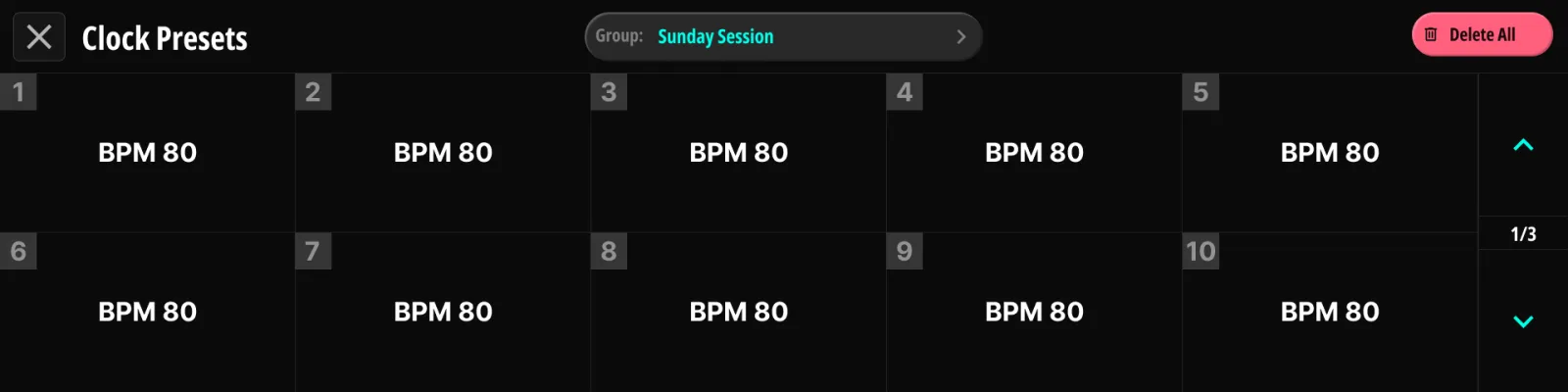
Clock Presets store tempos you can step through during a performance — say, one tempo per song or per section.
- 20 groups × 30 slots each.
- Step through the active group with This Device → Clock Preset Up/Down messages (§9.6.11 This Device), assignable to any switch. The first press after power-up, or after you switch groups, lands on the group’s first stored preset whichever direction you press; from there the presses step through in order and wrap around.
- After a change, a tempo pop-up confirms the newly selected clock preset; how long it stays is set by Clock Preset Indicator Delay (§15.2 Display).
6.3Manual Mode Setup#
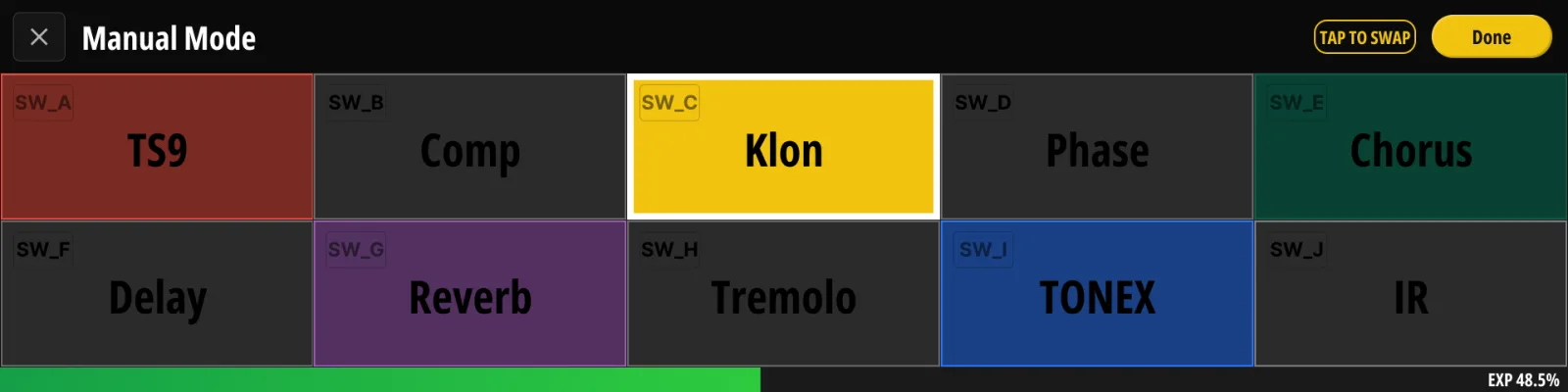
Manual Mode’s ten slots (§5.4 Manual Mode) place themselves. Each slot is in one of two states:
- Auto (the default for every slot) — the unit lays your loops out in chain order: Loops 1–5, Insert, Loops 6–8, a split loop taking two slots (L and R). Add or split a loop and the layout follows by itself. When there are more loops than free slots, the Insert loop gives up its slot first, then the tail of the chain.
- Pinned — a slot you have placed by hand. Pinned slots never move, whatever the Auto layout does around them. A slot can also be pinned empty, to keep a switch free.
Slots are edited on the Manual Mode page itself — there is no separate setup menu:
- Swap two slots — long-press a slot to enter swap mode, then tap another slot. Both slots become pinned with their new contents. (Done leaves swap mode without swapping.)
- Set a slot directly — each card’s config button opens a picker: Auto, empty, any loop, or one half of a split loop.
- Changing a loop’s Split setting (§10.4 Loop Chain) releases any pins that referenced that loop back to Auto — a split change usually means the pedals behind it changed too.
6.4Pages (Max Page)#
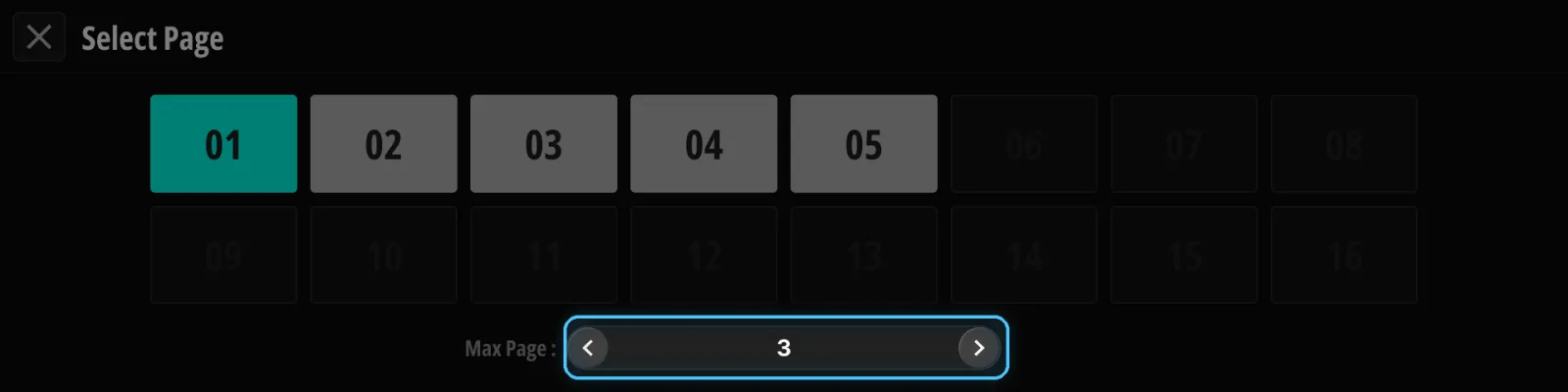
Banks can hold up to 8 pages of switch assignments (Songs: 2 pages). Max Page limits how many pages are reachable with Page Up/Down, so you don’t scroll through pages you don’t use. Set it to the number of pages you actually need (1–8); pages beyond the Max Page value appear dimmed and can’t be selected.
Chapter 7
Settings Menu#
The gear icon on the Main Page opens the Settings menu. Every configuration section of the device lives behind one of its entries, and the next nine chapters cover them in the same order:
| Menu entry | Chapter |
|---|---|
| Banks / Songs / Setlists | Chapter 8 |
| Switch Presets | Chapter 9 |
| Audio Setting | Chapter 10 |
| Pedal Manager | Chapter 11 |
| MIDI | Chapter 12 |
| TRS | Chapter 13 |
| Global EXP | Chapter 14 |
| User Setting | Chapter 15 |
| Wireless | Chapter 16 |
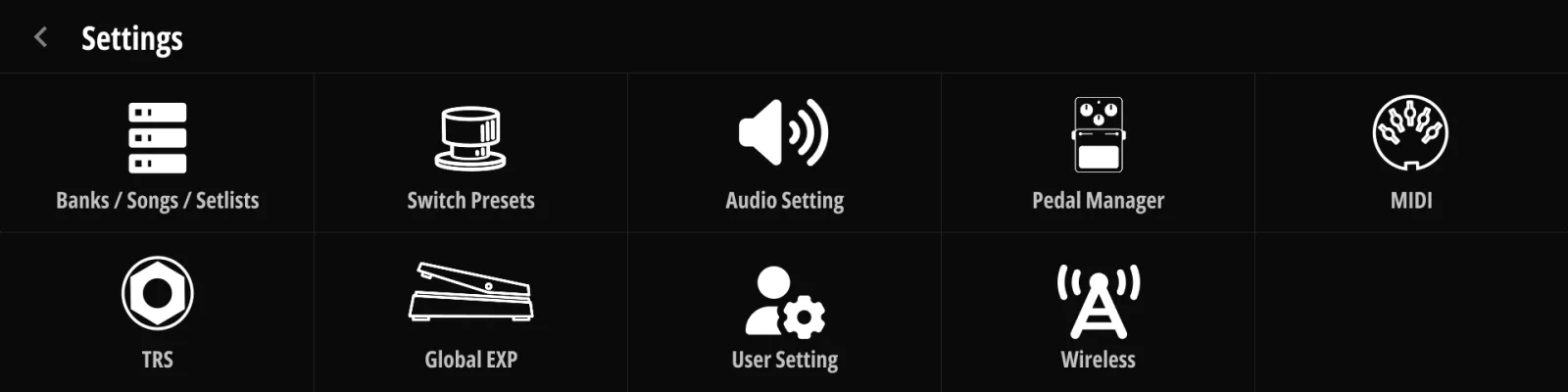
The Judahs Studio tab strip uses the same names in the same order (Chapter 17), so anything you find here has the same home in the desktop editor.
Chapter 8
Bank / Song / Setlist#
8.1The Three Layers#
Koinos PLS 8 organizes your sounds in three layers:
| Layer | Capacity | What it is |
|---|---|---|
| Bank | up to 150 | A set of footswitch assignments (up to 8 pages) — the basic unit you play from |
| Song | up to 1,200 | A compact bank (2 pages) for one piece of music — intro / verse / chorus / solo |
| Setlist | up to 100 | An ordered list of songs for a show |
Names can be up to 20 characters. Songs live in their own library, so your song collection doesn’t consume bank space.
8.2Banks#
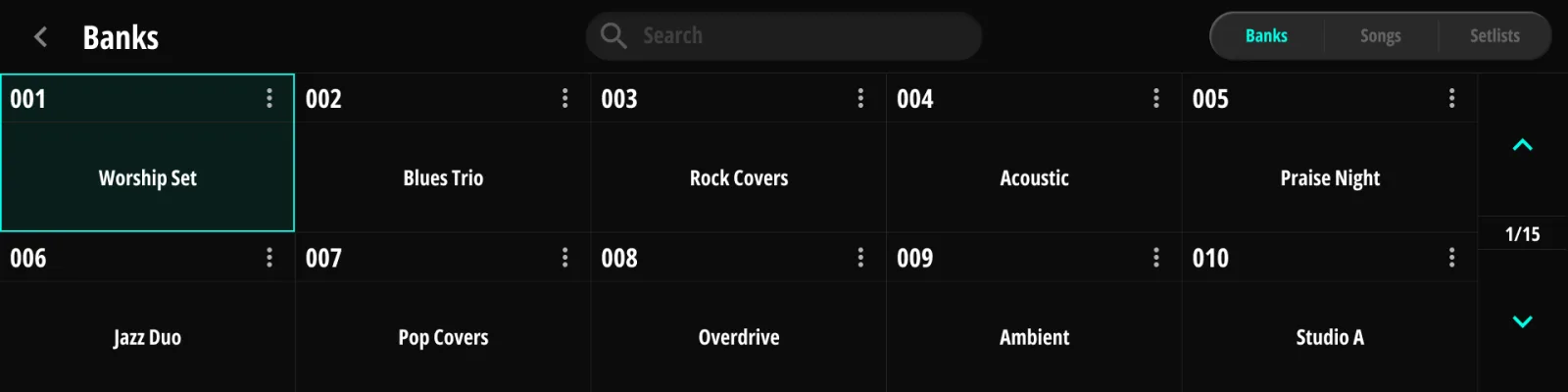
- Create / rename — banks are created from the bank list; names are entered with the on-screen keyboard. A search bar filters the list by name — handy once your library grows.
- Pages — each bank holds up to 8 switch pages; see §6.4 Pages (Max Page) for limiting visible pages.
- Copy / Delete — copying works at three levels: whole bank, single switch, single action. After a copy, the copied location becomes the active editing target.

8.3Songs#
Songs behave like banks while playing but are limited to 2 pages and stored in the song library. Create, rename, copy and delete work the same way as banks (§8.2 Banks).
8.4Setlists#
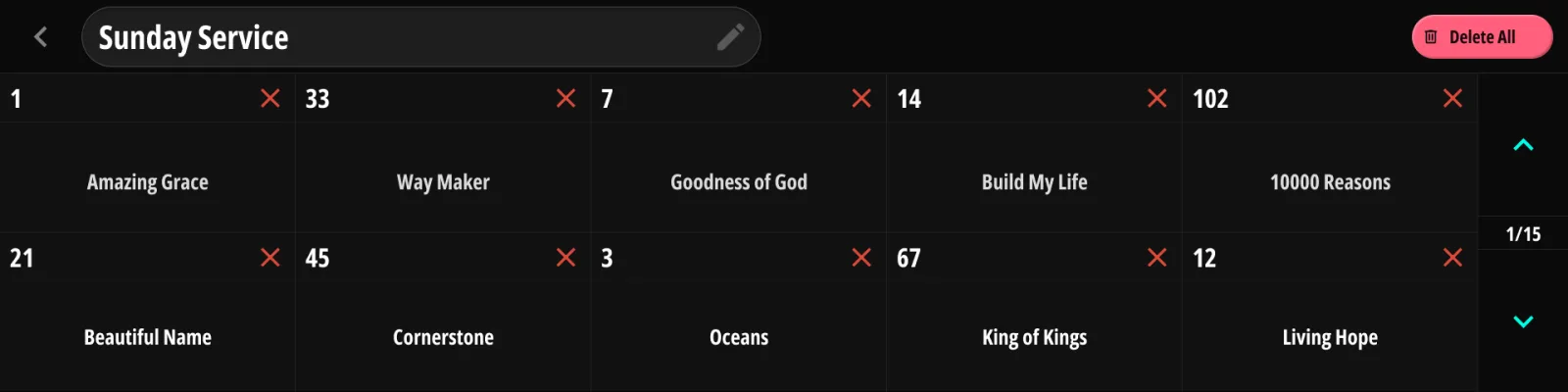
A setlist references songs from the library in performance order:
- Create a setlist and open it.
- Add songs and arrange their order.
- While playing, activate Setlist Mode (§5.5 Setlist Mode) — Bank Up/Down then walks this list in order.
8.5Bank Messages#
Besides the messages stored in each switch action, every bank carries a message list of its own — up to 20 messages, using the same message types as Chapter 9. When you press a preset in a different bank, the unit sends the bank’s messages first and the preset’s own after them. Use them to put your rig into a known base state per bank — an amp channel, a rack program — so the presets inside only send what changes.
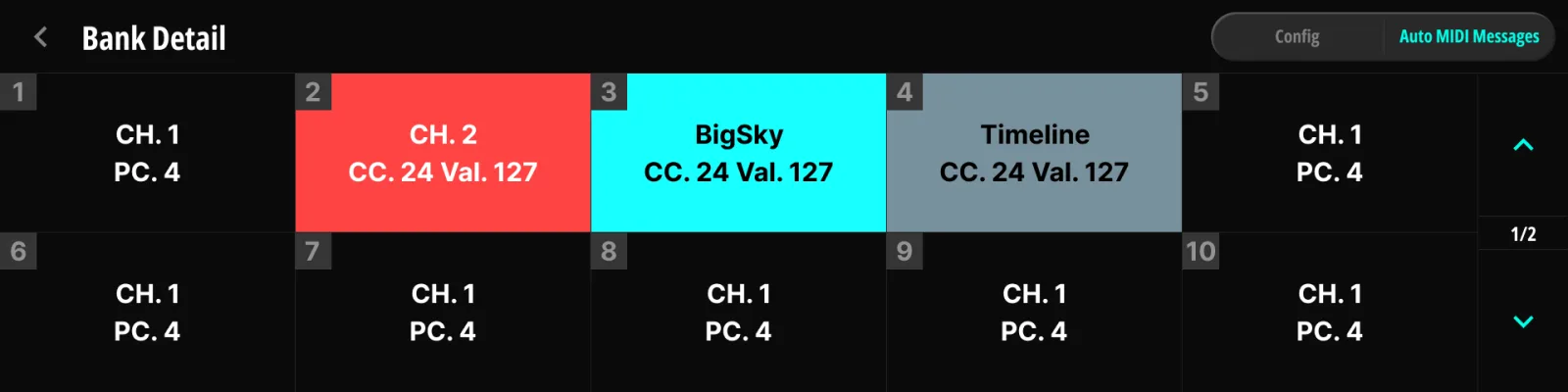
- Bank messages fire on the preset press that commits the bank change — not while you browse past banks with Bank Up/Down, and not again for preset or page changes inside the same bank. Leaving and re-entering the bank sends them again.
- On power-up, the unit re-sends the restored bank’s messages along with the active preset’s, so external gear comes back matching the screen.
- To edit them, open the bank’s detail page from the bank list and switch to its Auto MIDI Messages tab — the message editor is the same one used for switch actions (§9.5 Working with Messages). Songs and setlists have no message list of their own.
Chapter 9
Switch Presets#
This is the heart of programming Koinos PLS 8: what each footswitch does. Every switch carries a Tap action and a Hold action; each action contains a loop chain state and a message list.
9.1The 20-Switch Model#
| Group | Count | Switches |
|---|---|---|
| Built-in | 10 | A–J |
| Combination (“union”) | 8 | A+B, B+C, C+D, D+E, F+G, G+H, H+I, I+J |
| External | 2 | Ext-A, Ext-B (Jack 12, momentary) |
Combination presses register when the second switch is released, so single and combined presses never conflict. All 20 switches are fully programmable per bank page.
9.2Selecting a Target (Bank/Song → Page → Switch)#
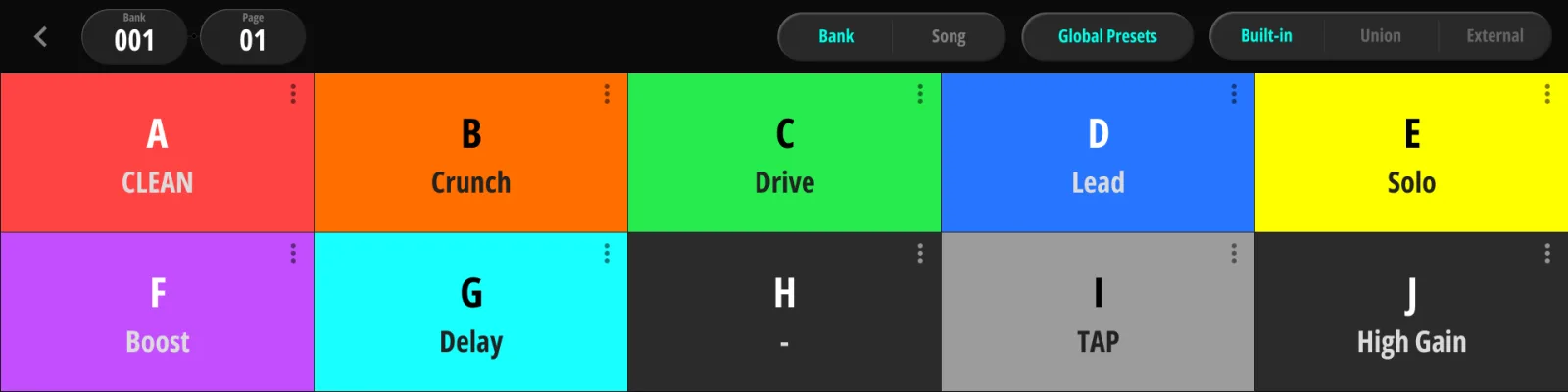
Programming always starts by picking which switch to edit:
- Choose the Bank (or Song) — a tab switches between the two.
- Choose the Page within it.
- Choose the Switch — the grid filters by group: Built-in / Union / External (§9.1 The 20-Switch Model).
The Global Presets button on the same page leads to the bank-independent layer (§9.7 Global Presets). The same navigation appears at the top of the Switch Presets section in Judahs Studio.
9.3Switch Config#
9.3.1Switch Type#
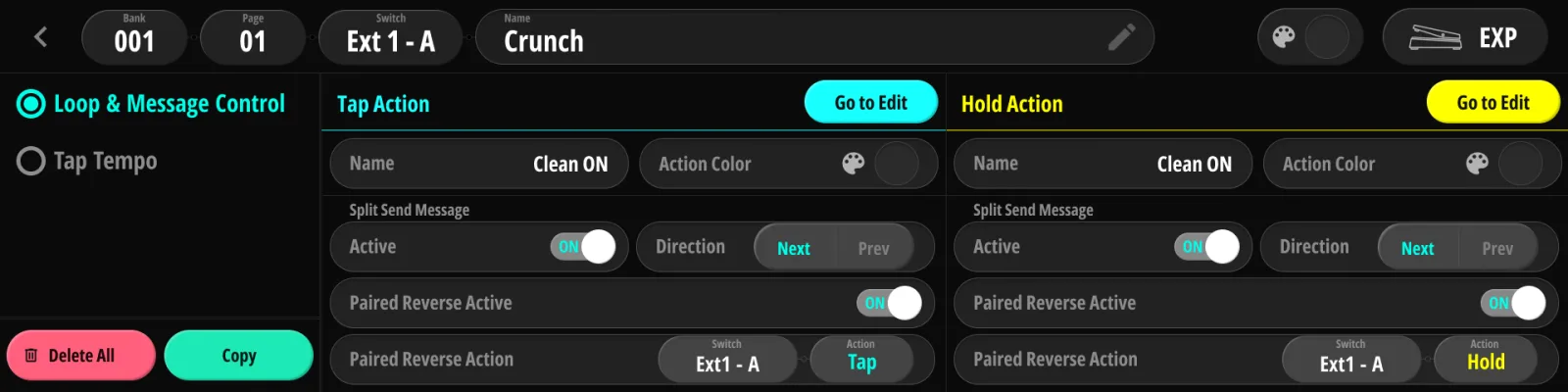
A switch is either:
- Loop & Message (default) — carries Tap/Hold actions with loop chains and messages, or
- Tap Tempo — taps the global tempo (§5.7 Tap Tempo).
Tap Tempo constraints: only one Tap Tempo switch per bank (and one global); combination switches cannot be Tap Tempo (external switches can); if a global Tap Tempo switch exists, bank-local ones go dormant and behave as ordinary switches until the global one is removed. Converting a switch that would conflict shows a confirmation warning first. Because a Tap Tempo switch fires the moment it is pressed, it also cannot take part in a combination press with its neighbor.
9.3.2Names & Colors#
- The switch, its Tap action and its Hold action each have a name (up to 15 characters), entered on the on-screen keyboard.
- Tap and Hold each get a color from the device palette (Red, Pink, Purple, Deep Purple, Indigo, Blue, Cyan, Mint, Green, Lime, Yellow, Amber, Orange, Gray, Blue Gray, White — or None). Colors appear on the Main Page labels.
- Active — enables/disables the action without deleting it.
9.3.3Split Send & Paired Reverse#
Normally, pressing a switch fires the action’s whole message list at once. With Split Send Message active, each press sends only the next message in the list, then wraps around — turning one switch into a step-through controller (e.g. step through amp presets or song sections one press at a time).
| Field | Values | Description |
|---|---|---|
| Active | on / off | Enables Split Send for this action |
| Direction | Next / Prev | Which way each press steps through the list |
Paired Reverse assigns a second switch as the “back” button: the paired switch sends none of its own messages and instead steps through this action’s Split Send list in the opposite direction. Its own loop chain still applies as usual.
| Field | Values | Description |
|---|---|---|
| Paired Reverse Active | on / off | Enables the pairing |
| Paired Reverse Action | Switch + Tap/Hold | Which switch/action acts as the reverse step |
The loop chain still applies normally on every press — Split Send only changes how the message list plays out.
On the Main Page, a Split Send switch’s tile shows the last step sent in parentheses after its name — “Verse (3)” means message 3 just went out, and the next press sends message 4 (message 2 in the Prev direction). Before the first press it shows the step that will go out first.
9.3.4Copy & Delete#
From the Config area you can copy a switch (or a single action) to another location, or delete it. When saving an edited action to a different location, the loop chain and message list travel together; Cancel restores the pre-edit snapshot.
9.4Loop Chain & Action Settings#
9.4.1Loop States (Default / Override)#
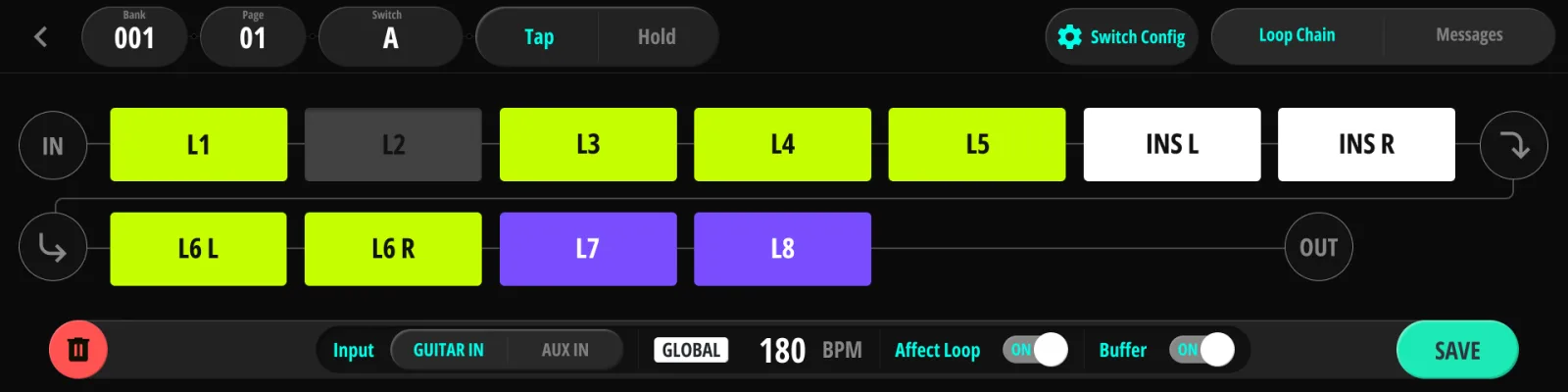
For each loop, an action either:
- Overrides the loop — the action explicitly turns it on or off when fired, or
- leaves it at Default — the loop follows its global Default value (§3.7 Default and Override).
This per-loop override mask is what lets one switch flip a single drive pedal while another switch reconfigures the whole board.
9.4.2Reordering the Chain#
- Long-press any occupied chain slot (≈0.8 s). This enters swap mode: the slot is marked and the other occupied slots highlight as swap targets.
- Tap another occupied slot. The two loops swap positions; the routing matrix re-applies immediately so you hear the new order at once.
- Press Save to store the new order, or leave/back out to discard.
Where the order is stored depends on where you edit:
| Where you edit | What the order applies to |
|---|---|
| Main Page | The active preset (per-preset override) |
| Action editor (this page) | The edited action |
| Audio → Loop Chain (§10.4 Loop Chain) | The global default order |
A preset whose stored order equals the global default simply follows the global default (including future changes to it).
9.4.3Input Select#
When Jack 1’s bottom socket is configured as Aux In (§10.2 Tuner), each action can choose its input source: GUITAR IN or AUX IN (bottom bar of the editor).
Selecting AUX IN also turns the input buffer off for that action — the Aux input does not pass through the buffer (§3.4 Input Buffer). The Buffer toggle takes effect again when the input returns to GUITAR IN.
9.4.4The Action Toolbar#
The bar along the bottom of the action editor carries the per-action extras:
| Control | Description |
|---|---|
| Input | GUITAR IN / AUX IN source select (above) |
| Clock badge | The action’s tempo — GLOBAL (follows the global tempo) or a LOCAL override; tap to open Clock Setting for this action (§6.1 Clock & Tempo) |
| Affect Loop | Whether this action changes loops and the buffer at all — turn off for switches that should only send messages (§5.2 Selecting Presets (Tap / Hold)) |
| Buffer | Input buffer state stored with the action (no effect while Input is AUX IN, §3.4 Input Buffer) |
| Delete (trash) | Clears the action |
| SAVE | Stores the edits |
9.4.5Live Preview#
Changes on the action editor preview live — loops actually switch as you edit, so you can hear the result. While editing MIDI message values, changes are also sent immediately (§9.5.3 Editing Values). Navigation and Page Turner messages are held back during preview, so editing a Bank Up switch won’t move you to another bank. Leaving the editor puts the active preset back the way it was.
9.5Working with Messages#
9.5.1The Message List#
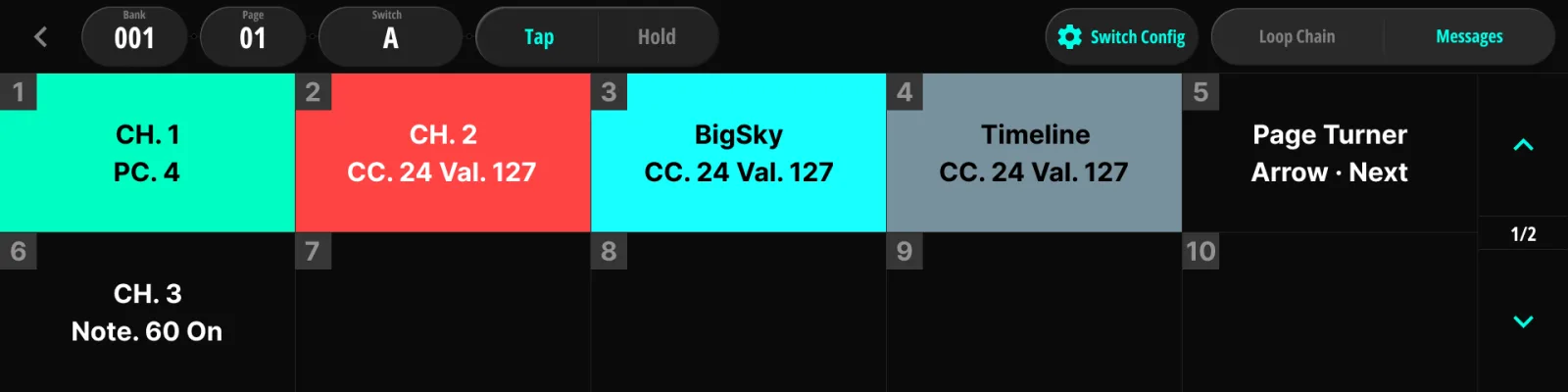
Each action carries up to 20 messages, executed top to bottom when the action fires. Each card shows a two-line summary (type + key parameters). A global inter-message delay can be inserted between outgoing messages (§12.4 Boot).
9.5.2Channel Picker & Pedal Binding#
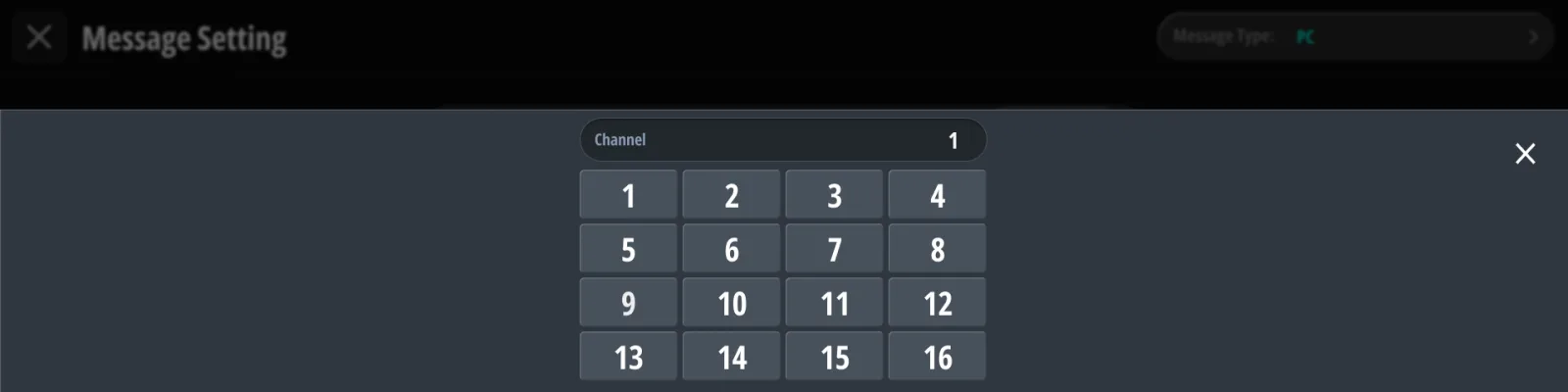
Every MIDI message targets a channel, in one of two ways. The channel picker offers plain channels 1–16. The pedal button next to it opens your registered pedals (Pedal Manager, Chapter 11) — picking one binds the message to that pedal’s channel, so re-assigning the pedal’s channel later updates all its messages at once. Picking a plain channel again removes the binding. A message bound to a pedal that has since been deleted is skipped when the action fires.
9.5.3Editing Values#
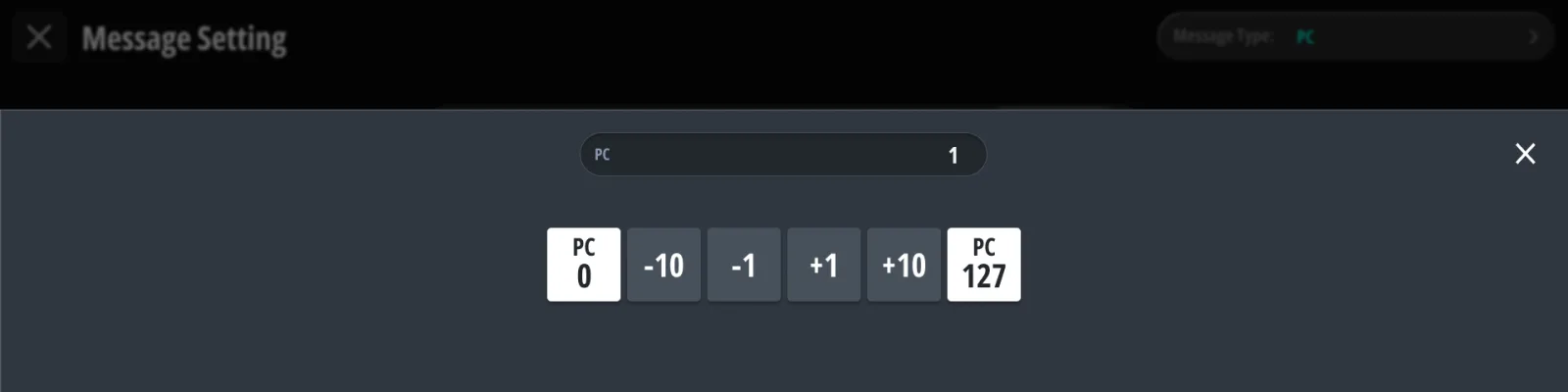
Numeric fields (program number, CC number, values, time) open a stepper popup with ±1/±10 steps and min/max shortcuts. While editing, value changes are sent immediately to the target device, so you can hear the parameter move as you dial it in.
9.6Message Type Reference#
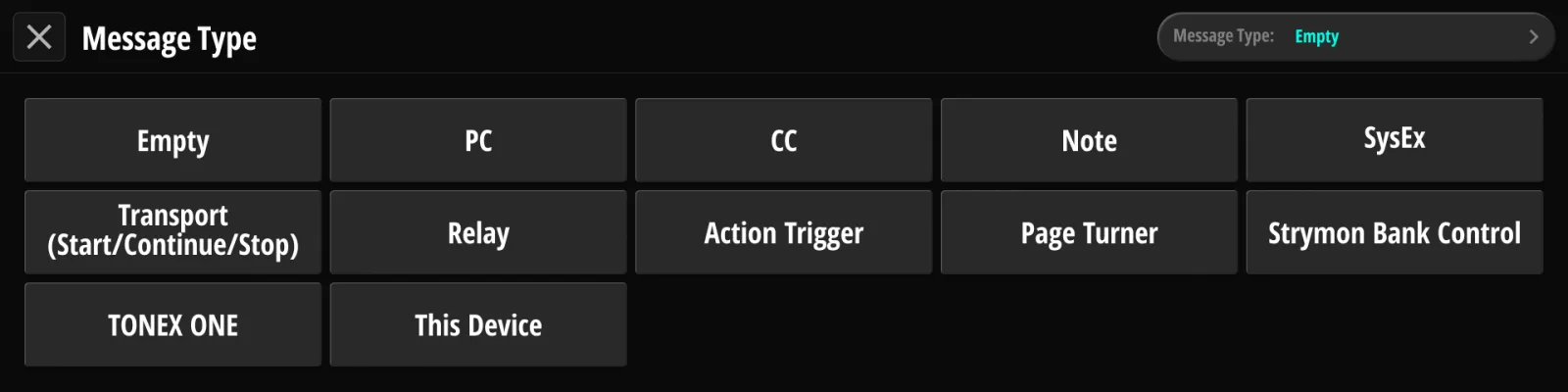
Each message type below follows the same layout: what it does, its parameters, and notes. The type is chosen on the type selection page.
State messages set something on your gear and stay set: PC, CC, Note, SysEx, Relay and TONEX ONE. Momentary messages fire once and leave nothing behind: Transport, Action Trigger, Page Turner, Strymon Bank Control and This Device. The difference decides whether a press counts as loading a preset (§5.2 Selecting Presets (Tap / Hold)).
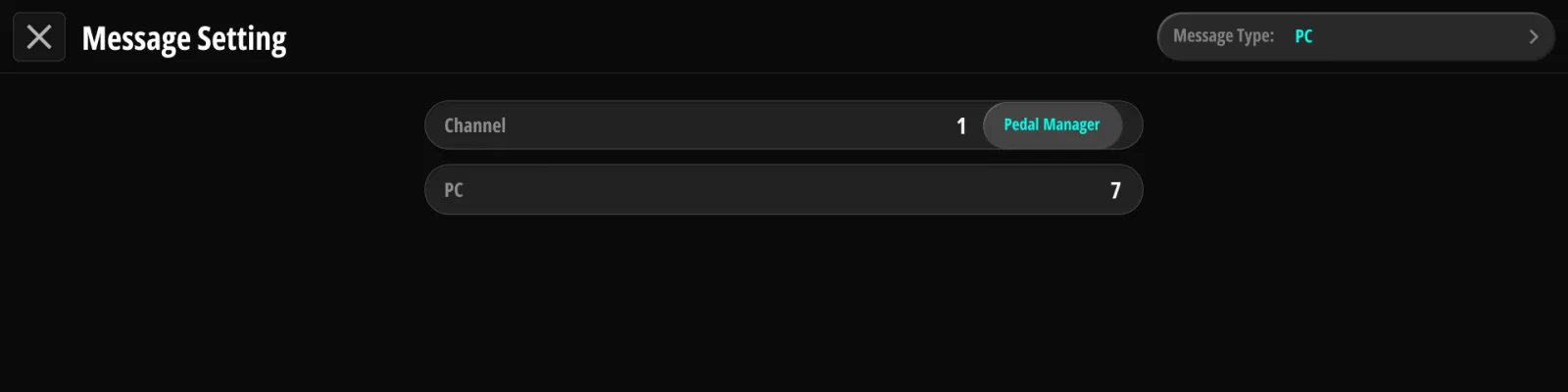
9.6.1PC — Program Change#
Sends a MIDI Program Change.
| Parameter | Range |
|---|---|
| Channel | 1–16 or pedal binding |
| Program | 0–127 (displayed as sent) |
9.6.2CC — Control Change (Static / Dynamic)#
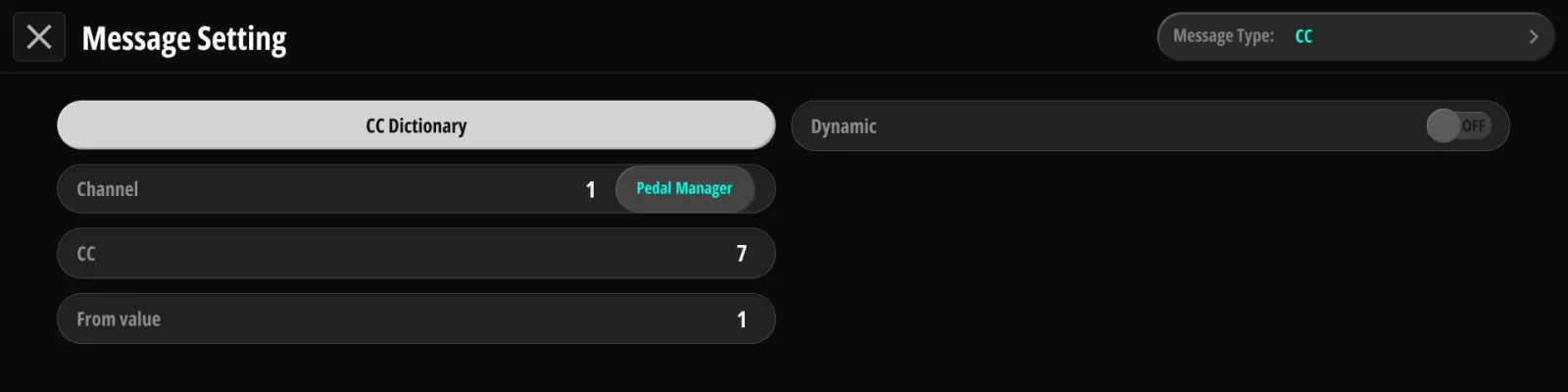
Sends a MIDI Control Change — either a single value (static) or an automated sweep (dynamic).
| Parameter | Range | Notes |
|---|---|---|
| Channel | 1–16 or pedal binding | |
| CC number | 0–127 | pick from the CC dictionary or enter directly |
| Value (static) | 0–127 | |
| Value From / To (dynamic) | 0–127 | sweep endpoints |
| Time (dynamic) | 0.0–10.0 s | sweep duration |
| Repeat (dynamic) | on/off | loops the sweep |
| Reverse (dynamic) | on/off | plays the sweep back and forth |
Use dynamic CC for automated swells, filter sweeps and level fades.
9.6.3Note#
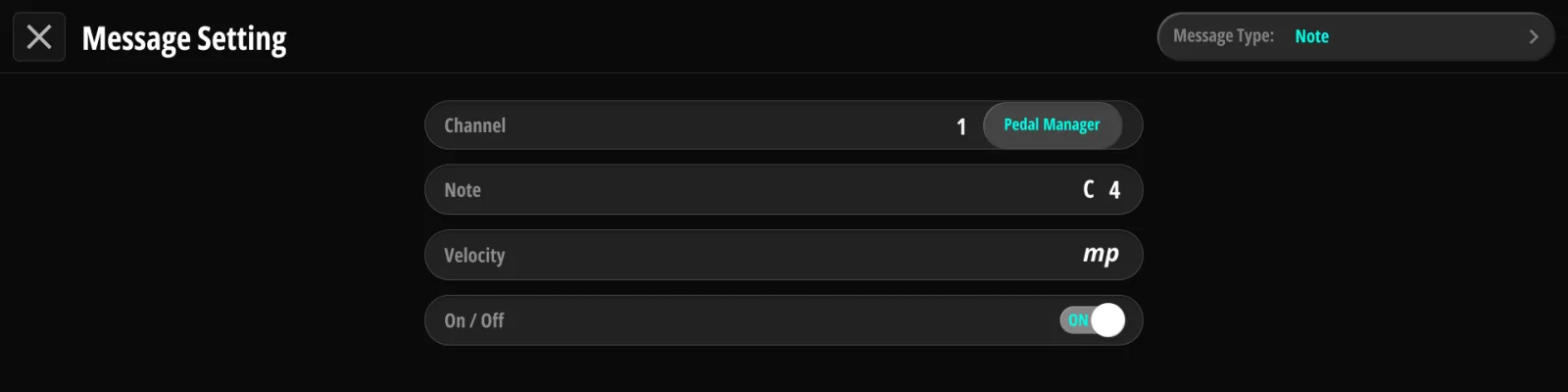
Sends a MIDI Note On or Note Off.
| Parameter | Range | Notes |
|---|---|---|
| Channel | 1–16 or pedal binding | |
| Note | 0–127 | picked as a note name plus octave (e.g. C4) |
| Velocity | 10–127 | picked from ten steps, pppp to ffff |
| On / Off | Note On / Note Off | which event this message sends |
9.6.4SysEx#
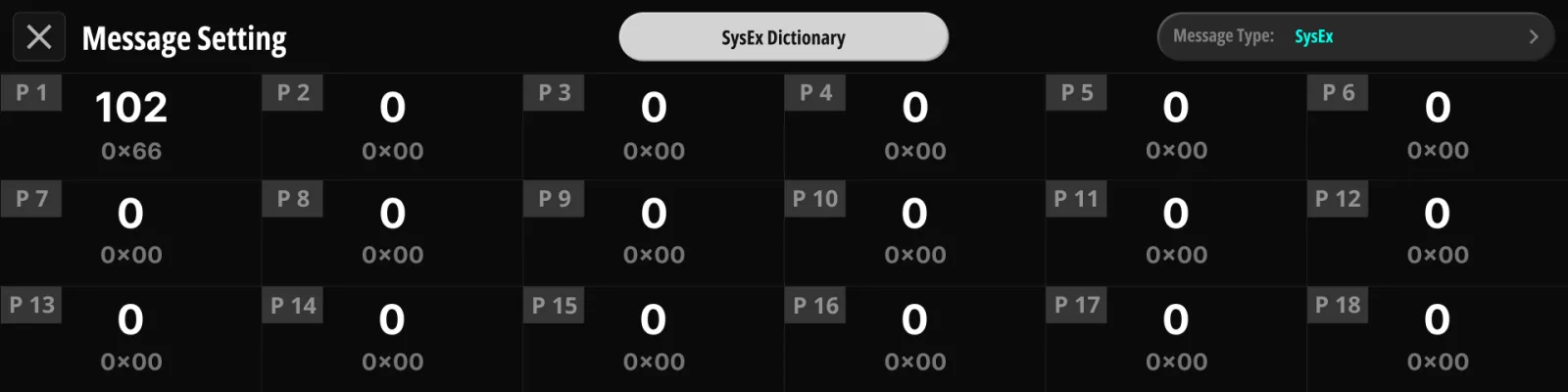
Sends a System Exclusive string, up to 17 bytes. Build it from the SysEx dictionary (§17.5 MIDI Dictionary) or enter bytes manually.
9.6.5Transport#
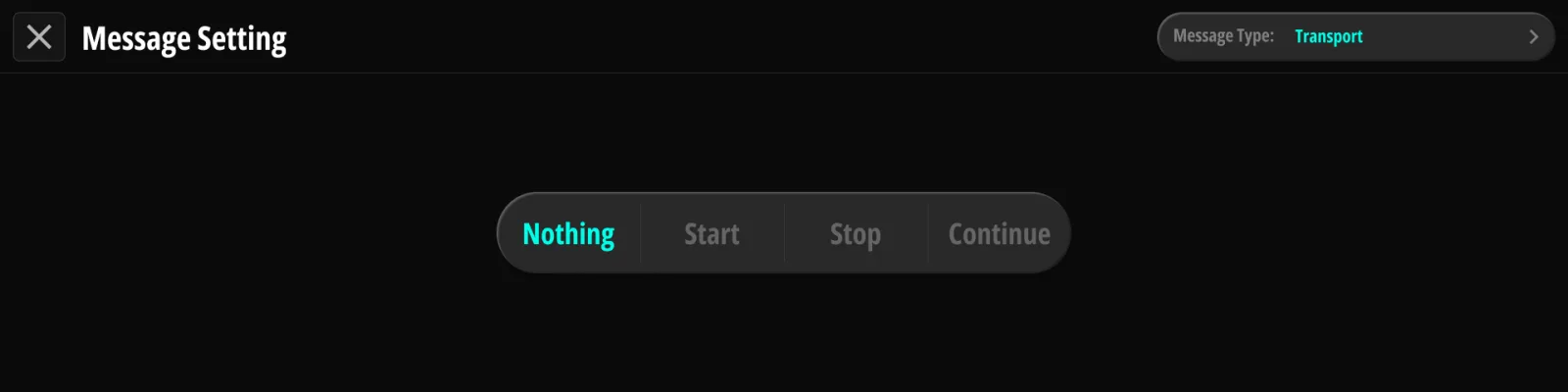
Sends a MIDI real-time transport command: Nothing / Start / Stop / Continue.
9.6.6Relay#
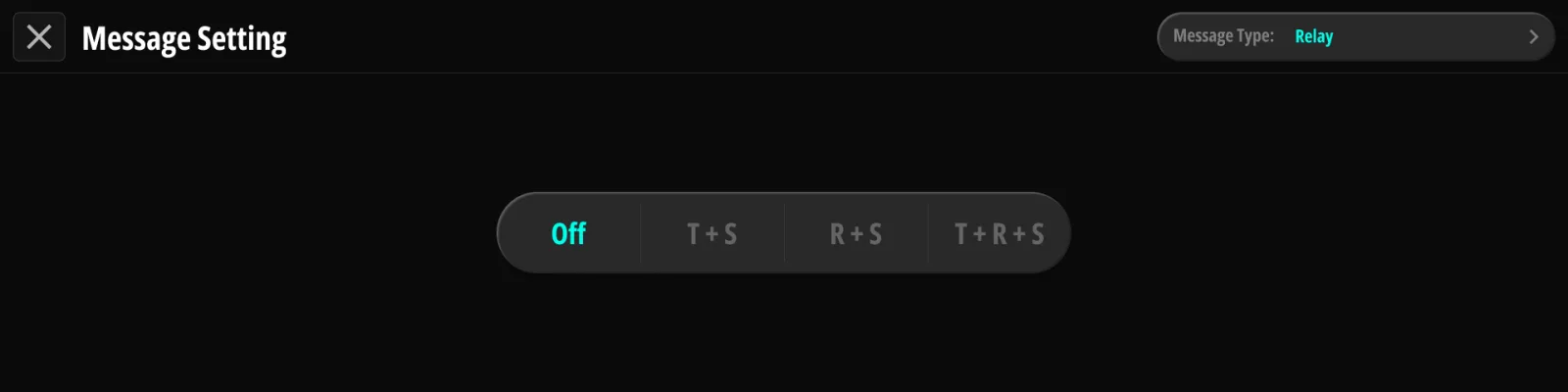
Drives the relay control jack (§13.3 Relay): Off / Tip+Sleeve / Ring+Sleeve / Tip+Ring+Sleeve.
Available only while the TRS Relay jack is in Relay mode; in tap-tempo modes the message slot is unavailable.
9.6.7Action Trigger#
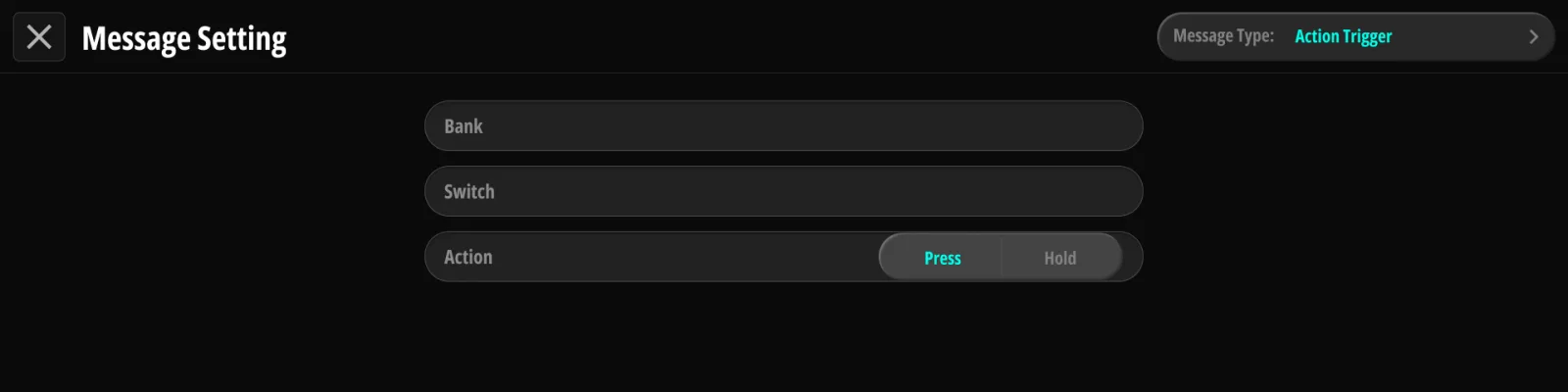
Sends the messages stored in another switch’s action, letting one press send several switches’ worth of messages. The target switch’s loop states are not applied; loops follow the switch you actually pressed. The target is a full address — bank or song, page, switch, and Tap or Hold — so it can reach into any bank, not just the current one. It starts out pointing at the switch you are editing; change it with the bank, page and switch pickers. Chains of triggers are followed, and a chain that loops back on itself is detected and stopped.
9.6.8Page Turner#
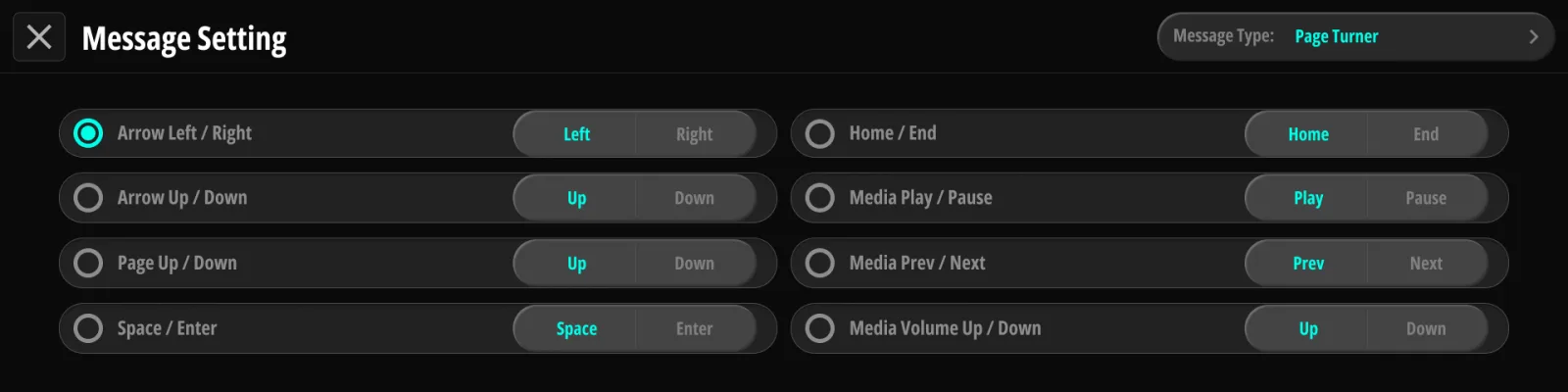
Sends a Bluetooth page-turn keystroke (§16.1 Radio (Bluetooth · Wi-Fi AP) for pairing). Pick a mode (radio list) and, within it, which key of the pair this message sends:
| Mode | Key choice |
|---|---|
| Arrow Left / Right | Left · Right |
| Arrow Up / Down | Up · Down |
| Page Up / Down | Up · Down |
| Space / Enter | Space · Enter |
| Home / End | Home · End |
| Media Play / Pause | Play · Pause |
| Media Prev / Next | Prev · Next |
| Media Volume | Vol+ · Vol− |
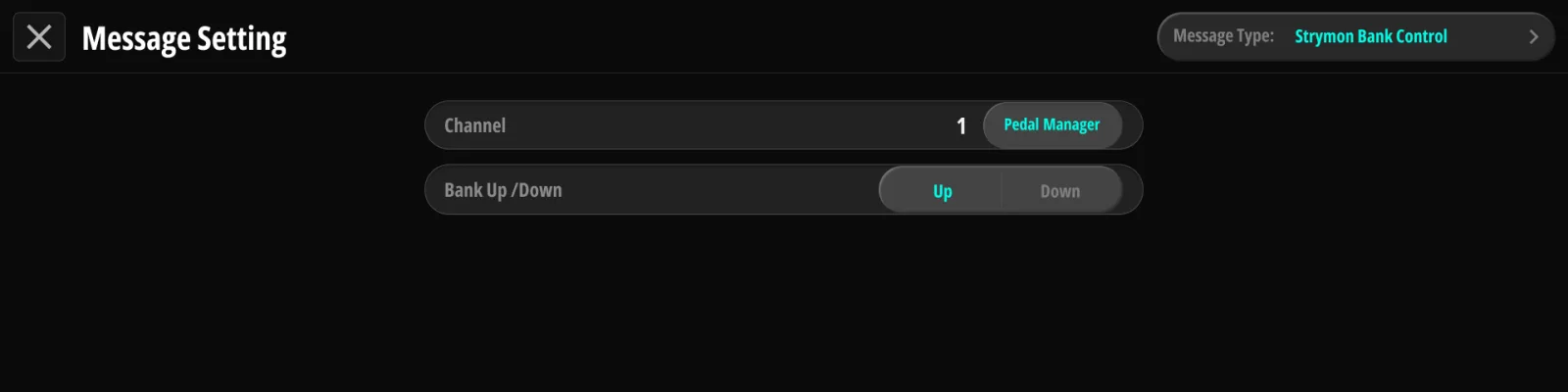
9.6.9Strymon Bank Control#
Sends a Strymon-style Bank Up / Bank Down (CC pulse pair) on the selected channel — the sequence Strymon pedals expect for bank navigation.
9.6.10TONEX ONE#
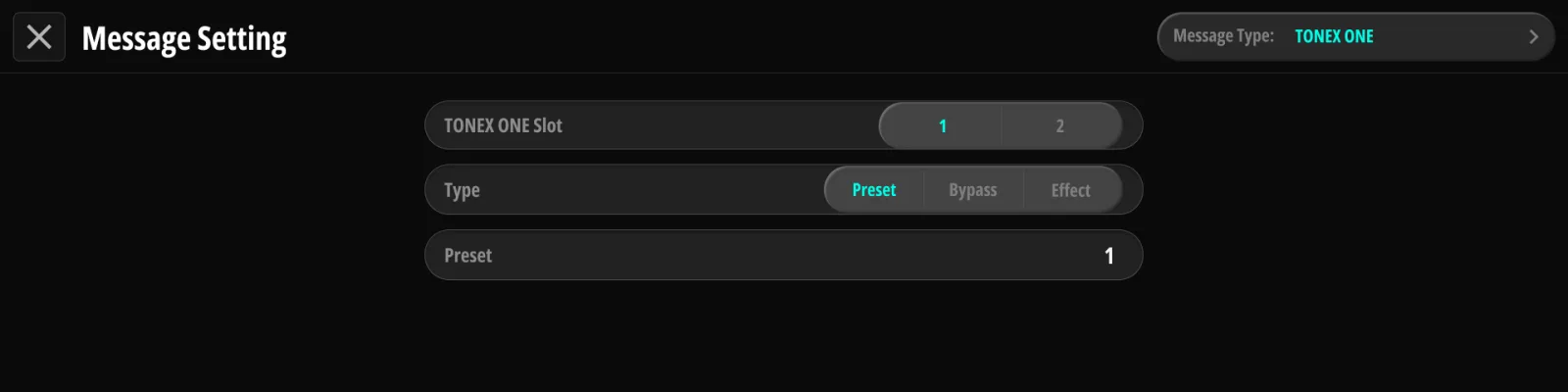
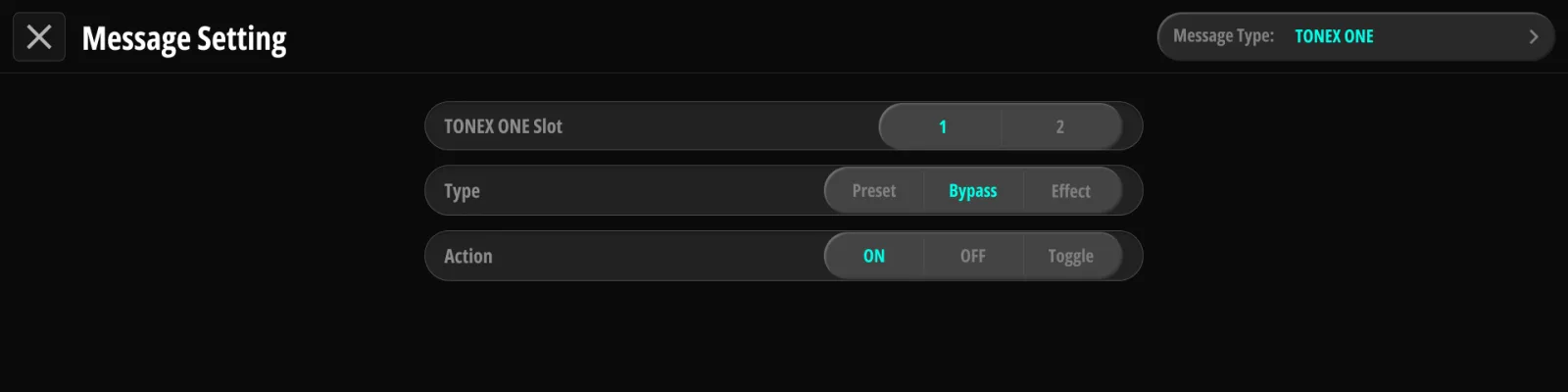
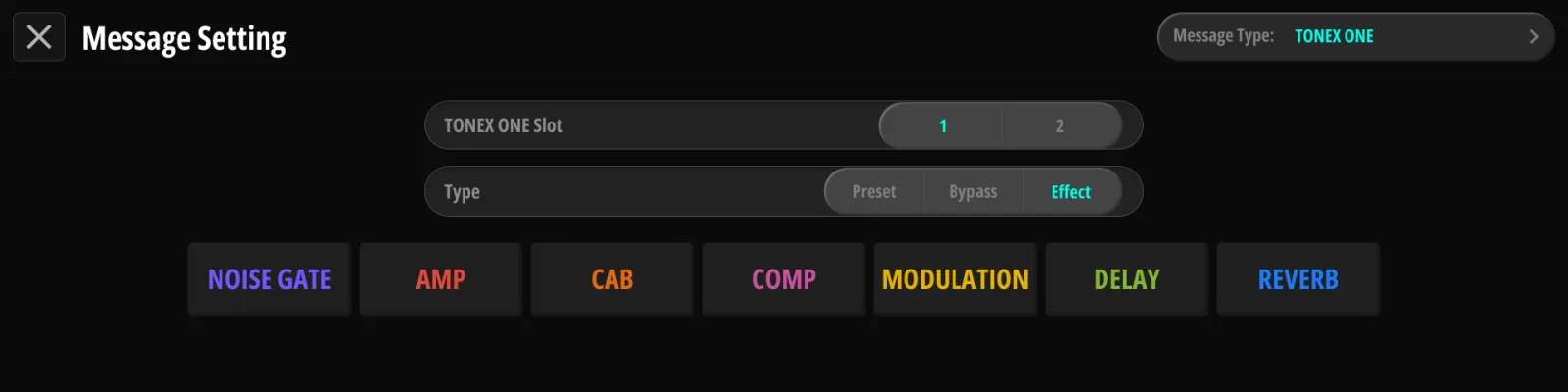
Controls an IK Multimedia ToneX One connected to a USB host port — no MIDI interface required. Two units can be connected (one per port); each message selects the target Slot 1 / Slot 2. Slot 1 is the port labeled USB HOST 1, Slot 2 is USB HOST 2.
| Sub-type | Parameters |
|---|---|
| Preset | Select preset 1–20 |
| Bypass | On / Off / Toggle |
| Effect | Block: Gate, Comp, Mod, Delay, Reverb, Amp, Cab — each On / Off / Toggle (default Toggle) |
The Effect page is a live view of the connected pedal: its seven blocks appear in the order the ToneX One itself has them, lit or dim to match the pedal. Tapping a block toggles it on the pedal right away and makes that block the one this message will control. If no ToneX One is on the chosen slot but one is on the other, the page switches to the slot that has a pedal.
Notes:
- The ToneX One needs its own power supply. The USB Host port does not supply enough current to run the pedal, and an unpowered unit may go undetected or drop out mid-set (§4.7 ToneX One Rig).
- ToneX One bypass control is available in the pedal’s Stomp mode (hardware behavior of the ToneX One).
- Koinos PLS 8 tracks the pedal’s state (preset, bypass, effect blocks) and reflects it on screen; the effect chain order shown follows the actual ToneX One block order.
9.6.11This Device#
Internal commands — the message controls Koinos PLS 8 itself:
| Target | Actions |
|---|---|
| Bank or Song | Up / Down / Jump (to a specific bank or a specific song) |
| Page | Up / Down |
| Clock Preset | Up / Down / Jump (to a specific group + slot) |
| Tempo | Up / Down by a set amount — in BPM or ms, following the display unit (§6.1 Clock & Tempo) |
| Setlist | Select a specific setlist by number; the display switches into Setlist Mode (§5.5 Setlist Mode) |
| Manual Mode | Toggle |
| Tuner | Toggle |
| Previous Preset | Toggle — return to the previously active preset |
Use these to build navigation switches anywhere you like — e.g. a Hold action that jumps straight to a specific bank. Bank, Page, Setlist and Previous Preset move what the display shows; the preset itself changes when you press a switch on the new page (§5.3 Bank Up / Down).
These are momentary commands. A switch that carries only This Device messages, with Affect Loop off, never becomes the active preset — it stays a command switch (§5.2 Selecting Presets (Tap / Hold)). That is also why Previous Preset skips such presses and returns to the last preset that really loaded.
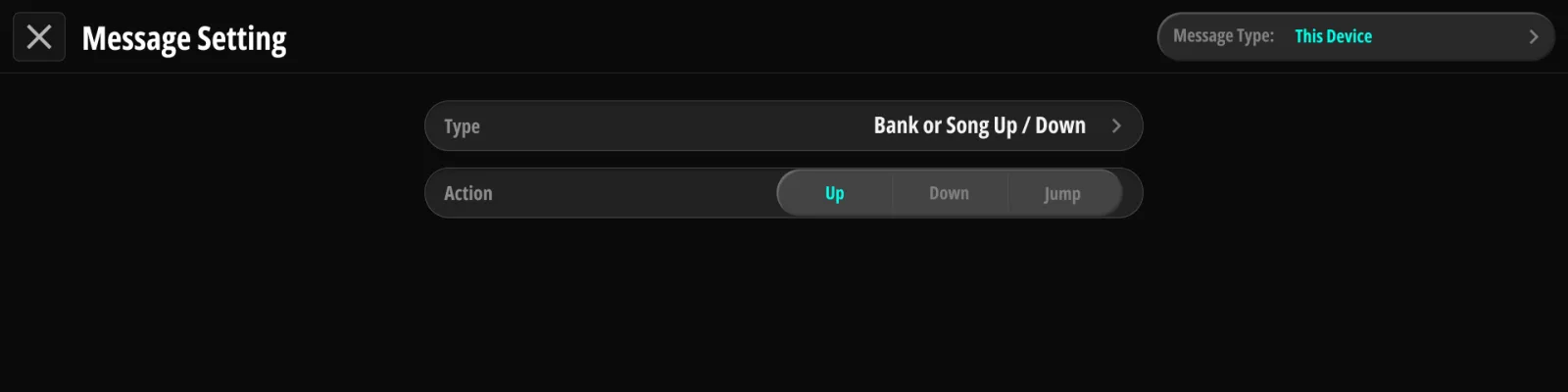
Factory defaults. New units come with these This Device assignments (all fully re-assignable):
| Switch | Trigger | Command |
|---|---|---|
| F | Hold | Manual Mode Toggle |
| G | Hold | Tuner Toggle |
| A+B | Tap | Page Down |
| B+C | Tap | Page Up |
| C+D | Tap | Bank Down |
| D+E | Tap | Bank Up |
9.7Global Presets#
Above the bank switches sits a bank-independent layer: Global Presets — reachable from the switch selection page’s Global Presets button. A global preset is edited exactly like a local one (Config → Loop Chain → Messages), but it exists once, outside any bank. This is the layer behind the factory navigation defaults (§9.6.11 This Device) — Bank Up/Down, Manual Mode and Tuner all live here, so they work in every bank until you override them.
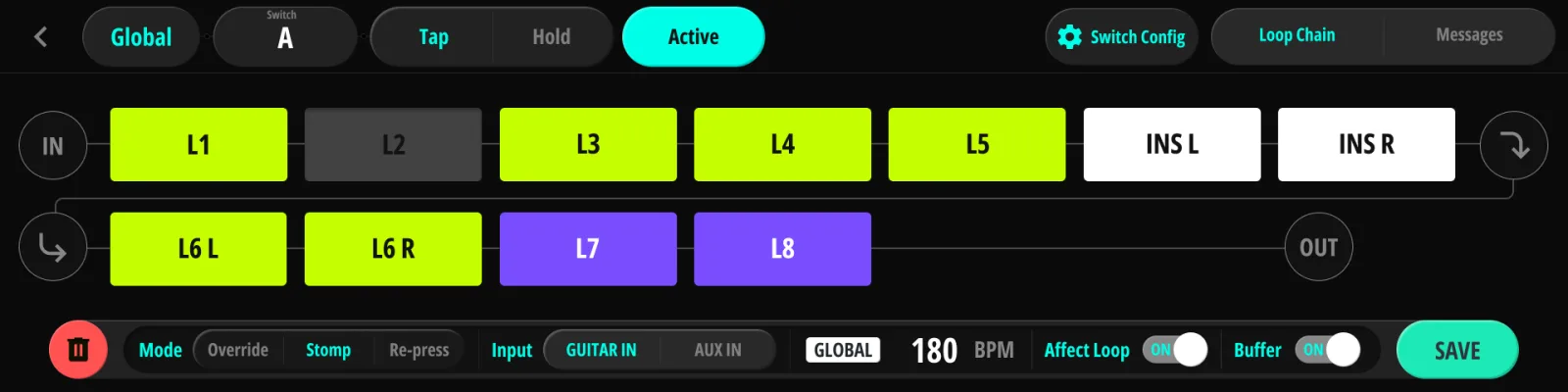
How a global action behaves on its switch is selectable per action — the Mode setting:
- Override — the global action fires instead of the local one, the moment you press. This is the default.
- Re-press — the first press fires the local action; pressing the same switch again fires the global action (e.g. first press = preset, second press = tuner).
- Stomp — the switch stops calling presets altogether and toggles loops like a stompbox (§9.7.1 Stomp mode).
A global action can carry its own loop chain, message list — and the one global Tap Tempo switch (§9.3.1 Switch Type) is defined here too.
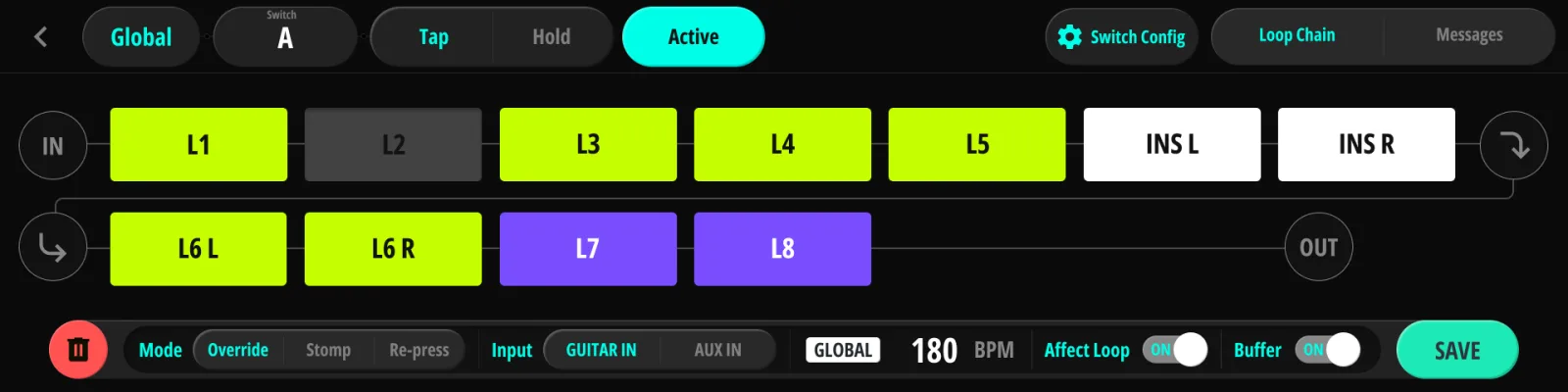
9.7.1Stomp mode#
A Stomp switch toggles a set of loops instead of loading a preset. Press it once and its target loops all turn on; press it again and they turn off. The active preset, the display and every other switch stay where they were — the switch acts like a pedal on your board, not like a preset button.
The switch has its own on/off state. Once it is on it stays on until you press that same switch again. Changing presets won’t turn it off, and neither will moving between banks and pages or editing something on screen. Only your foot ends it. Every Stomp switch starts off when the unit powers up.
Setting one up takes two steps:
- Pick the target loops. With Mode set to Stomp, the loop chain view becomes a picker: loops you turn on here are the ones the switch will toggle. Locked loops (L) can’t be targeted, and there is no Default state to think about — a loop is either a target or it isn’t.
- Add messages if you want them. A Stomp action has two message lists of up to 10 entries each: Stomp ON messages are sent when the switch goes on, Stomp OFF messages when it goes off. The lists don’t need to match, and leaving the OFF list empty has a meaning of its own (see Messages below). A Stomp action with no loops at all is also allowed, which turns the switch into a pure MIDI on/off control for external gear.
What switching it off actually does
A Stomp switch is a layer you drop on top of whatever preset is running. Switching it on adds the layer. Switching it off takes the layer away — it does not force anything off.
The difference shows when the preset already wanted a loop on. Say Loop 3 is on in your rhythm preset, and your Stomp switch happens to target Loop 3 as well. Turn the Stomp on and nothing changes for Loop 3, since it was already on. Turn the Stomp off and Loop 3 stays on, because the preset is the one holding it there — the Stomp switch never turned it on in the first place. Only the loops the preset wasn’t already holding go back off.
What that means per loop depends on its Lock setting (§3.8 Lock and Independent):
| Lock setting | What a Stomp switch does to the loop |
|---|---|
| Unlock | Forces it on while the switch is on. Switch off and the loop goes back to whatever the current preset asks for. |
| Independent | Follows the switch directly, on and off, and keeps that state across preset changes. This is the pairing for a boost or EQ you punch in on your own timing. |
| Lock | Never responds. |
Messages
The OFF list works the same way, and how you fill it decides what “off” means for your other gear:
- Leave the OFF list empty and switching off re-sends the active preset’s own messages. Your rig goes back to what the preset asked for, without you touching the preset switch again. Say your rhythm preset sends PC 1 to a delay and your Stomp sends PC 2 — switch the Stomp off and the delay returns to PC 1 on its own.
- Fill the OFF list and those messages are sent instead, exactly as written. Use this when you want a specific value on release rather than a return to the preset.
If another Stomp switch is still on when you switch this one off, its ON messages go out again as well — the layer you left running stays intact.
Seeing the state
A Stomp switch that is on colors its tile on the Main Page, using the global action’s own color. If you haven’t given the action or the switch a color, the tile turns white. The active preset’s highlight takes priority, so a tile showing the active preset keeps that color.
- Tapping a loop block on screen doesn’t switch the Stomp off. The loop turns off right then, but the switch is still on — press your next preset and the layer goes back on. To end it, press the Stomp switch.
- Editing a Stomp action and saving it resets that switch to off, on the unit and in Judahs Studio alike, so a layer from the old settings can’t linger under the new ones.
On the unit, the Mode setting and the loop picker are on the global action’s Config page, and the two message lists are on its Messages page, behind an ON / OFF tab. In Judahs Studio the same controls live in Switch Presets with Global Preset selected: the Mode selector sits just above Affect Loop, and the Messages card splits into Stomp ON / Stomp OFF lists.
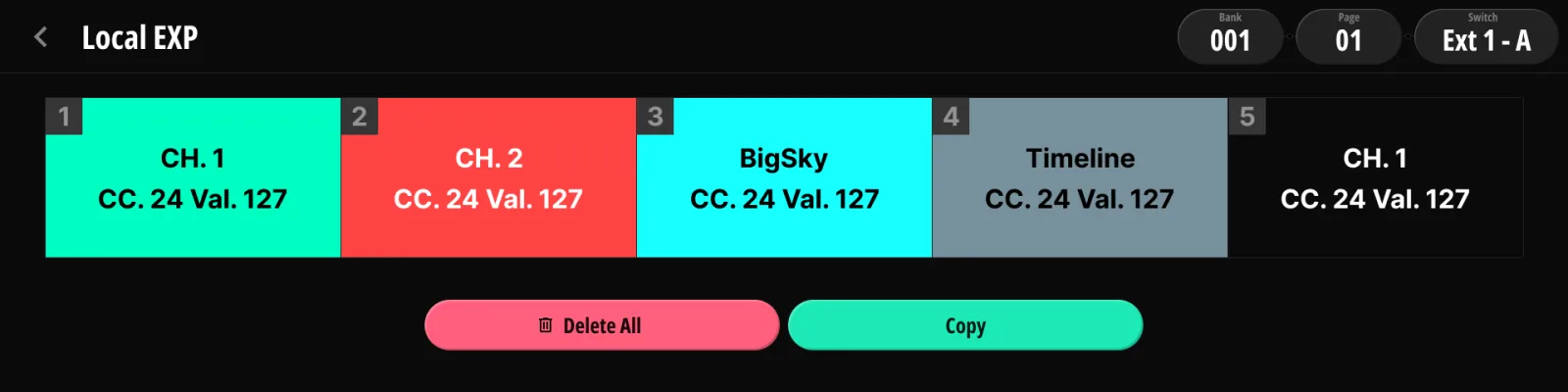
9.8Local EXP#
Each switch can carry its own expression pedal CC list (same five-slot format as Global EXP, Chapter 14). The list belongs to the switch, not to its Tap or Hold action — both share it. While that switch’s preset is active, the local list takes over from the global one. A Copy function copies the list to another switch, in the same bank or another. See §14.4 Priority vs. Local EXP for the priority rules.
9.9Hold Behavior & Saving#
Hold trigger (set in User Setting → Switch, §15.1 Switch):
- On Foot Up — the hold action fires when you lift your foot after the hold threshold.
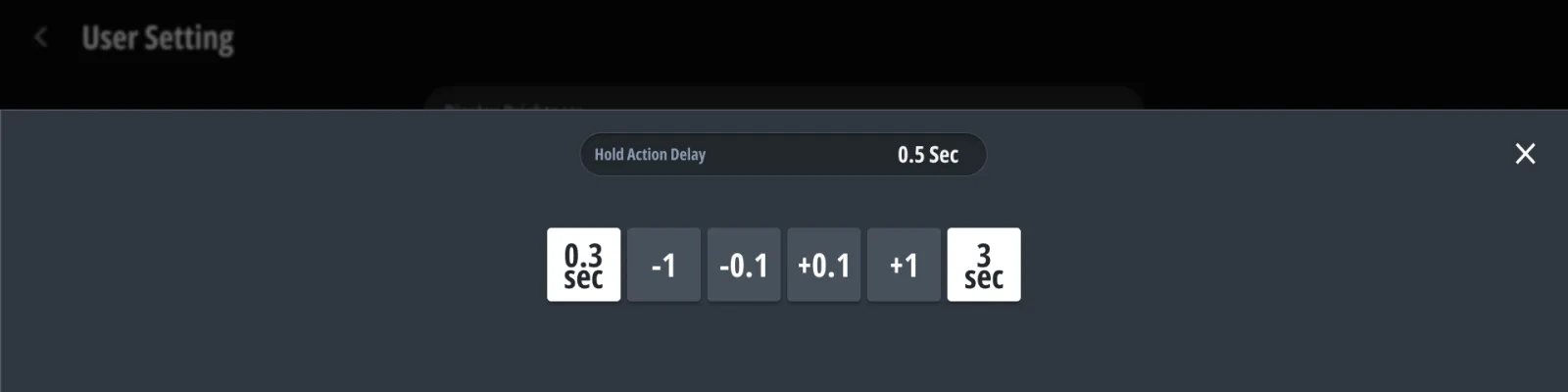
- On Time — the hold action fires as soon as the hold delay elapses. Delay configurable 0.3–3.0 s.
Saving — the two halves of an action save differently:
- Messages save the moment you leave the message pages (save-on-leave) — there is no save button to forget.
- Loop chain edits stay pending (the modified badge) until you press SAVE; leaving without saving discards them.
When saving to a different location (copy), the loop chain and message list travel together; Cancel restores the pre-edit snapshot.

Chapter 10
Audio#
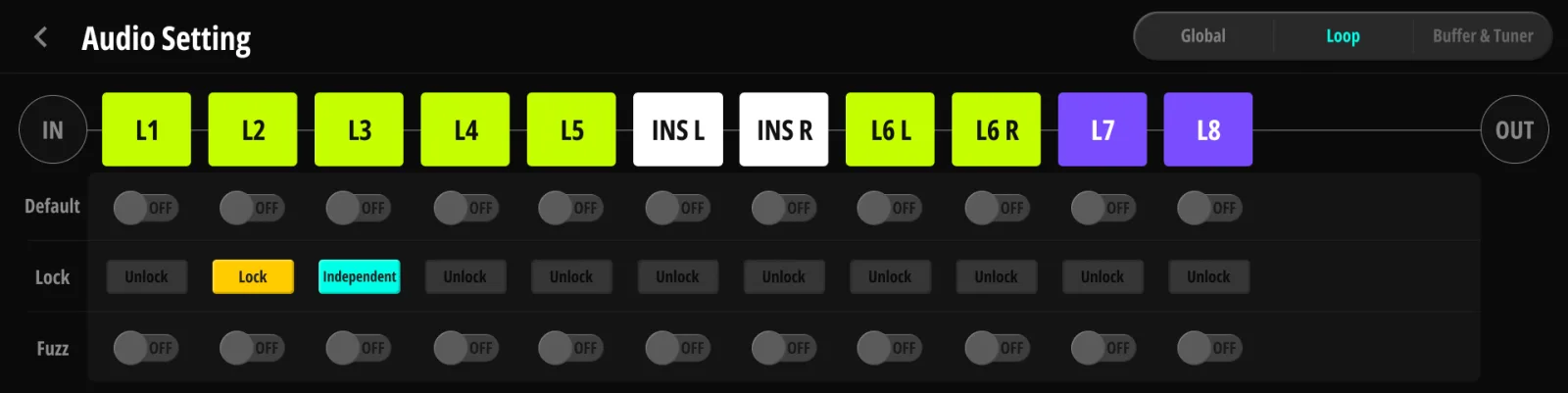
The Audio section gathers the signal-path options from Chapter 3, arranged in three tabs on the device: Global (stereo/split switches for the Insert loop and Loops 6–8, and Trail for Loops 6–8), Loop (the chain order with per-loop Default / Lock / Fuzz) and Buffer & Tuner. Judahs Studio shows the same groups on one screen.
10.1Buffer#
| Option | Values | Description |
|---|---|---|
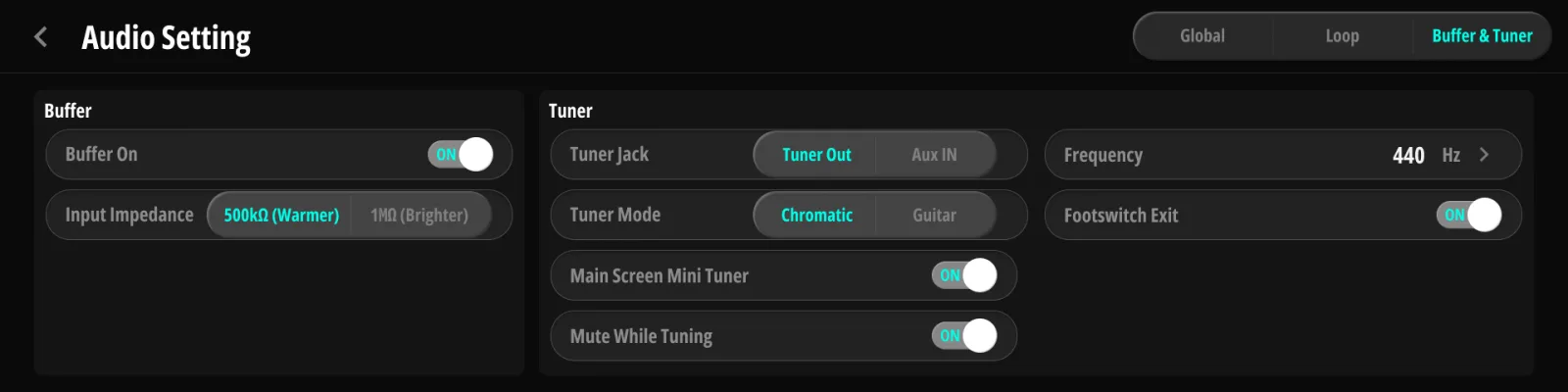
| Buffer On | on / off | Master input buffer switch (§3.4 Input Buffer) |
| Input Impedance | 500 kΩ (Warmer, default) / 1 MΩ (Brighter) | Input load seen by your pickups |
10.2Tuner#
| Option | Values | Description |
|---|---|---|
| Tuner Jack | Aux In / Tuner Out (default) | Function of Jack 1’s bottom socket (§3.9 Tuner Out and Aux In) |
| Tuner Mode | Chromatic / Guitar | Note detection mode |
| Reference Frequency | 430–445 Hz | A4 reference, default 440 Hz |
| Main Screen Mini Tuner | on / off | Inline tuner readout on the Main Page (§5.6 Tuner) |
| Mute While Tuning | on / off (default off) | Mutes the main outputs while the tuner page is open |
| Footswitch Exit | on / off (default on) | Any footswitch press closes the tuner (§5.6 Tuner) |
10.3Insert Loop#
Stereo behavior of the Insert loop (§3.2 Loops 1–5, 6–8 and Insert, §3.3 Stereo Modes):
| Option | Values |
|---|---|
| Split Insert Loop | on / off |
| Stereo Insert Send | on / off |
| Stereo Insert Return | on / off |
10.4Loop Chain#
The global default chain, drawn as the same strip as the Main Page, with a row of switches per loop:
- Default order — on this page you swap with two plain taps: tap the first loop, then the loop you want to trade places with. (The Main Page and the action editor use a long-press instead, §9.4.2 Reordering the Chain.) Presets without their own order follow this one.
- Default — the loop’s global default on/off value (§3.7 Default and Override). Every preset that doesn’t override the loop follows this value.
- Stereo switches — Stereo Send / Stereo Return / Split per stereo-capable loop (§3.3 Stereo Modes, on the Global tab), same options as the Insert loop above.
- Lock — Unlock / Lock / Independent per loop (§3.8 Lock and Independent).
- Fuzz — per-loop fuzz flag (§3.5 Fuzz Mode).
- Trail — trail flag for Loops 6–8 (§3.6 Trails), on the Global tab. Disabled while the loop is split.
Chapter 11
Pedal Manager#
Register the devices on your board once, and every other feature (loop chain labels, channel picker, EXP lists, dictionaries) knows them by name.
11.1The 30 Slots#
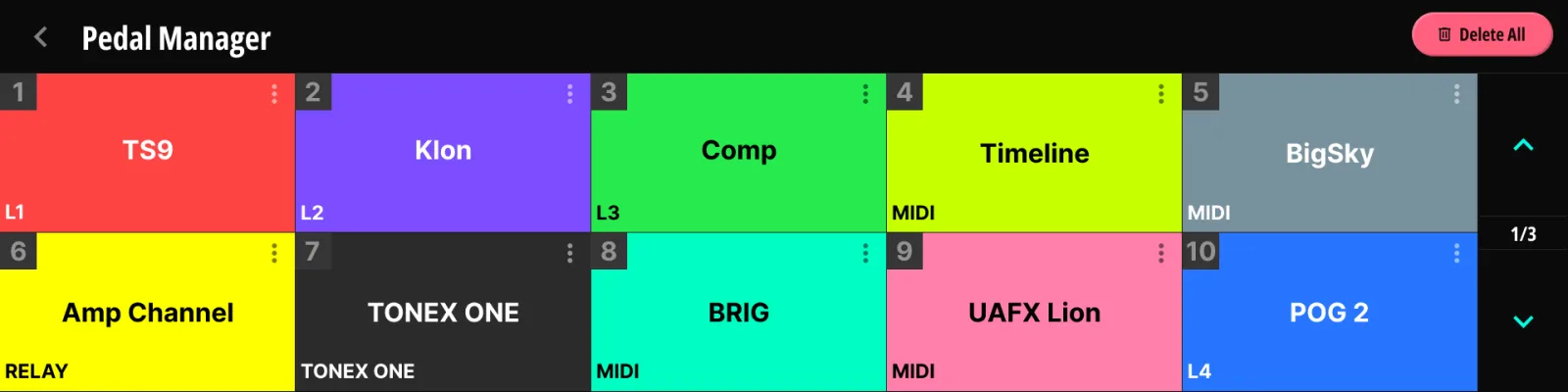
- 30 slots, arranged by position. The device shows them 10 per page; Judahs Studio shows all 30 at once.
- Tap an empty slot to register a new pedal; tap an occupied slot to edit it.
11.2Edit Pedal#
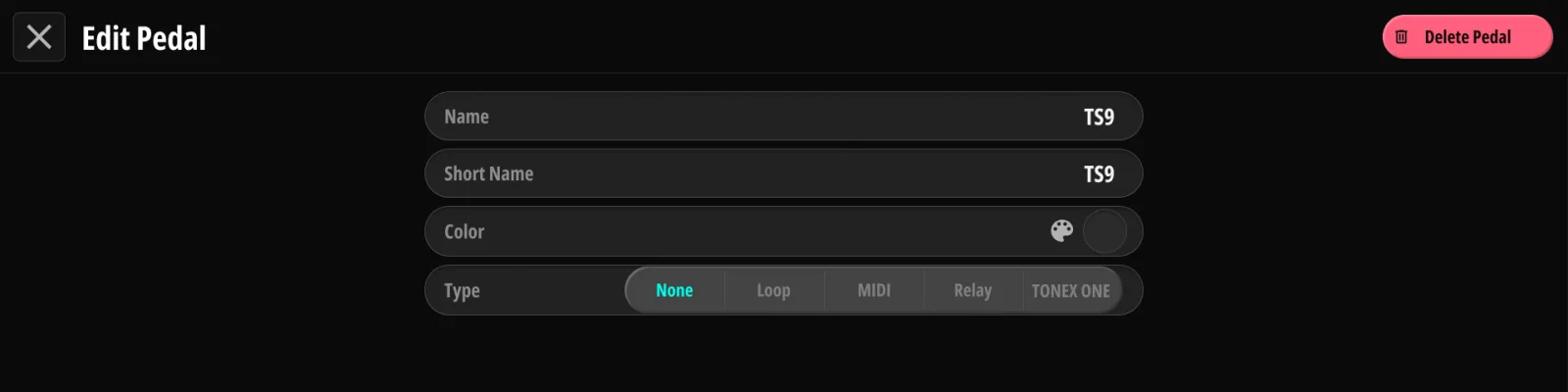
Each pedal has a Name (up to 19 characters), a Short Name (up to 8 characters — what the loop chain strips display; left blank, it takes the first 8 characters of the Name), a Color, and a Type that determines its options (a pedal can also be left as type None — registered by name only):
11.2.1Loop Type#
An audio pedal sitting in one of the loops. Option: loop assignment (which physical loop it occupies). Its short name then labels that loop in every chain strip.
11.2.2MIDI Type#
A MIDI-controlled device. Option: MIDI channel. The pedal then appears in the channel picker (§9.5.2 Channel Picker & Pedal Binding), and can be linked to the CC dictionary (§11.3 Link CC Dictionary).
11.2.3Relay Type#
A device controlled through the relay jack (e.g. an amp). Only one relay pedal can exist (the hardware has one relay jack).
11.2.4ToneX One Type#
A ToneX One on a USB host port. Option: host slot (Host 1 / Host 2). Two ToneX pedals maximum — one per Host port, since USB hubs are not supported. The pedal must run from its own power supply (§4.7 ToneX One Rig); a ToneX One that has no power connected will not register on its host slot.
11.3Link CC Dictionary#
A MIDI-type pedal can be linked to a dictionary product (manufacturer → model). Once linked:
- The pedal card shows the product name.
- CC pickers opened for that pedal’s channel are pre-seeded with the product’s parameter list — pick “Mix” instead of remembering “CC 14”.
11.4Re-arranging & Conflicts#
- Long-press a slot to enter swap mode (same gesture as everywhere else, works across pages).
- Conflicts prompt Keep Current / Reassign: duplicate relay pedals, a full loop assignment, or both ToneX host slots taken. Reassign hands the slot to the new pedal and sets the displaced pedal’s type back to None.
- Delete / Delete All remove registrations. Audio wiring is unaffected.
11.5Where Pedal Names Appear#
| Feature | What the pedal contributes |
|---|---|
| Loop chain strips (Main Page, editors, Audio) | Short name on the loop slot |
| Channel picker (§9.5.2 Channel Picker & Pedal Binding) | A channel entry carrying the pedal’s name and color |
| EXP CC lists (Ch. 14, §9.8 Local EXP) | Channel binding and color |
| CC dictionary (§17.5 MIDI Dictionary) | Linked products pinned to the top |
Chapter 12
MIDI#
Global MIDI behavior. Message programming lives in Chapter 9; this chapter is the device-wide plumbing. All options below are grouped as they appear on screen.
12.1Channel#
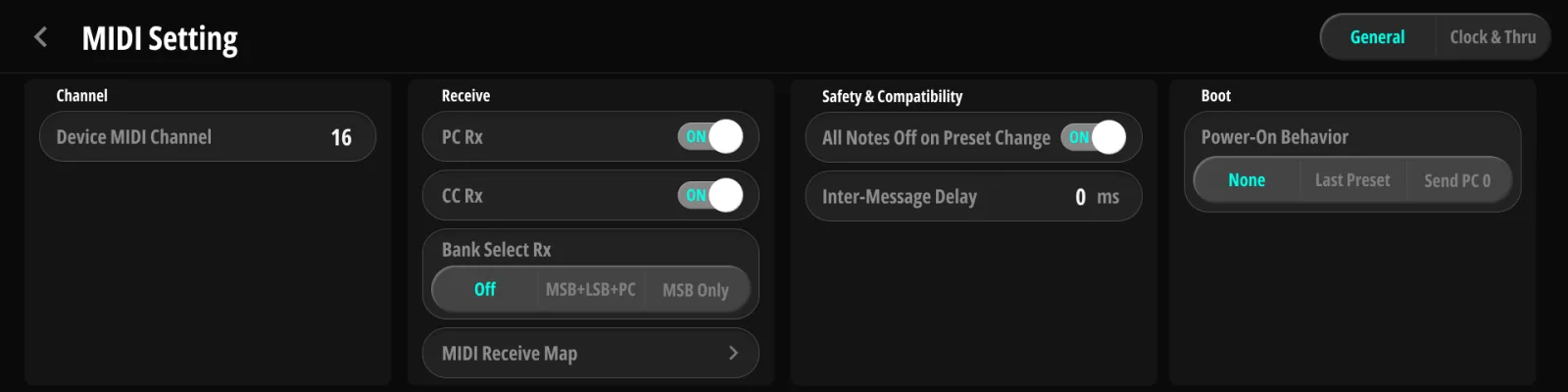
| Option | Values | Description |
|---|---|---|
| Device MIDI Channel | 1–16 (default 16) | The channel Koinos PLS 8 listens on |
12.2Receive#
| Option | Values | Description |
|---|---|---|
| PC Rx | on / off | Incoming Program Changes pick a bank (Appendix C.2). Only the displayed bank moves and the page returns to 1; the sound does not change until you press a preset switch |
| CC Rx | on / off | Act on the CC receive map (remote control — Appendix C) |
| Bank Select Rx | Off / MSB+LSB+PC / MSB Only | Whether an incoming bank select (CC 0) is combined with the next PC to pick a bank (Appendix C.2). LSB (CC 32) is not used, so MSB+LSB+PC and MSB Only behave the same |
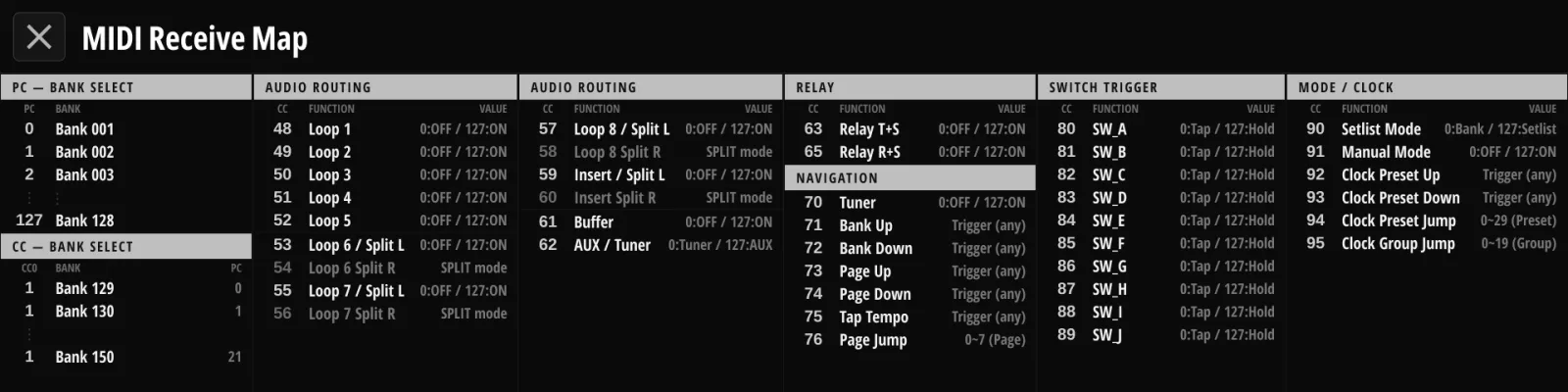
| MIDI Receive Map | — | Opens the on-device browser of the CC receive map — what each incoming CC controls |
12.3Safety & Compatibility#
| Option | Values | Description |
|---|---|---|
| All Notes Off on Preset Change | on / off | When you press a switch that loads a different preset, the unit first sends All Notes Off (CC 123) on every channel it has sent a Note On to since the last time. Nothing is sent if no notes were played, or if you press the active preset again. |
| Inter-Message Delay | 0–1000 ms | Gap inserted between outgoing messages (0 = fastest); for devices that drop rapid-fire MIDI |
12.4Boot#
On every power-up the unit restores the preset that was active when it was switched off: its loops, its tempo and the screen. Power-On Behavior decides what, if anything, goes out over MIDI at that moment:
| Option | Values | Description |
|---|---|---|
| Power-On Behavior | None / Last Preset / Send PC 0 | Last Preset (the default) re-sends the restored preset’s MIDI messages and its bank’s (§8.5 Bank Messages), so external gear comes back matching the screen. None sends nothing. Send PC 0 sends only Program Change 0 on the device channel, putting downstream gear on its first program. |
12.5Clock#
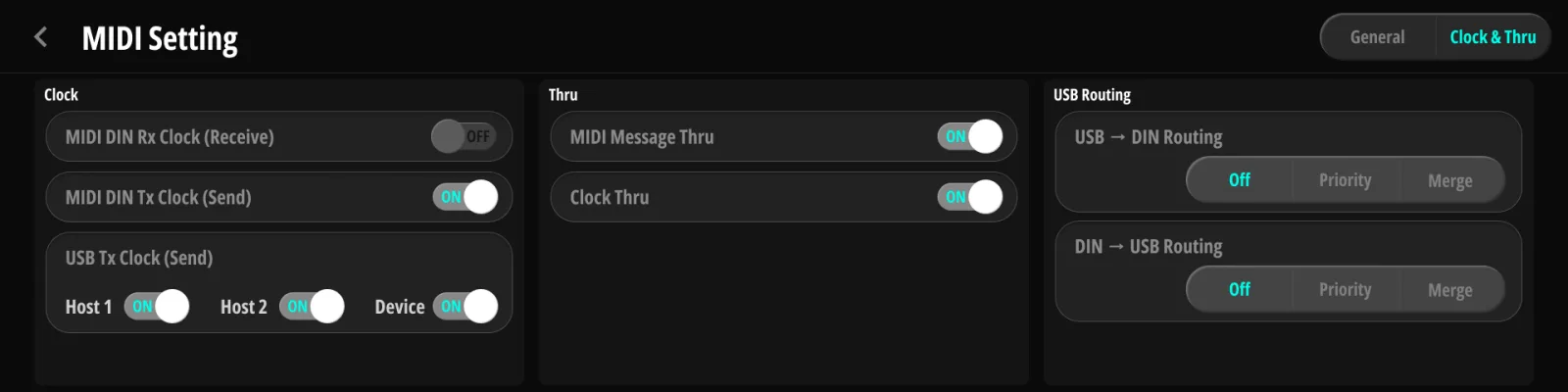
| Option | Values | Description |
|---|---|---|
| MIDI DIN Rx Clock | on / off | Follow incoming MIDI Clock (external tempo) |
| MIDI DIN Tx Clock | on / off | Send MIDI Clock on DIN OUT |
| USB Tx Clock | Host 1 / Host 2 / Device — each on / off | Send MIDI Clock on each USB port independently |
12.6Thru#
| Option | Values | Description |
|---|---|---|
| MIDI Message Thru | on / off | Pass incoming DIN MIDI messages to DIN OUT |
| Clock Thru | on / off | Pass incoming MIDI Clock from DIN IN to DIN OUT, independent of message thru |
Both Thru switches act on the DIN input only. Keep Clock Thru off when the unit is also sending its own clock (§12.5 Clock), or the receiving gear will see two clocks. Because the TRS MIDI output mirrors DIN OUT (§13.4 MIDI Out (Type A / B / Tip / Ring Active)), anything passed through appears there too.
12.7USB Routing#
Routing between the USB ports and the DIN ports, set per direction:
| Option | Values | Description |
|---|---|---|
| USB → DIN Routing | Off / Priority / Merge | How MIDI arriving on the USB-C port reaches DIN OUT |
| DIN → USB Routing | Off / Priority / Merge | How MIDI arriving on DIN IN reaches the USB ports |
Routing forwards channel messages (Program Change, Control Change, notes) regardless of channel. Clock is not routed — use the per-port clock switches (§12.5 Clock) and Clock Thru (§12.6 Thru) — and incoming SysEx is not routed.
Merge places the routed messages in the unit’s own outgoing queue, in the order they arrive, so they share the Inter-Message Delay (§12.3 Safety & Compatibility) with the unit’s messages. Priority sends them at once, ahead of anything the unit has queued, with no added delay. Use Priority for a keyboard or DAW stream that must stay tight; use Merge when a receiving device drops messages that arrive too close together.
The unit’s own messages always go to every output — DIN, TRS MIDI and USB — whatever these routing options are set to.
Chapter 13
TRS#
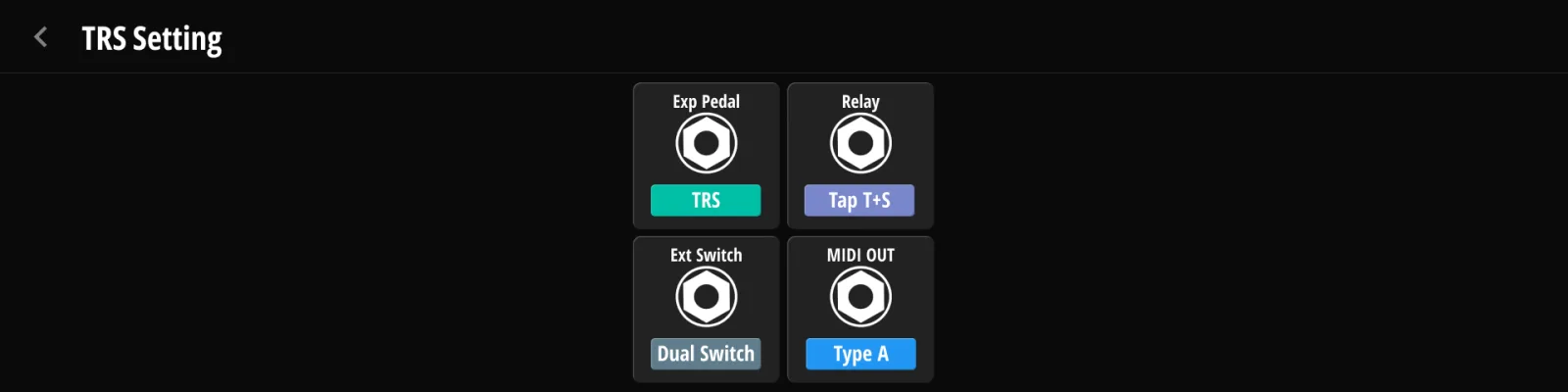
Jacks 12 and 13 are multi-function control jacks. The device configures them in a jack-card list; Judahs Studio shows the same four cards side by side.
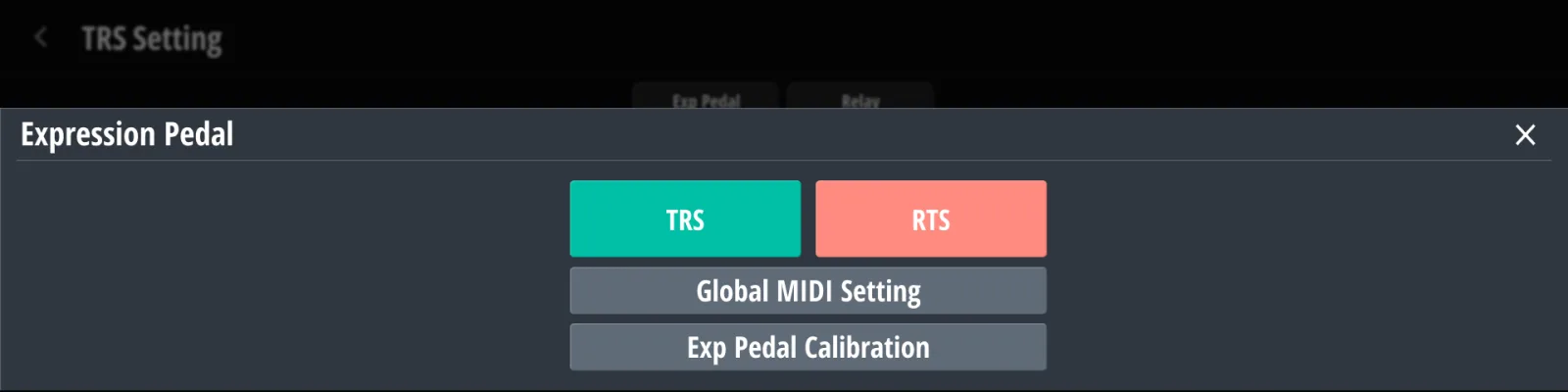
13.1EXP Jack (TRS / RTS)#
Wiring convention of the expression pedal input: TRS (the pedal’s position signal on the tip) or RTS (position signal on the ring). Most pedals are TRS; check your pedal’s manual if unsure.
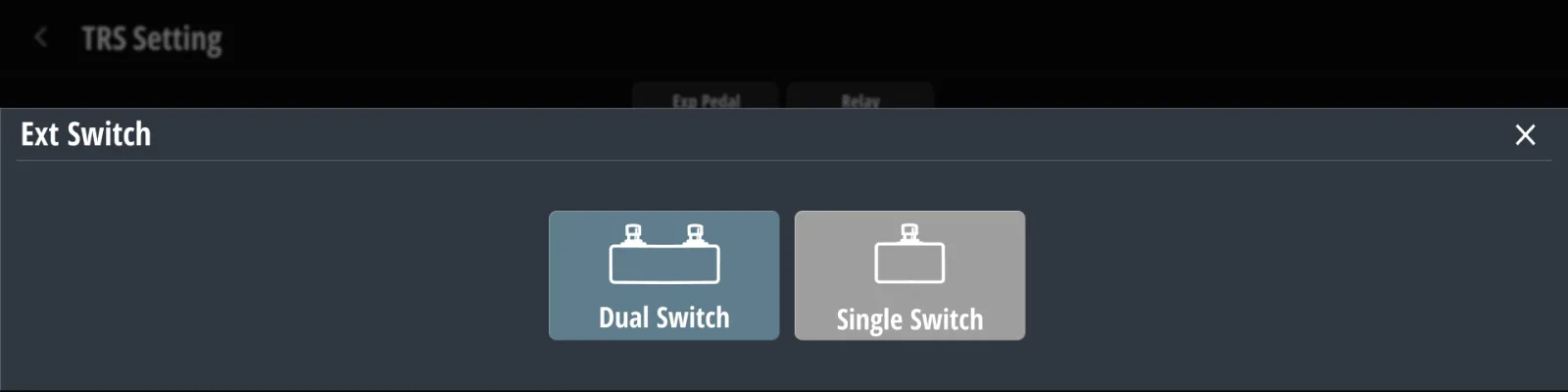
13.2External Switches (Dual / Single)#
Dual — two switches on tip and ring (Ext-A / Ext-B). Single — one switch on the tip.
Use momentary switches: the kind that springs back the moment you lift your foot. The unit acts on each press and on each release, so a switch that stays down until you press it again fires once when it goes down and once more when it comes back up — rarely what you want.
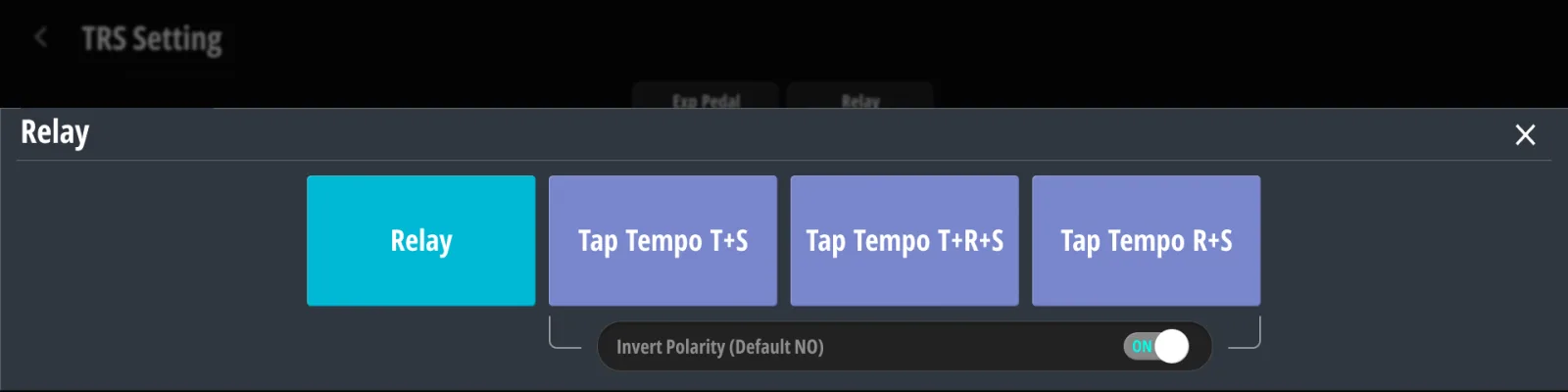
13.3Relay#
The relay jack (Jack 13, top socket) drives amp channel switching or external tap-tempo inputs:
| Mode | Behavior |
|---|---|
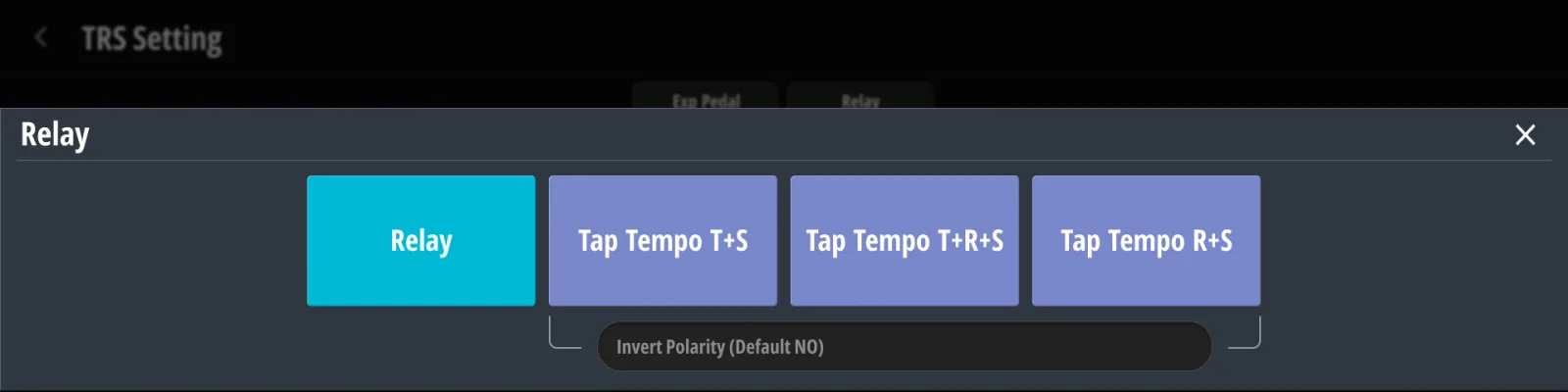
| Relay | Tip+Sleeve and Ring+Sleeve act as two independent relay contacts, driven by Relay messages (§9.6.6 Relay) or presets |
| Tap tempo T+S / T+R+S / R+S | The jack emits four short contact closures (about 50 ms each) at the global tempo interval, then stops. It sends another four at power-up, when you pick this mode, and whenever the global tempo changes. They go out on the chosen contact or on both (T+R+S), for pedals with tap-tempo inputs |
Invert Polarity swaps the contact’s resting state: what used to rest open now rests closed, and the other way around. Amps disagree on which state means “on”, so if your amp picks the wrong channel — or changes channel the moment you plug the cable in — turn this on.
13.4MIDI Out (Type A / B / Tip / Ring Active)#
The TRS MIDI output (Jack 13, bottom socket) sends the same data as MIDI DIN OUT — everything sent to DIN, SysEx included, also appears here. It supports four wiring standards:
| Mode | Use |
|---|---|
| Type A | MMA standard (most modern pedals) |
| Type B | Alternative wiring (e.g. some older brands) |
| Tip Active | Non-standard tip-only devices |
| Ring Active | Non-standard ring-only devices |
Chapter 14
Global EXP#
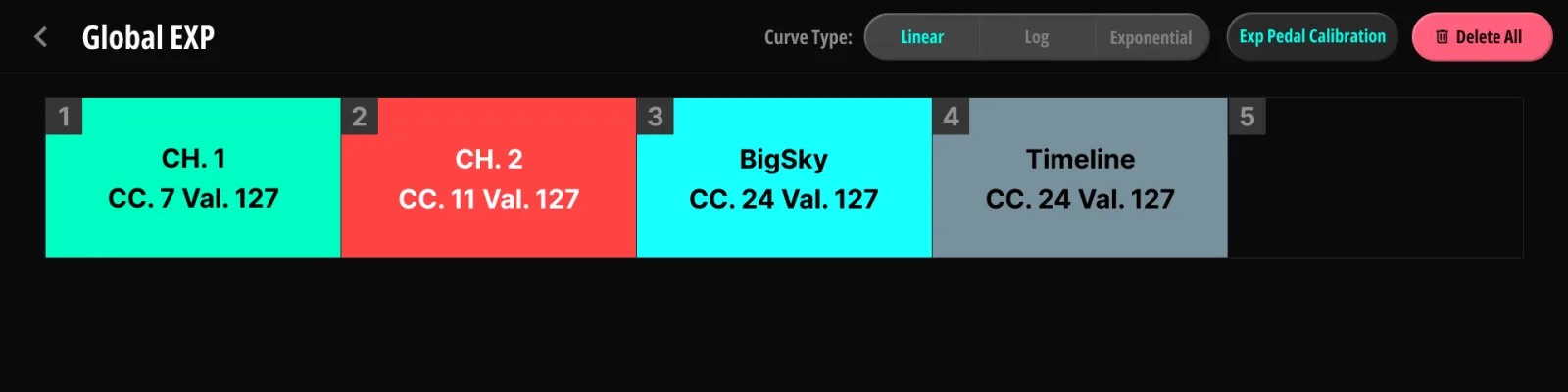
The expression pedal’s device-wide behavior. Per-action overrides are in §9.8 Local EXP.
14.1CC Slots#
Five assignment slots. Each slot maps the pedal to one CC:
| Field | Description |
|---|---|
| Channel | 1–16 or pedal binding (follows the pedal’s channel automatically) |
| CC number | Pick from the CC dictionary (§17.5 MIDI Dictionary) or enter directly |
| Value From / To | Heel → toe output range (0–127); the dictionary can fill both CC number and range |
14.2Curve Type#
Response curve of the pedal: Linear / Log / Exponential.
14.3Calibration#
- Open Calibration; the bar shows the live pedal position.
- Move the pedal to heel-down, press Set Min.
- Move to toe-down, press Set Max.
- Save stores the calibration; Reset reverts to defaults.
While the calibration page is open, the pedal sends no MIDI.
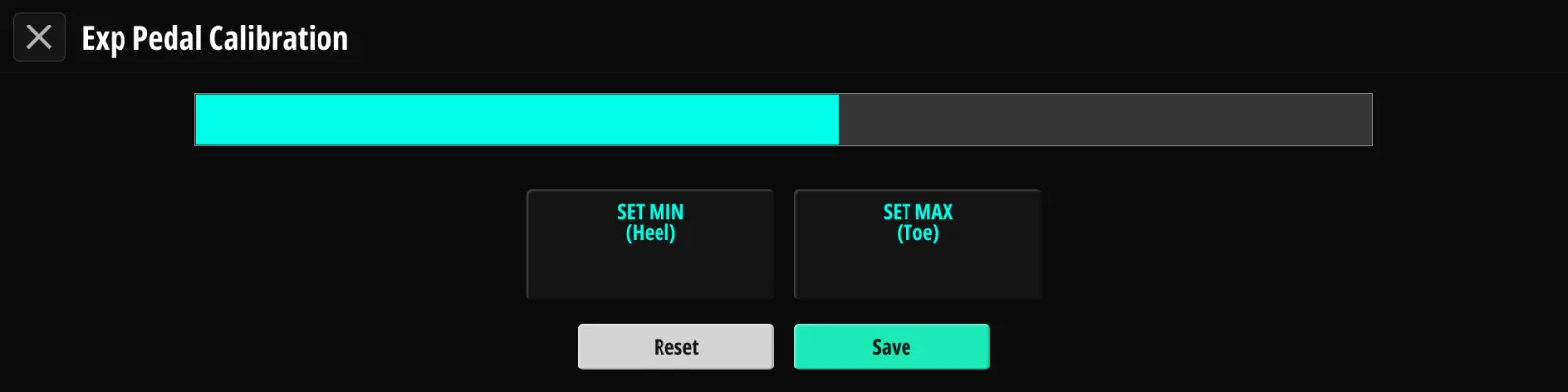
14.4Priority vs. Local EXP#
When the active switch carries a Local EXP list (§9.8 Local EXP), it replaces the global list while that switch’s preset is active. Otherwise the global list applies. Local and global lists are not merged slot by slot: one filled slot in the local list is enough to silence the whole global list.
Chapter 15
User Setting#
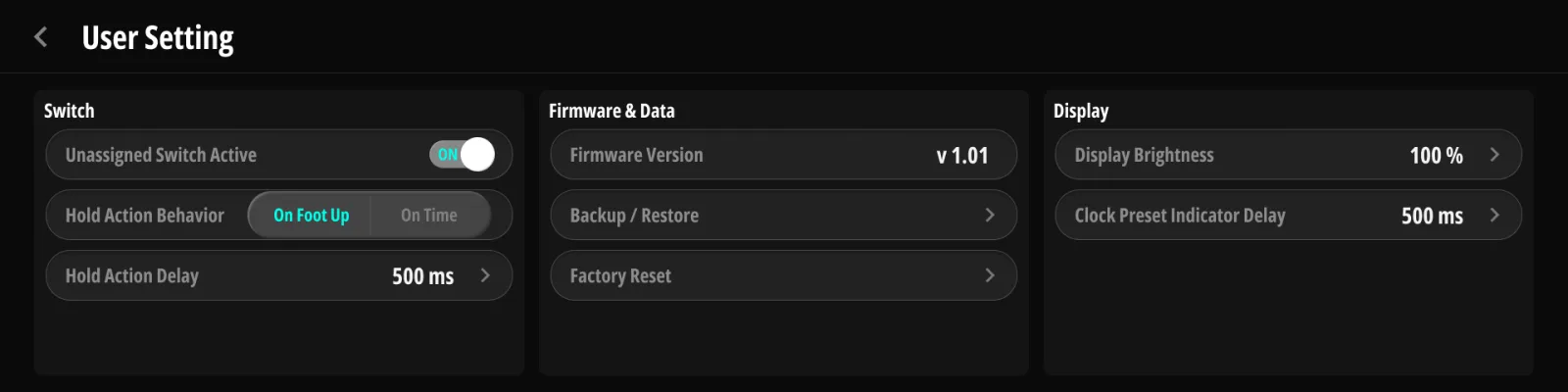
15.1Switch#
| Option | Values | Description |
|---|---|---|
| Unassigned Switch Active | on / off | Off = a switch with no loop change, no relay and no messages does nothing at all — it won’t even become the active switch |
| Hold Action Behavior | On Foot Up / On Time | When the Hold action fires (§9.9 Hold Behavior & Saving) |
| Hold Action Delay | 0.3–3.0 s | Hold threshold |
15.2Display#
| Option | Values | Description |
|---|---|---|
| Brightness | 10–100 % | Display backlight |
| Clock Preset Indicator Delay | Off, or 0.2–3.0 s (0.1 s steps) | How long the tempo pop-up stays after a Clock Preset change before returning to the home screen; Off keeps the current screen (§6.2 Clock Presets) |
The User Setting page also displays the current firmware version (Chapter 18).
15.3Firmware & Data#
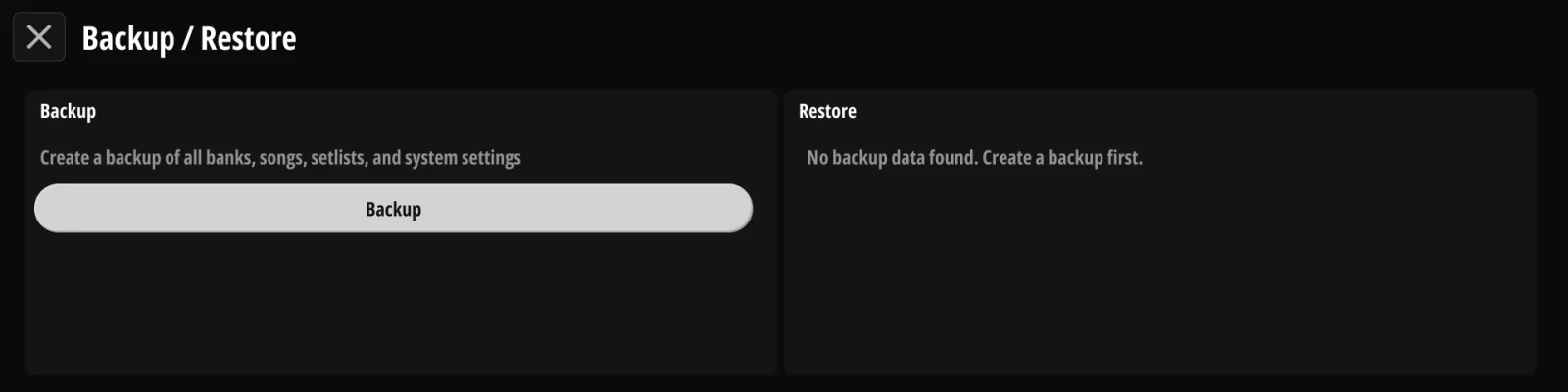
15.3.1Backup from Device#
Backs up the entire configuration (banks, songs, setlists, pedals, settings) to a separate backup memory inside the unit. Only one backup is kept there; a new one replaces it. Backups can also be downloaded to a computer with Judahs Studio (§17.6 Backup Download / Upload).
15.3.2Restore to Device#
Re-applies the stored image and reboots. The restore runs in two passes: the first reads the whole backup back and checks it without touching your data, the second writes it. If the check fails, nothing is overwritten; the display shows FAIL and the unit reboots as it was. Any configuration made after the backup is overwritten by a successful restore. Restore is greyed out when no backup exists.
15.3.3Factory Reset#
Erases all user data and settings and returns the unit to factory defaults. The internal backup is left alone, so you can run Restore afterwards to get everything back — as long as you made a backup first (§15.3.1 Backup from Device).
Chapter 16
Wireless#
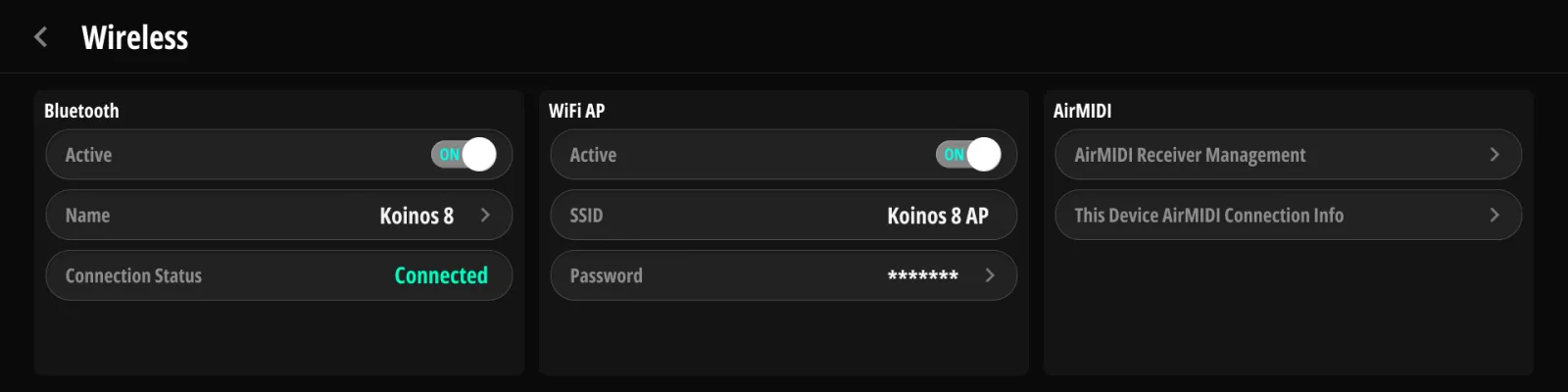
16.1Radio (Bluetooth · Wi-Fi AP)#
All three radios share the rear-panel antenna (§2.2 Rear Panel), so leave it fitted whenever you use them.
- Bluetooth — Active switch, device Name (shown for reference only and cannot be changed; this is what your tablet sees when pairing for the page turner, and Judahs Studio uses it to find the device, §9.6.8 Page Turner) and a live Connection Status readout.
- Paired Devices — three slots for the tablets or computers you pair with. Each slot has a name, a Pair / Connect / Disconnect button and a Forget button. Pair opens the unit for pairing for one minute. Up to three devices stay connected at once — Connect chooses which one receives the page turns (it must already be connected to the Koinos 8; otherwise the slot stays as it is), and Disconnect stops sending to that device while leaving the link in place. Forget clears the slot altogether. It only removes the pairing stored here, and some devices — Windows PCs especially — will keep trying to reconnect afterwards. To close the link for good, remove the Koinos 8 from that device’s own Bluetooth list as well (on Windows: Settings › Bluetooth & devices › Devices, then Remove device).
- Wi-Fi AP — Active switch, SSID and Password (both editable; the password must be at least 8 characters). The access point carries the editor connection (§17.1 Installing & Connecting (USB / Wi-Fi / BLE)).
Out of the box, the Bluetooth name and the Wi-Fi SSID are both Koinos8_ followed by four characters unique to your unit, and the Wi-Fi password is koinospls8. Change the password before using the access point anywhere public.
16.2This Device (AirMIDI)#
AirMIDI is Judahs’ low-latency wireless MIDI link between Judahs devices, using broadcast radio — no Wi-Fi network required. This Device AirMIDI Connection Info shows this unit’s device ID (three groups of four characters), which other units use to register it. The switches below it choose what this unit accepts from the others: Bank, Switch and Clock sync, all off by default.
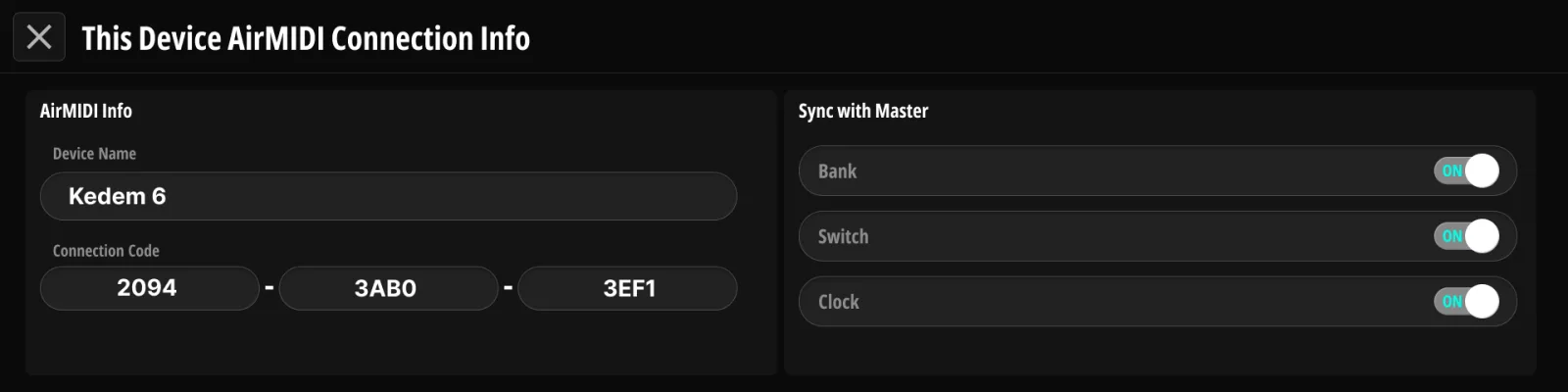
16.3AirMIDI Receivers#
Register the devices that should receive this unit’s MIDI wirelessly (up to 20 receivers):
- Open AirMIDI Receiver Management and scan — nearby Judahs devices appear automatically.
- Select a device (or type its ID in) to register it. The unit then waits a few seconds for the other device to answer and reports whether pairing worked.
- Registered receivers get this unit’s MIDI from then on. A receiver that is powered on later joins by itself; the radio link recovers on its own if the connection drops.
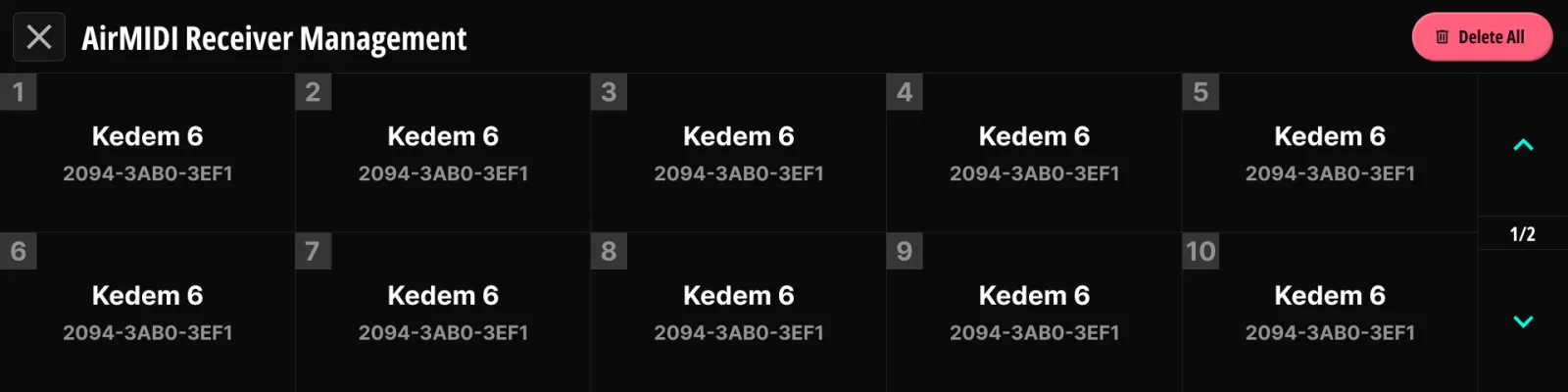
What travels over the air: the Program Change, Control Change and Note messages your presets send, bank changes while you are in Bank mode, and the tempo. Messages that only make sense on this unit — relay, ToneX, page turner, Action Trigger and This Device — stay local. AirMIDI is one-directional per link: this unit sends, the receivers listen. To go the other way, register this unit on the other device and turn on the receive switches in §16.2 This Device (AirMIDI).
Part III
Companion#
Chapter 17
Judahs Studio#
Judahs Studio is the companion app for macOS and Windows.
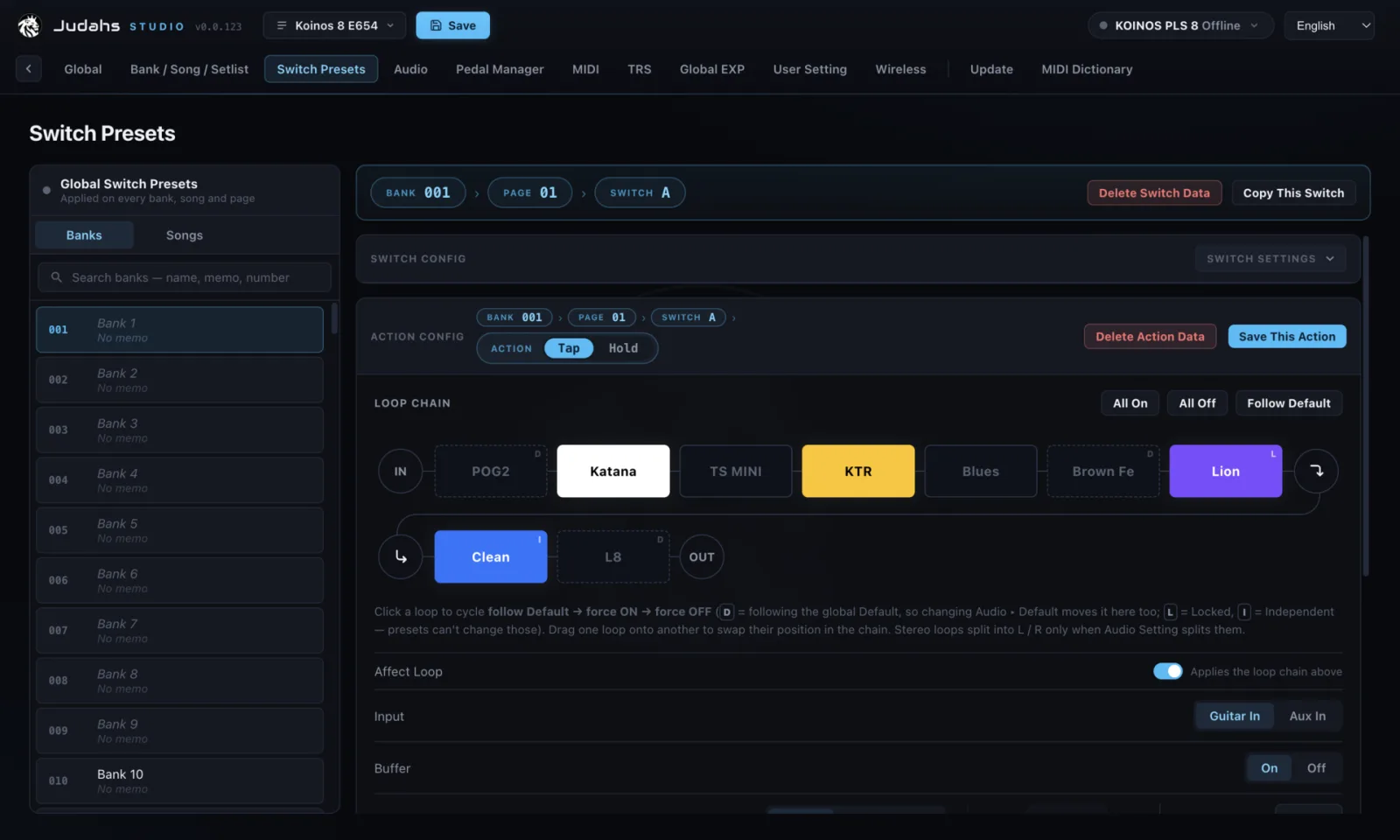
17.1Installing & Connecting (USB / Wi-Fi / BLE)#
Download Judahs Studio from https://judahs.io/software/judahs-studio. On first launch the app asks you to sign in with a Judahs account (or create one); after that you stay signed in, even without an internet connection. Then connect by any of:
- USB — plug the USB device port into your computer. This is the fastest link and the only one that can run a firmware update (Chapter 18) or a MIDI dictionary update (§17.5 MIDI Dictionary).
- Wi-Fi — join the unit’s own access point (§16.1 Radio (Bluetooth · Wi-Fi AP)) from your computer. Studio then finds the unit by itself. There is no mode for joining an existing network; the unit is always the access point.
- Bluetooth — start the connection from Studio’s connection menu (top right, next to Save). Bluetooth units aren’t picked up automatically; once connected, Studio reconnects on its own if the link drops.
Studio opens on a device lobby that lists your products and shows which ones it can see. When only one unit is detected, the editor opens on it after a moment. Connecting reads nothing and writes nothing until you choose to.
17.2Screen Layout#
The tabs across the top mirror this manual’s Part II function chapters exactly: Global · Bank / Song / Setlist · Switch Presets · Audio · Pedal Manager · MIDI · TRS · Global EXP · User Setting · Wireless — plus Update and MIDI Dictionary. Anything you learned on the device applies 1:1 in Studio. The header carries the Backups chip (which backup is open, and whether it has unsaved edits), the Save button, the connection chip and your account menu.
A few things are easier in Studio than on the unit: the Switch Presets tab shows every loop’s state at once (D = following its Default, L = locked, I = independent), with All On, All Off and Follow Default buttons above the chain (§3.7 Default and Override). Each bank, song and setlist also takes a free-text memo that lives in Studio only, in any language.
17.3Live Sync#
With a device connected, Live Sync sends each edit to the unit as you make it, and what the unit shows is what Studio shows. It is on by default and Studio remembers your choice. With it off, edits stay in the open backup — counted as pending in the connection menu — until you turn Live Sync on or upload the backup.
The unit and the open backup may hold different data. So the first time Studio connects to a unit after you open the app, it asks how you want to start:
- Device → Studio copies the unit’s data into a backup you choose (its previous contents are kept as a version).
- Studio → Device replaces everything on the unit with the open backup; the unit restarts once.
- Show device data only saves the unit’s data as a new backup and opens it, leaving your other backups alone.
- Keep working in Studio connects without syncing anything.
Turning Live Sync on later, when the two sides differ, asks the same question in a shorter form.
17.4Backups, Download and Upload#
Everything Studio edits lives in a backup: a complete copy of a unit’s configuration on your computer. The Backups page (header chip) lists them, with search, New Backup, Import… and a Trash that keeps deleted backups for 30 days. Each backup also keeps up to 20 automatic versions, saved before every copy from the device and before other steps that overwrite data. Any version can be restored with one click. Export saves a backup as a file on your computer, for archiving or for moving a rig to another unit; Import… opens such a file.
The connection menu holds the two transfers: Download from Device copies the unit into the open backup, and Upload to Device (confirmed with Send to Device) writes the open backup to the unit, which restarts once. You can edit a backup without any device connected — every setting, including the ones that used to need a live unit — and upload it later.
17.5MIDI Dictionary#
The dictionary gives names to MIDI data across the whole system:
- CC dictionary — browse Manufacturer → Product → Parameter; picking a parameter fills the CC number for you. Used by the CC pickers on the device and in Studio.
- SysEx dictionary — pre-built SysEx strings for supported manufacturers.
- Favorites — long-press an entry on the device, or star it in Studio, and it floats to the top of every list. Both sides share the same favorites.
- Dictionary data is updated through Studio’s MIDI Dictionary tab, over USB only.
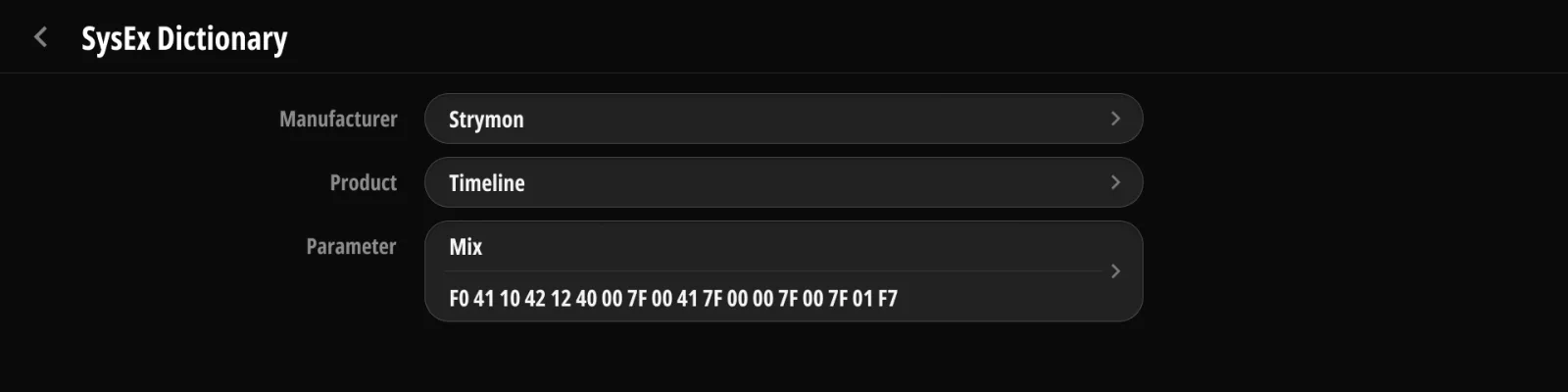
17.6Backup Download / Upload#
Studio’s User Setting tab has a Firmware & Data group with Backup (read everything off the device into the open backup) and Restore (write the backup back, replacing all device data) — the desktop counterpart of §15.3 Firmware & Data, and the same transfers as Download and Upload in §17.4 Backups, Download and Upload. For an off-device archive, or to move a configuration between units, use Export and Import… on the Backups page. A Factory Reset is also here (Reset, confirmed with Erase device); as on the unit, it leaves the unit’s internal backup and your Studio backups untouched.
Chapter 18
Firmware Update#
18.1Update Procedure#
Firmware updates are delivered through Judahs Studio:
- Connect the unit to your computer via USB. Wireless connections can’t carry an update; Studio says so and greys the button out.
- Open Judahs Studio → Update. The app checks for the latest release and shows the installed version next to it. If test firmware has been assigned to your account, a Test tab appears beside Production.
- Press Update. The unit switches to its update screen, installs the new firmware, checks it and restarts. Allow about a minute to a minute and a half.
While the update runs, Studio shows an overall progress bar and the file it is working on, and the unit’s display shows the current and new firmware versions with its own progress bar; at 100 % the unit restarts on the new firmware by itself.

Everything inside the unit, the MIDI dictionary included, is updated in the same run — no separate steps required.
18.2Cautions & Recovery#
- Do not power off during an update.
- If the connection drops mid-update, the unit stays on its update screen. Power-cycle it, reconnect the USB cable and press Repair.
- Repair (next to Update) first asks what to fix: Processor, Storage, Display or Everything. Processor reinstalls the internal firmware and leaves your data and the screen alone. Storage restores your presets and settings from a backup you pick. Display reinstalls the screen files. Everything runs all three, ending with the backup choice. Repair works even when the unit no longer starts: Studio then shows Recovery mode and offers Processor only, since a unit in that state cannot take a backup. Allow several minutes; when nothing is wrong, Studio tells you so.
- After a Display repair, power the unit all the way off and on. Reinstalled screen files only take effect on a cold start, so take the power out for a moment and put it back. Reconnecting the USB cable or restarting Studio is not enough, and the screen may look wrong until you do it. Studio reminds you of this when the repair finishes.
- If Repair completes and the unit still misbehaves, the cause is likely hardware — contact support (Appendix D).
Part IV
Troubleshooting#
Faults on a pedalboard come from a small set of causes, and the unit tells you about most of its own. This part starts with the start-up screens, then works outward through sound, switching, MIDI, noise and the editor.
Chapter 19
Troubleshooting#
The checks in each section are ordered, most likely cause first. Change one thing at a time and listen again before moving on — two changes at once hide which one mattered.
19.1Start-up#
The screen stays dark
The unit runs on 9 V DC, center negative (Appendix A). Try another outlet on your power supply and another cable: a barrel plug that works in a different pedal can still have a broken joint. An outlet shared with several pedals may have nothing left to give, and a 500 mA outlet is not enough even on its own: give the unit an outlet rated 1 A or more, and let it have that outlet to itself.
STORAGE ERROR, with a Factory Reset button
The unit could not open its own storage. Touch Factory Reset and confirm with Erase Everything. That clears every bank, preset and setting, so put your data back from a backup afterwards (§17.4 Backups, Download and Upload). The unit restarts on its own once the reset finishes.
CANNOT START, with a Try Again button
A factory reset has already run and the storage still did not open. Touch Try Again. If the same screen comes back, connect the unit to Judahs Studio over USB and run Repair → Storage (§18.2 Cautions & Recovery) — Studio reaches the unit even while this screen is up.
Hardware fault — Service required
Several resets in a row have failed, which points at the storage hardware rather than your data. Contact support (Appendix D).
The unit keeps restarting before it reaches the Main Page
Damaged data can bring the unit down during start-up. It notices after a few attempts and stops at the STORAGE ERROR screen above, where a factory reset and a restore from backup will clear it.
The unit stays on the firmware update screen
The update lost its connection part-way. Power the unit off and on, reconnect the USB cable, and press Repair in Studio (§18.2 Cautions & Recovery).
Sound and switching work, but the screen is frozen or blank
Power the unit fully off and on — all the way out of the wall, not just the USB cable. If the screen stays wrong, reinstall the screen files with Repair → Display (§18.2 Cautions & Recovery).
19.2No Sound at All#
- Check the two jacks that matter. Guitar into IN (Jack 1, top socket — the bottom one is Aux In or Tuner Out), amp from OUT L (Jack 11, top socket). Each rear position is a stacked pair, and the top/bottom pair is easy to miss in the dark (§2.2 Rear Panel).
- Take your pedals out of the picture. Hold F for Manual Mode (§5.4 Manual Mode) and turn every loop off. If the sound comes back, the fault is in one of the loops, not in the unit — switch them on one at a time to find it.
- Look for a dead-end loop. An empty loop passes signal straight through, so an unused loop cannot break the chain. A loop with a cable in its Send and nothing in its Return is a different matter: that is where your signal stops. Check the Return cable of every loop you are using.
- Check the Insert loop. In a 4CM rig the Insert loop holds your amp’s preamp, so switching Insert off leaves you with the power amp alone and almost no sound (§4.4.2 Insert Off).
- Check Input Select. An action can point the input at Aux In (§9.4.3 Input Select). With your guitar in the top socket and the action set to Aux, nothing reaches the chain — set it back to Guitar In (§3.9 Tuner Out and Aux In).
- Check the tuner. With Mute While Tuning on, the outputs stay muted while the tuner page is open (§10.2 Tuner). Any footswitch press leaves the tuner.
- Check the routing mode. In SPLIT, the two halves of a stereo loop are separate loop positions, and a preset can have one half on and the other off (§3.3 Stereo Modes). In mono, leave Out R empty and the right channel is summed into Out L — a cable in Out R that goes nowhere is worse than no cable at all.
19.3The Sound Is Wrong#
| Symptom | Where to look |
|---|---|
| Only one side of a stereo rig plays | Stereo mode of the loop (§3.3 Stereo Modes), Out R wiring (Appendix B), and whether the preset has both halves on in SPLIT |
| Dull or weak with long cables | Input buffer off (§3.4 Input Buffer), or an action that switches the buffer off (§9.4.4 The Action Toolbar) |
| A fuzz sounds wrong or thin | Mark its loop as the Fuzz loop and place it first in the chain, which takes the buffer out of its way (§3.5 Fuzz Mode) |
| Delay and reverb tails cut off on preset change | Trails work on Loops 6–8 only, the loop must not be split, and the tail only holds when the change turns that loop from on to off (§3.6 Trails) |
| Volume jumps between presets | Different loops are active — compare the chain strips of the two presets on the Main Page (§5.1 Reading the Main Page) |
| The chain order on screen is not what you hear | The order is per preset (§9.4.2 Reordering the Chain); the Default order lives in Audio (§10.4 Loop Chain) |
| Almost no sound in a 4CM rig | Insert is off, so the amp’s preamp is out of the path (§4.4.2 Insert Off) |
19.4Switching Behaves Unexpectedly#
Changing bank does nothing
That is how it works. Bank Up/Down changes what the display shows, and your sound keeps running until you press a switch in the new bank (§5.3 Bank Up / Down).
A preset does not change the loops
Its Affect Loop setting is off, which means the action sends its messages and leaves the chain alone (§9.4.4 The Action Toolbar). Turn it on for presets that should own the routing.
One loop ignores every preset
It is locked. A locked loop holds its Default value and does not respond to presets or to a tap on the tile (§3.8 Lock and Independent).
A loop stays on after the preset changed
Either its Default is on (§3.7 Default and Override), or a Stomp switch is still engaged. A Stomp switch keeps its own on/off state until you press it again — tapping the tile on screen does not release it (§9.7.1 Stomp mode).
A combination press does not register
Press both switches together and let them go; the combination fires when the second switch comes up (§9.1 The 20-Switch Model). Only the eight adjacent pairs work, and a switch set to Tap Tempo cannot take part in one, because it acts the moment it goes down (§5.7 Tap Tempo).
A switch does something other than its name
A global preset may be overriding it. Global actions fire instead of the local one unless the switch is set to Re-press (§9.7 Global Presets).
19.5MIDI and Control Outputs#
| Symptom | Where to look |
|---|---|
| A pedal ignores everything | Its MIDI channel against the message’s channel (§9.5.2 Channel Picker & Pedal Binding) and the device channel (default 16, §12.1 Channel) |
| A TRS-MIDI pedal ignores everything | Wiring standard: Type A, Type B, Tip Active or Ring Active (§13.4 MIDI Out (Type A / B / Tip / Ring Active)) |
| Only the first message of a preset arrives | The pedal cannot take messages that fast — raise Inter-Message Delay (§12.3 Safety & Compatibility) |
| A USB device is not recognized | One device per Host port, each on its own power supply, and no hubs (§2.2 Rear Panel) |
| The unit ignores incoming MIDI | PC Rx / CC Rx switches (§12.2 Receive), the sending channel, and the CC map (Appendix C) |
| Notes hang after a preset change | Turn on All Notes Off on Preset Change (§12.3 Safety & Compatibility) |
| The amp switches to the wrong channel | Invert Polarity on the relay jack (§13.3 Relay) |
| An expression pedal has dead travel or a ceiling | Calibrate it (§14.3 Calibration) and check TRS / RTS wiring (§13.1 EXP Jack (TRS / RTS)) |
| An external switch fires twice | It is a latching switch; use a momentary one (§13.2 External Switches (Dual / Single)) |
| MIDI Clock does not reach a pedal | Per-port clock transmit switches (§12.5 Clock) and the pedal’s own clock setting |
19.6Noise#
Noise is easier to place by its character than by where it appears. Unplug the unit from your pedals and listen to the rig without it — that single test separates a noise the unit makes from a noise it is passing on.
- Low hum that follows the volume — a ground loop between the unit, your amp and a pedal. Use one power supply with isolated outputs for the whole board, and keep the amp on the same wall outlet as the board. A stage light dimmer on the same circuit adds a harsher buzz on top.
- Hiss that rises with gain — your gain pedals amplifying the noise floor ahead of them. Order matters here: a noisy pedal early in the chain is heard by everything after it (§9.4.2 Reordering the Chain).
- A thin whistle or whine — switching power supplies and digital gear. Keep the power supply and its cables away from guitar cables and pickups, and give the unit an outlet that no digital pedal shares.
- A click or pop when a loop switches — normal on any switcher at a low level, but a loud pop usually means a pedal with DC on its jacks or a battery-powered pedal running flat. Find it by switching loops one at a time in Manual Mode (§5.4 Manual Mode).
- Crackle when you move a cable — the cable or the socket, not the unit. A plug that feels loose in its socket is the usual culprit.
- Radio, phone chatter or a buzz that comes and goes — a phone or a wireless pack sitting on the board. Move it and listen again.
19.7Judahs Studio Does Not Find the Unit#
- USB — the cable goes to the DEVICE port, never to a Host port (§2.2 Rear Panel). A charge-only cable has no data lines in it, so try another cable before anything else.
- Wi-Fi — the unit makes its own access point rather than joining your network. Switch Wi-Fi AP on (§16.1 Radio (Bluetooth · Wi-Fi AP)), then join that network from your computer. Out of the box the network is Koinos8_ plus four characters unique to your unit, and the password is koinospls8.
- Bluetooth — pair from the unit’s Paired Devices list (§16.1 Radio (Bluetooth · Wi-Fi AP)). The unit keeps up to three devices connected, so the tablet you use as a page turner can stay paired.
- Updates need the cable. Firmware updates run over USB only, and Studio greys the button out on a wireless connection (§18.1 Update Procedure).
- Edits are not appearing on the unit. Live Sync has to be on (§17.3 Live Sync).
19.8Before You Contact Support#
Take a backup while the unit still works: Judahs Studio → Backups (§17.4 Backups, Download and Upload) or User Setting → Firmware & Data (§15.3.1 Backup from Device). A backup taken today costs nothing and saves the rest.
If a fault survives a factory reset (§15.3.3 Factory Reset) and a Repair → Everything (§18.2 Cautions & Recovery), it is hardware. Support is at https://judahs.io/support (Appendix D). Tell them your firmware version and what you were doing when the fault appeared, and say whether a power cycle brings it back.
Part V
Appendix#
Appendix A
Specifications#
| Item | Value |
|---|---|
| Product name | Koinos PLS 8 |
| Audio loops | 8 loops: Loops 1–5 mono, Loops 6–8 stereo (or each split into two mono loops, up to 11 mono loops) |
| Insert loop | 1 buffered stereo Insert loop, separate from the 8 loops |
| Routing | Crosspoint matrix — freely reorderable loop chain, per-preset order |
| Inputs | Guitar In · Aux In (shares its socket with Tuner Out) |
| Outputs | Out L · Out R, two separate mono jacks · Tuner Out (shares its socket with Aux In, configurable) |
| Footswitches | 10 built-in + 8 combination presses + 2 external = up to 20 assignable switches |
| Display | 8.88” IPS touch, 1920 × 480 |
| Memory | 150 banks (8 pages) · 1,200 songs · 100 setlists · 20 messages per action |
| MIDI | DIN IN, DIN OUT, TRS MIDI OUT (Type A / B / Tip / Ring Active), USB |
| USB | 2 × USB host (USB-MIDI devices / ToneX One; one device per port, no hub support, connected devices must be self-powered), 1 × USB device (editor, USB-MIDI) |
| Control outputs | Relay control jack (Tip+Sleeve / Ring+Sleeve, independent) |
| Expression | Expression pedal input, TRS jack |
| External switch | Single or dual external switches, TRS jack (tip = Ext-A, ring = Ext-B) |
| Wireless | Bluetooth LE (page turner, editor) · Wi-Fi 2.4 GHz access point (editor) · AirMIDI 2.4 GHz broadcast link |
| Antenna | External, 2 dBi, rear panel |
| Tuner | Built in, full screen and a mini tuner while playing · Tuner Out always on (configurable) |
| Power | 9 V DC, center negative, 1 A or more |
| Dimensions | 290 × 120 × 86 mm (11.42 × 4.72 × 3.39 in) — width × depth × height, depth measured without the antenna |
| Weight | 1.44 kg (3.17 lb) |
Appendix B
TRS Jack Pinouts#
Each rear-panel position is a stacked pair of ¼” TRS sockets. The table names the top and bottom socket of each pair; the sleeve of every socket is ground.
| Jack (panel label) | Top socket | Bottom socket |
|---|---|---|
| 1 · IN / TUNER | Guitar In (tip) | Aux In / Tuner Out (tip, configurable) |
| 2 · SND 1 / RTN 1 | Loop 1 Send (tip) | Loop 1 Return (tip) |
| 3 · SND 2 / RTN 2 | Loop 2 Send (tip) | Loop 2 Return (tip) |
| 4 · SND 3 / RTN 3 | Loop 3 Send (tip) | Loop 3 Return (tip) |
| 5 · SND 4 / RTN 4 | Loop 4 Send (tip) | Loop 4 Return (tip) |
| 6 · SND 5 / RTN 5 | Loop 5 Send (tip) | Loop 5 Return (tip) |
| 7 · INS S / INS R | Insert Send — L tip, R ring | Insert Return — L tip, R ring |
| 8 · SND 6 / RTN 6 | Loop 6 Send — L tip, R ring | Loop 6 Return — L tip, R ring |
| 9 · SND 7 / RTN 7 | Loop 7 Send — L tip, R ring | Loop 7 Return — L tip, R ring |
| 10 · SND 8 / RTN 8 | Loop 8 Send — L tip, R ring | Loop 8 Return — L tip, R ring |
| 11 · OUT L / OUT R | Out L (tip) | Out R (tip) |
| 12 · EXP / EXT SW | Expression pedal — TRS or RTS (§13.1 EXP Jack (TRS / RTS)) | External switches — Ext-A tip, Ext-B ring |
| 13 · RLY / MIDI | Relay control — T+S tip, R+S ring | TRS MIDI Out — Type A / B / Tip / Ring (§13.4 MIDI Out (Type A / B / Tip / Ring Active)) |
- A stereo-capable loop in mono mode uses the tip only, like Loops 1–5.
- With no plug in a Return socket, the Send signal passes straight through to it, so an empty loop does not break the chain.
- With no plug in Out R, the right channel is summed into Out L. For a mono rig, connect Out L only.
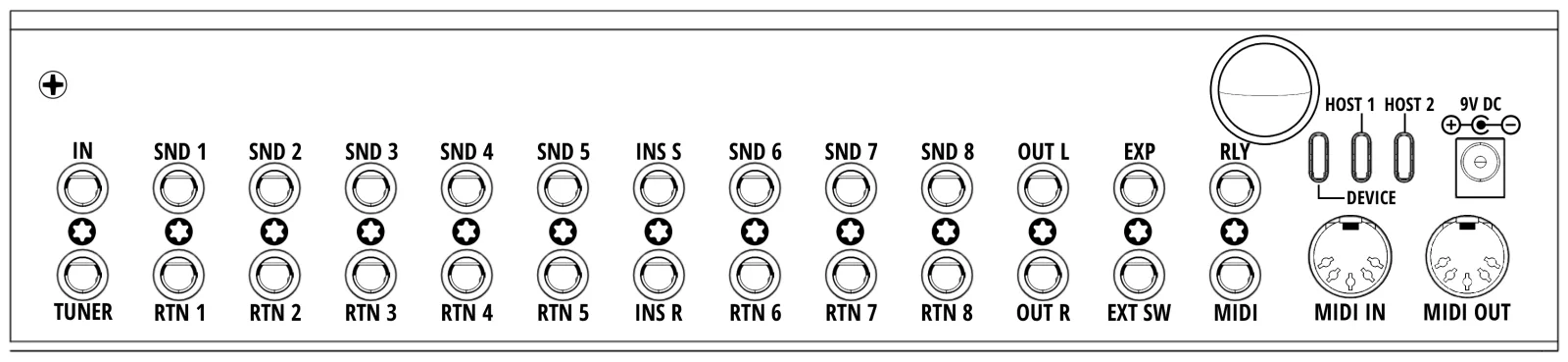
Appendix C
MIDI Implementation#
C.1Implementation Chart#
| Function | Transmitted | Recognized | Remarks |
|---|---|---|---|
| Basic channel — default | 1–16 | 1–16 | Device MIDI Channel, default 16 (§12.1 Channel) |
| Basic channel — changed | 1–16 | 1–16 | Per-message channel override (§9.5.2 Channel Picker & Pedal Binding) |
| Program Change | 0–127 | 0–127 | Received PC selects a bank (§C.2) |
| Bank Select (CC 0) | ○ | ○ | Not added to a PC automatically — send it as a CC 0 message ahead of the PC (§9.6.2 CC — Control Change (Static / Dynamic)); received per Bank Select Rx (§12.2 Receive) |
| Control Change | 0–127 | 0–127 | Received CCs follow the map in §C.3 |
| Note On | ○ | × | 0x9n + note + velocity |
| Note Off | ○ | × | 0x8n + note + velocity (not Note On with velocity 0) |
| Aftertouch, Pitch Bend | × | × | |
| System Exclusive | ○ | × | Sent on DIN OUT, TRS MIDI OUT and USB; incoming SysEx is ignored |
| Clock | ○ | ○ | 24 PPQN; per-port transmit switches and external-clock follow (§12.5 Clock) |
| Start / Stop / Continue | ○ | × | Sent by the Transport message type (§9.6.5 Transport) |
| Active Sensing, Reset | × | × |
○ = supported × = not supported
C.2Program Change → Bank#
| Received | Selects |
|---|---|
| PC 0–127 | Bank 1–128 |
| CC 0 = 1, then PC 0–21 | Bank 129–150 |
The formula is bank = (CC 0 value × 128) + PC + 1. A received CC 0 is held until the next Program Change arrives, then cleared. With Bank Select Rx set to Off, only the plain PC number applies.
C.3CC Receive Map#
Incoming Control Change messages on the device MIDI channel control the unit directly. CC Rx must be on (§12.2 Receive). The same table is available on the device under MIDI → MIDI Receive Map.
Audio routing — CC 48–62
| CC | Value | Controls |
|---|---|---|
| 48–52 | 0–63 = off, 64–127 = on | Loop 1–5 |
| 53 | 〃 | Loop 6 (L side when split) |
| 54 | 〃 | Loop 6 R — split mode only |
| 55 | 〃 | Loop 7 (L side when split) |
| 56 | 〃 | Loop 7 R — split mode only |
| 57 | 〃 | Loop 8 (L side when split) |
| 58 | 〃 | Loop 8 R — split mode only |
| 59 | 〃 | Insert (L side when split) |
| 60 | 〃 | Insert R — split mode only |
| 61 | 〃 | Input buffer |
| 62 | 0–63 = Tuner Out, 64–127 = Aux In | Jack 1 ring function |
Relay — CC 63, 65
| CC | Value | Controls |
|---|---|---|
| 63 | 0–63 = off, 64–127 = on | Relay Tip + Sleeve |
| 65 | 〃 | Relay Ring + Sleeve |
CC 64 is skipped because the MIDI specification reserves it for sustain.
Navigation — CC 70–76
| CC | Value | Controls |
|---|---|---|
| 70 | 0–63 = off, 64–127 = on | Tuner |
| 71 | any | Bank Up |
| 72 | any | Bank Down |
| 73 | any | Page Up |
| 74 | any | Page Down |
| 75 | any | Tap Tempo |
| 76 | 0–7 | Jump to page 1–8; values past the current Max Page (§6.4 Pages (Max Page)) are ignored |
Switch triggers — CC 80–89
| CC | Value | Controls |
|---|---|---|
| 80–89 | 0–63 = Tap, 64–127 = Hold | Switches A–J |
Modes and clock — CC 90–95
| CC | Value | Controls |
|---|---|---|
| 90 | 0–63 = bank mode, 64–127 = setlist mode | Setlist Mode |
| 91 | 0–63 = off, 64–127 = on | Manual Mode |
| 92 | any | Clock Preset Up |
| 93 | any | Clock Preset Down |
| 94 | 0–29 | Jump to clock preset in the active group |
| 95 | 0–19 | Jump to clock preset group |
CC numbers 66–69 and 77–79 are unassigned. The map is fixed and cannot be re-assigned.
Incoming control works over MIDI IN (DIN) and the USB-C port. Both share the same MIDI channel and the same PC Rx / CC Rx switches. The two USB Host ports are for driving the gear you plug into them (§2.2 Rear Panel). MIDI coming back from that gear is processed, but it is not a supported remote-control path; use MIDI IN or USB-C for control.
Appendix D
Warranty and Support#
D.1Limited Warranty#
Every Judahs product carries a limited warranty of two years from the date of purchase. The warranty covers the original purchaser and applies to manufacturing defects that appear under normal use. If a defect is confirmed, Judahs repairs or replaces the unit free of charge.
D.2What the Warranty Does Not Cover#
- Damage from improper use, accidents, unauthorized modification, or poor maintenance.
- Cables, power supplies, cases, and other consumable items.
- Units acquired second-hand — the warranty stays with the original purchaser and cannot be transferred.
- Data loss or malfunction caused by a modified backup file (§15.3.2 Restore to Device, §17.6 Backup Download / Upload).
D.3Requesting Service#
- Write to cs@judahs.io with proof of purchase and a description of the problem.
- Once the request is approved, ship the unit to the service center named in the reply. Return shipping may be charged depending on the case.
- Repairs outside the warranty period are quoted at a reasonable cost before any work begins.
Before requesting service, check that the firmware is current (Chapter 18) — some problems clear with an update.
D.4Support#
https://judahs.io/support · cs@judahs.io
Appendix E
Legal Notices#
Judahs products are designed and manufactured to industry standards. Purchasing and using a Judahs product means accepting the terms below.
Intellectual property. The design, software, and trademarks of this product belong to Judahs. Reproducing, modifying, or distributing any part of them without permission is prohibited.
Limitation of liability. Judahs is not liable for incidental or consequential damage arising from improper use. Liability is limited to the purchase price of the product.
Regulatory compliance. This product is certified under FCC (United States), CE (European Union) and KC (Republic of Korea). Complying with local law and any restrictions on electronic devices remains the responsibility of the user.

Trademarks. ToneX is a trademark of IK Multimedia. Strymon is a trademark of Damage Control Engineering. Bluetooth is a registered trademark of Bluetooth SIG. Wi-Fi is a registered trademark of Wi-Fi Alliance. Other product and company names in this manual are trademarks of the companies that own them, used here only to describe compatibility.
Policy changes. Judahs may revise these terms. The current version is published on the Judahs website.
For legal enquiries, write to cs@judahs.io.
Koinos PLS 8 User’s Manual — Draft 0.6. © 2026 Judahs. All rights reserved.

